CHAPTER 6 - Settings
101
Chapter
1
Chapter
2
Chapter
3
Chapter
4
Chapter
5
Chapter
6
Chapter
7
Chapter
8
High-Definition DVRs
System Setup
Note: To change your screen format and resolution temporarily, press INFO on your
remote, select “Audio/ Video” from the Channel Banner and select “Change Resolution
& Format”.
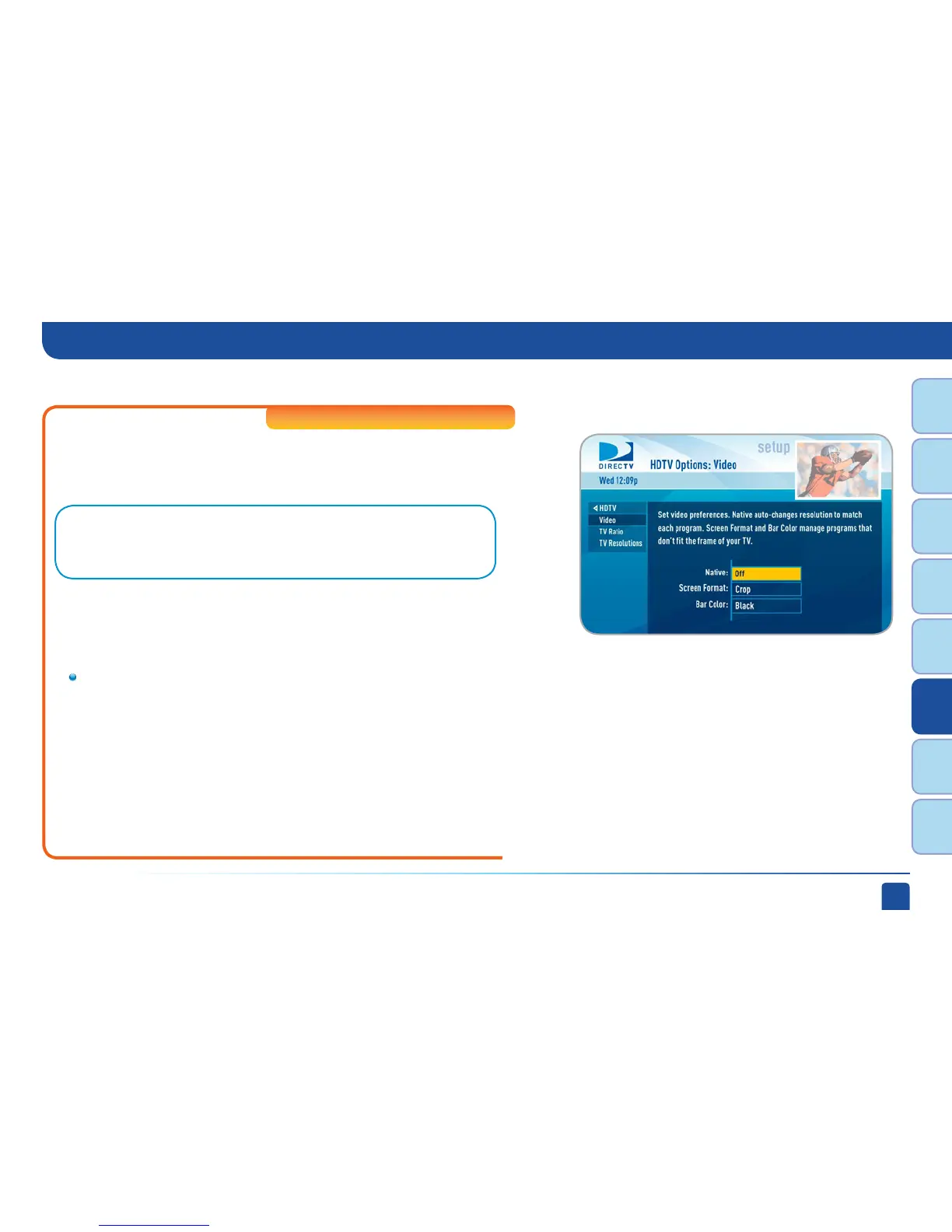
Select “HDTV” and then select either “Video”, “TV Ratio” or “TV Resolution”.
Before you get started, you may want to review Appendix 3, About High-
Definition, which describes HD formats and resolutions.
Set your preference for the following screen options: Native, Screen
Format and Bar Color.
Native: You can turn Native mode ON or OFF. When Native Mode is
ON, your TV auto-changes to match the resolution of the program
coming into the receiver. For example, if Native mode is ON and a
program is being broadcast in 480p, your High-Definition Receiver
tells the TV to show it in that same format. If the next program
changes to 1080i, the receiver tells the TV to change to that format.
Native mode slows down the system’s response time to channel
changes since the receiver and TV must adjust the picture resolution
at every channel change. Because of this, the default setting is OFF.
When Native Mode is OFF, your receiver will display the program at
the highest resolution set on the “TV Resolutions” screen.
Video
HDTV



 To Next Page