CHAPTER 2 - Channels & Program Info
33
Chapter
1
Chapter
2
Chapter
3
Chapter
4
Chapter
5
Chapter
6
Chapter
7
Chapter
8
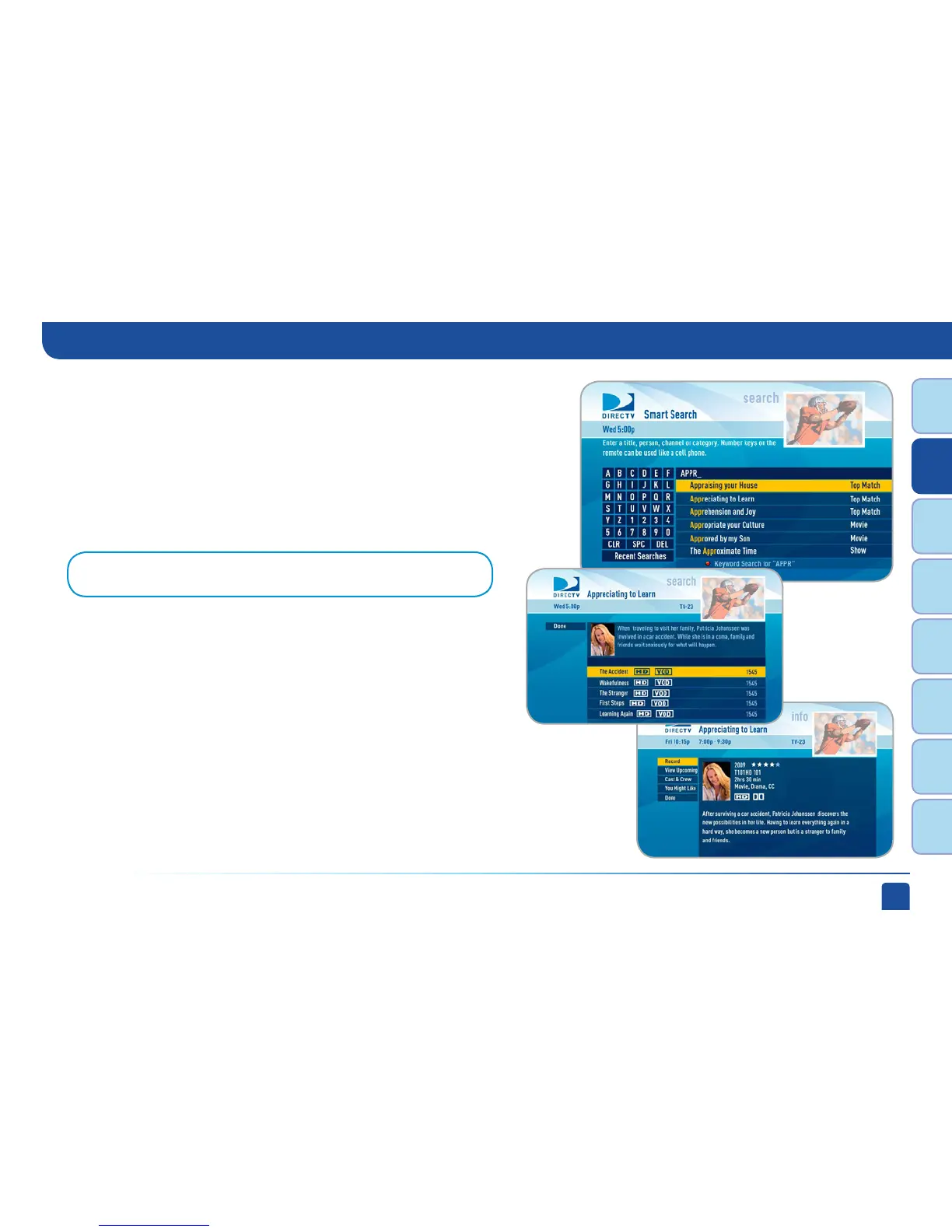
Results appear as soon as you type in the first letter of your search term; but
with each character entered, your results become more precise. The first
three results are “Top Match” -- we anticipate what you are entering and try
to get you to your results more quickly. The label on the right side of each
title tells you what type of content it is. The content types are: Movie, Show,
Person, Channel #, Category , Keyword or YouTube. When you see what
you’re looking for in the results list, highlight it and press SELECT.
If you select a Movie or Show
A list of all upcoming airings of the movie or show displays with a short
description of the program at the top of the screen. Highlight an airing and
press the orange REC (record) button on your remote to schedule it to record.
Alternately, press SELECT on a highlighted listing for detailed program info
and additional options.
A few options you may want to try are “Cast & Crew” and “You Might Like”.
Cast & Crew provides you with the actors, directors, producers, composers,
etc. that worked on the movie or show. Select a person’s name for a list of
their other programs available in the program guide. “You Might Like” offers
titles of shows that are similar to the current program, such as prequels and
sequels, as well as shows with related or similar themes.
Search Results:
Note: Your HD DVR must be connected to the Internet to display YouTube videos.
Smart Search (High-Definition DVRs)



 To Next Page