CHAPTER 3 - DIRECTV Cinema
™
& Pay Per View
55
Chapter
1
Chapter
2
Chapter
3
Chapter
4
Chapter
5
Chapter
6
Chapter
7
Chapter
8
If your receiver IS connected to the Internet:
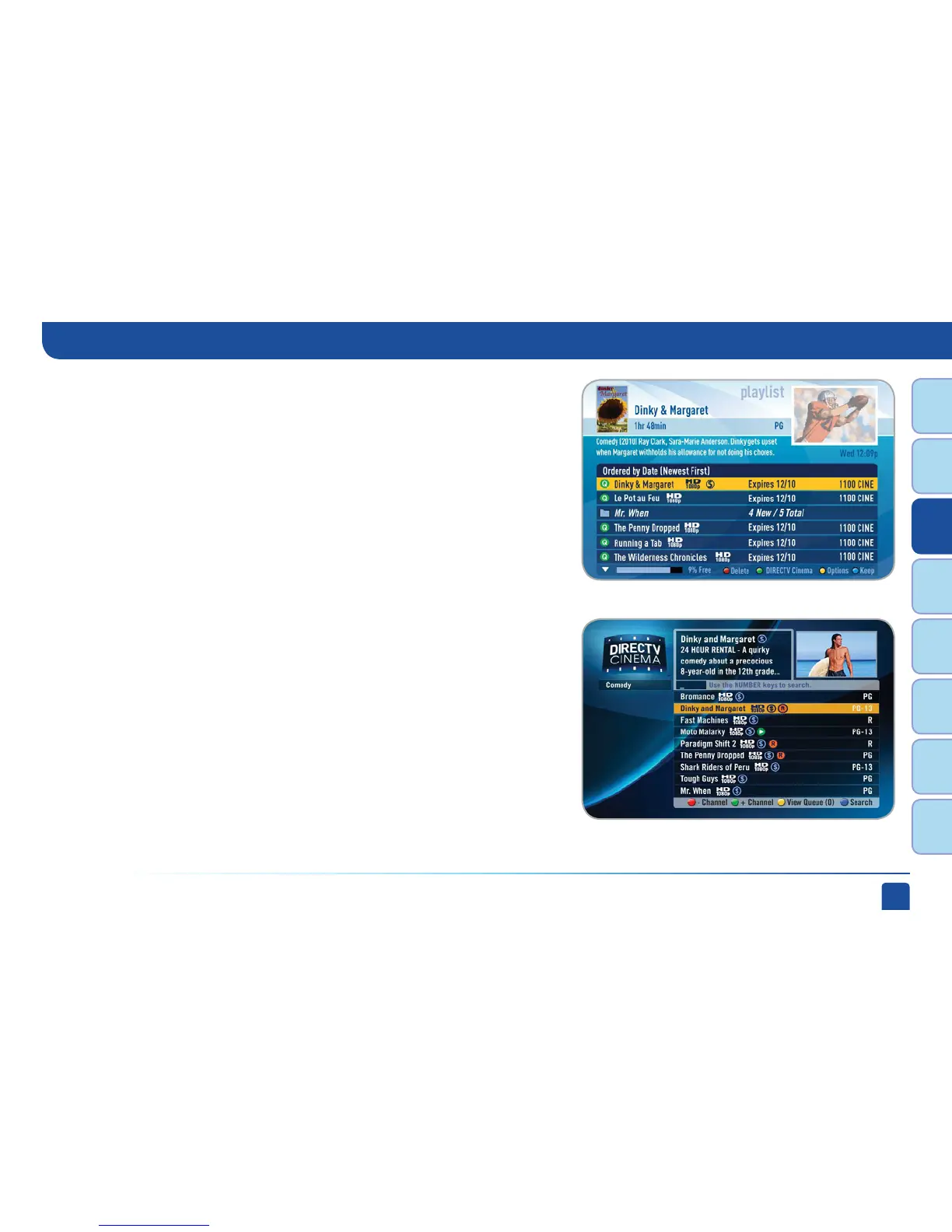
To order a program, highlight a title and press the orange REC (Record) button
on your remote. An orange “R” icon appears next to the title indicating that
it’s scheduled to record/download. You can also schedule a download by
highlighting the title, pressing SELECT and then selecting “Record”.
All programs scheduled to record/download (with the exception of “In
Theaters” titles), as well as those that are ready to watch are displayed in the
Playlist.
Press the LIST button on your remote to access the Playlist. To watch a
movie, highlight a title and press the PLAY button or press SELECT on the
title and then select “Play”. A confirmation message with the price of the
movie will display, asking if you‘re sure you want to watch the movie.
To delete a movie from your Playlist, highlight the title and press the RED
button on your remote. To keep a movie, highlight the title and press the
BLUE button on your remote. This ensures that the movie will not be
deleted by the receiver as your disk drive fills up. Warning: Setting too many
programs to “Keep” may fill up your disk and not allow new programs to be
recorded.
DIRECTV CINEMA (High-Definition DVRs)



 To Next Page