Chapter 3
Page 58
Using the System
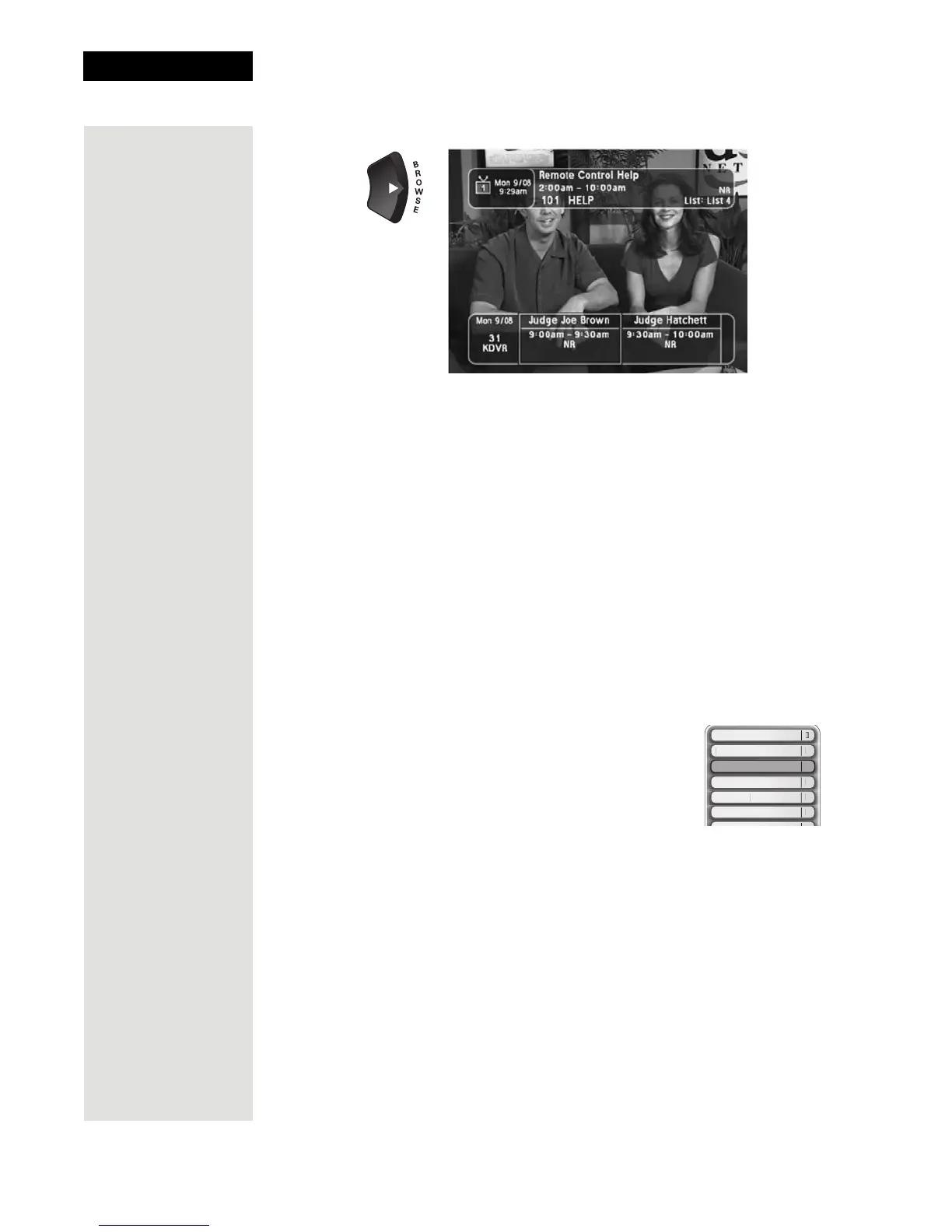
– Display the Browse Banner.
To close a menu and return to watching a program, press either the VIEW LIVE
TV or CANCEL button.
Note: If you do not do anything in a menu for several minutes, the menu
automatically closes. This will discard any changes you made, and display the
program you were watching.
Highlighting Menu Options
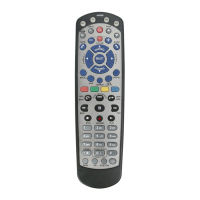
To highlight a menu option, use the remote control ARROW buttons to move
the on-screen highlight to the menu option. When you do move the on-screen
highlight, the option becomes amber. The highlight is like the one that you may
have seen on a computer screen.
Selecting Menu Options
When you select a menu option, that option takes effect right away. You can
select a menu option in either of two ways:
• If the option has a number next to it, press the
number on the
DVR Events
1
v
nt
Guide Display
2
Alternate Audio
4
Updates
5
p
ate
Record Plus
6
ecor
u
uide Displa
t
rn
t
Favorites
3
NUMBER PAD button that
matches this number. When you use the
NUMBER PAD button, you do not need to
highlight the option first.
• Move the highlight to the menu option using the remote control
ARROW buttons. Then press the remote control SELECT button. In
the example,
Favorites is highlighted.
List of Choices in the Menus
When you make a choice in a list, the receiver does not apply the change until
you select the
Save or OK option. If you do not want to save any changes, select
the
Cancel option to discard all the changes made in the menu.







 To Next Page