Page 83
Using the DVR Features
• If you hide adult channels and lock the receiver, this menu doesn’t list
any adult programs by name.
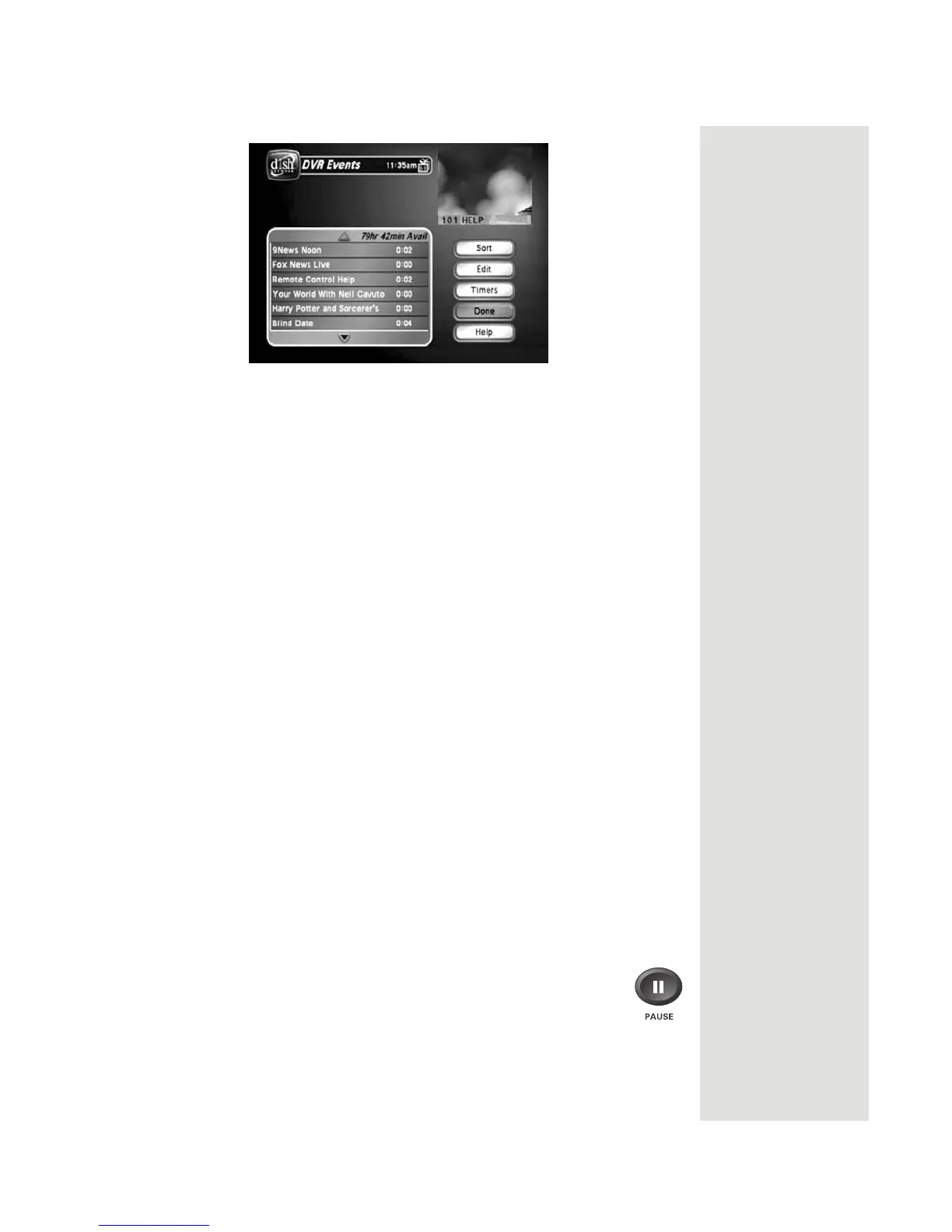
• To review programs you have recorded or have scheduled to record
with the DVR features, use this menu.
The
Tip: Press DVR on
the remote to see a
list of the events
you’ve recorded. To
view one of these
events, just select it.
You can then start
the recording over
from the beginning,
stop or resume play.
DVR Events menu shows you:
• A list of recorded events that includes the one you’re recording now, if
any.
Note: You can sort events either by date or the name of the event.
•
If you select any one of the events on the DVR Events menu (even
an event you’re recording), you open an
information menu for that
event.
Note: This is just an example of the information menu. The information
menu shows only the options for the event you select. For a different
event, you’ll see different options. You’ll see some (not all) of the
options we list below. You won’t see an option to start recording; to do
that, you must press the remote control RECORD button or set an
event timer.
•
Note: If you record a locked program while you have the receiver
locked, you’ll have to enter the password to play back that program.
There are several choices you can make from the
DVR Events screen:
•
Sort—You can sort your DVR Events by Alphanumerics, Movies, Series/
Specials, Sports, Date, Length, or Protected.
•
Edit—You can edit or delete DVR Events.
•
Timers—When you select the Timers option, the Timers screen opens.
While Playing Back or Recording an Event
• Press the PAUSE button to pause the play back. Press this button
again to
go on with the play back.










 To Next Page