10
Displays2go Rev. 10/15/19
Description of Wallpaper Switch
We suggest using a mouse to change the wallpaper.
Connect a mouse with the digital panel through USB port, then follow the steps below:
1. click “Setting”
2. At the setting menu, click “Display”
3. At the Display setting menu, click “Gallery”, or “Wallpaper”
4. Then select an image you would like to set up as background.
5. Confirm the selection by clicking “Set wallpaper”.
File Manager
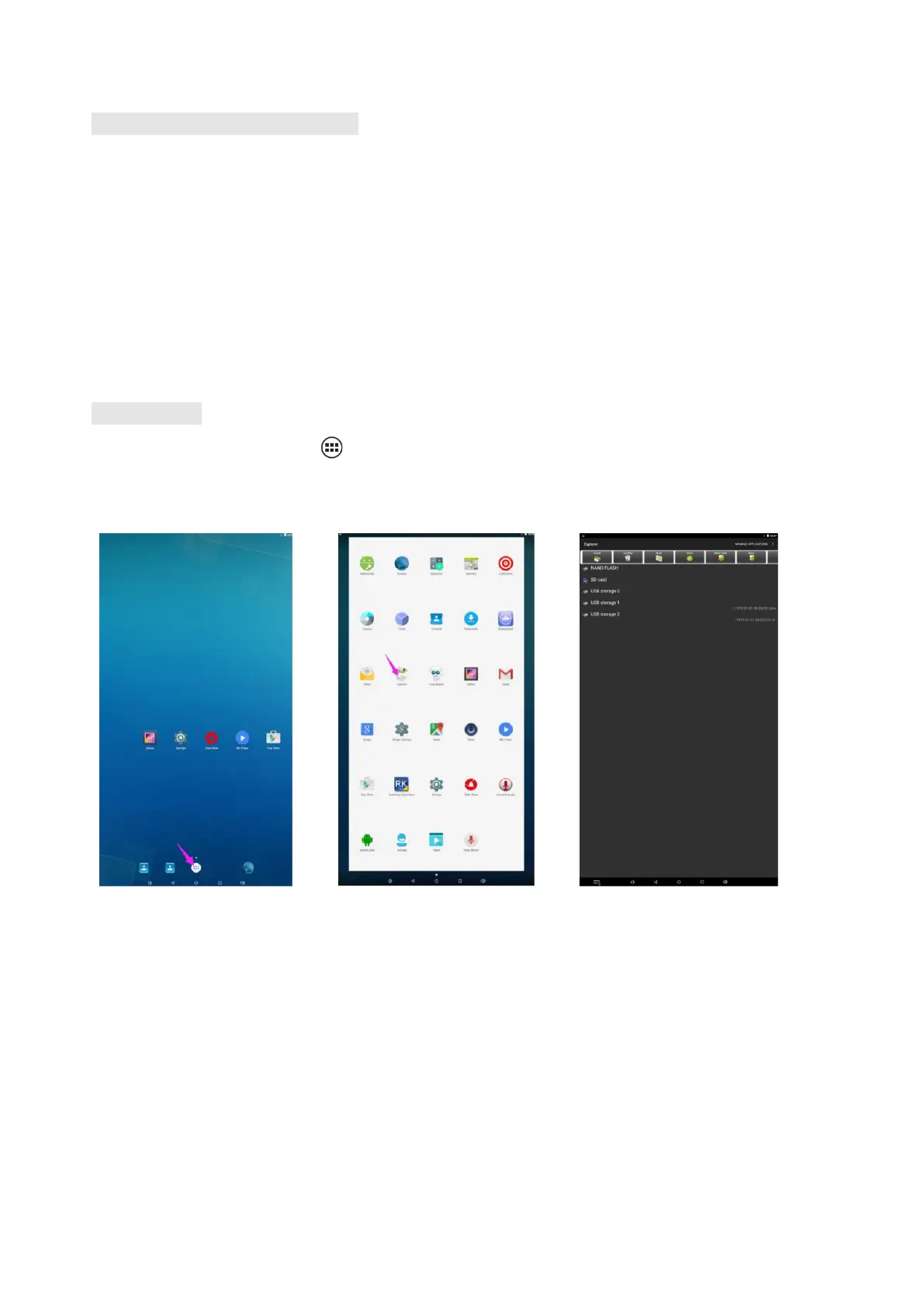
1. Click the Main Apps button “ ” in the Home page to enter the “APPS” menu interface (Fig. 2);
2. Click the “Explorer” icon in the “APPS” menu interface (Fig. 2) and enter “Explorer” menu (Fig. 3);
3. Click options in the “Explorer” menu to read the files from different devices.
Fig. 1 Fig. 2 Fig. 3


 To Next Page