DJI VISION App Usage
©
2014 DJI. All Rights Reserved.
35
(3) Micro-SD card is damaged.
(4) Connection between the DJI VISION App and camera is broken.
[
11
]
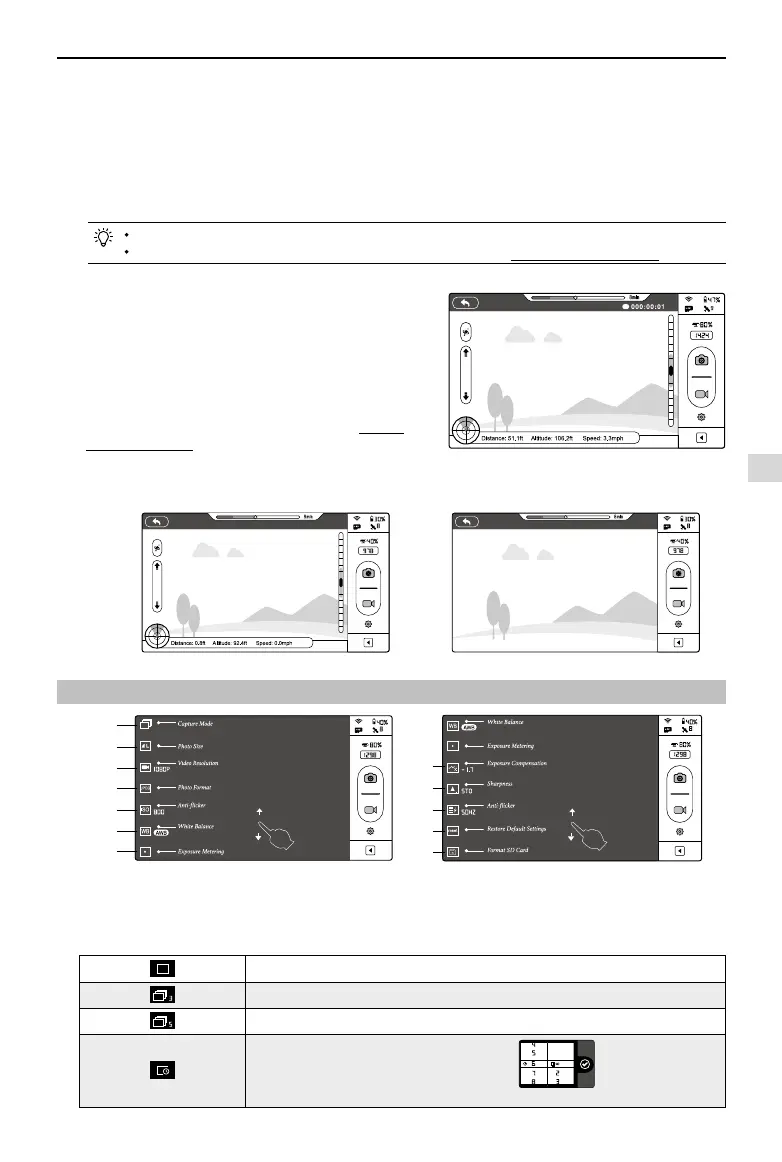
Shutter Button
Tap to take photos.
Single capture: press once for a single capture.
Continuous capture: press once for 3 or 5 captures.
Timed capture: press once to begin a timed capture, press again to stop.
Shutter button is disabled during video recording.
Capture modes can be recongured in camera settings; refer to the Camera Settings (Page35).
[
12
]
Video Recording Button
Start and stop video recording. Tap once to start
recording. A red dot will blink to indicate recording
is in progress and a time code will appear in the top
right corner of the preview screen. Press again to stop
recording.
[
13
]
Camera Settings
Tap to open the camera settings menu, refer to Camera
Settings (Page 35).
[
14
]
Hide or Show Flight Parameters
Tap to hide ight parameters. Tap again to show.
Figure 71
3 Camera Settings
Figure 74 Figure 75
[
1
]
Capture Mode
[
2
]
Photo Size
[
3
]
Video Resolution
[
4
]
Photo Format
[
5
]
ISO
[
6
]
White Balance
[
7
]
Exposure Metering
[
8
]
Exposure Compensation
[
9
]
Sharpness
[
10
]
Anti-icker
[
11
]
Restore Defaults
[
12
]
Format Micro-SD Card
[
1
]
Capture Mode
Single capture.
3 captures.
5 captures.
Congurable timed capture:
a) Interval between shots (3~60 s)
b) Number of shots
(2~254, or number of picture is subject to the capacity of the memory card.)
Figure 72 Figure 73
Camera Settings
[
3
]
[
9
]
[
6
]
[
12
]
[
1
]
[
4
]
[
10
]
[
7
]
[
2
]
[
8
]
[
5
]
[
11
]


 To Next Page