DMXking.com • JPK Systems Limited • New Zealand
0128-700-4.0
7
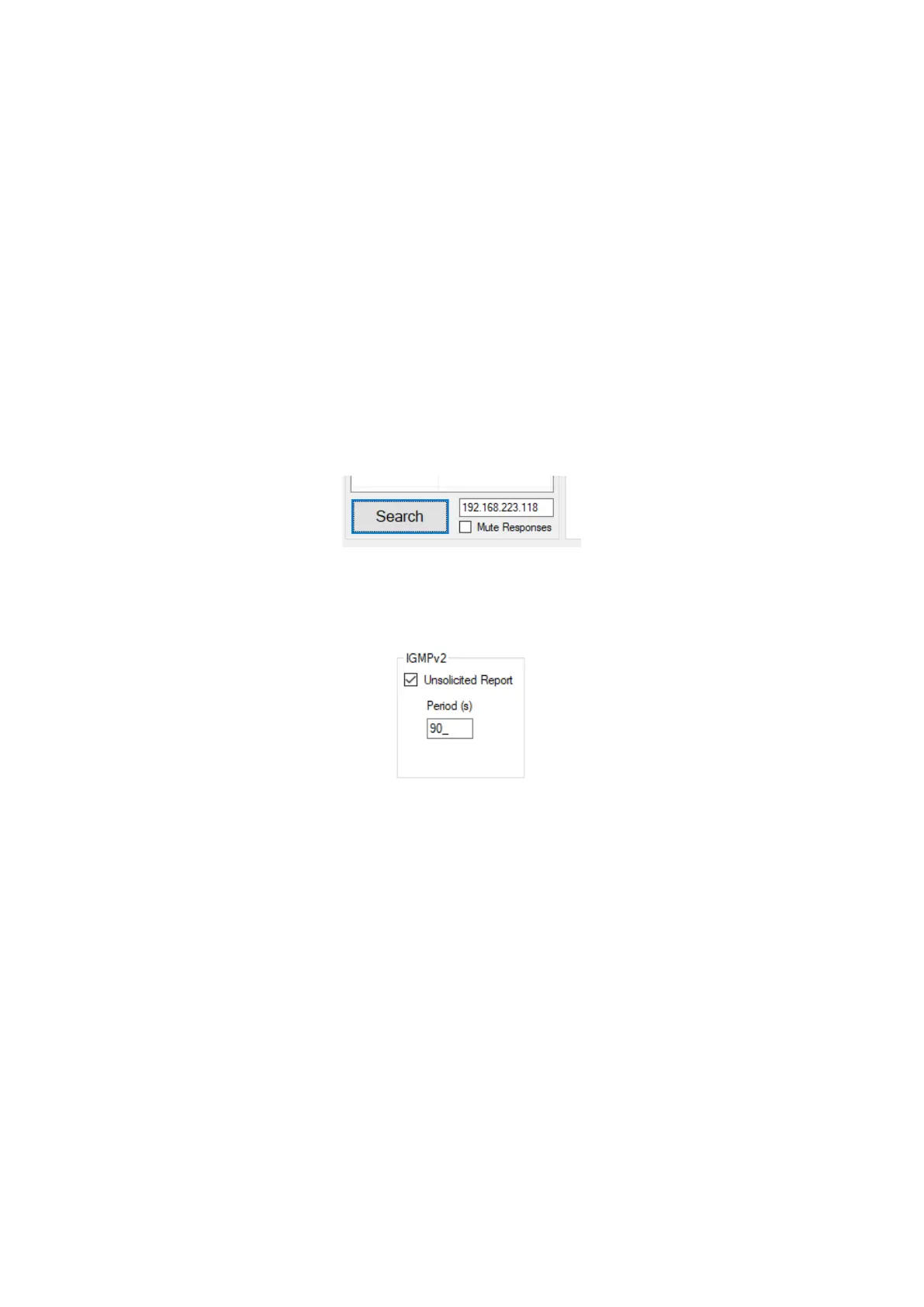
Upon startup eDMX nodes are automatically detected and displayed by IP address. To poll for new devices or just check the
communications is okay by clicking Search. Polling is automatic every 8 seconds but can be disabled through the Advanced | Auto
Device Poll menu option. Mute Responses option prevents any new nodes from being listed regardless of their status on the
network. With large node counts this can be helpful.
Click on the desired node’s entry and all Settings will be retrieved. Note that if no response is received the settings will be greyed
out and no additional tabs visible. An activity box shows both transmitted and received messages to help with diagnosing
communication issues. If your network configuration has multiple adapters and or IP addresses you should select the same
network range as the eDMX from the Network Adapter IP Address dropdown box and also ensure the subnet mask is appropriate.
Settings Broadcast is suppored by eDMX MAX which allows node settings to be updated regardless of the network adapter subnet
range.
Unicast single node discovery and configuration is possible by selecting Advanced | Unicast Poll and entering the destination IPv4
address then click Search. This will function over routed networks provided a Default Gateway has been specified in the node
Network Settings.
eDMX MAX nodes provide IGMPv2 Reports necessary to participate in a multicast environment as necessary for sACN/E1.31
protocol. Sometimes due to network infrastructure issues an IGMP querier is not present and in these situations, you can opt to
have the node generate ongoing unsolicited IGMPv2 Reports.
To change the node Network Settings make applicable changes then click Update Network Settings.
Selecting Firmware Update will prompt for an appropriate firmware file and upload upon confirmation. A built-in boot loader
permits updating of the eDMX firmware. We do not recommend performing firmware updates over routed networks. Note only
signed encrypted firmware files from DMXking.com can be successfully loaded to ensure you won’t brick your device by accident.
Future firmware releases for this product will be in the form 0128-500-VersionMajor.VersionMinor.enc



 To Next Page