English
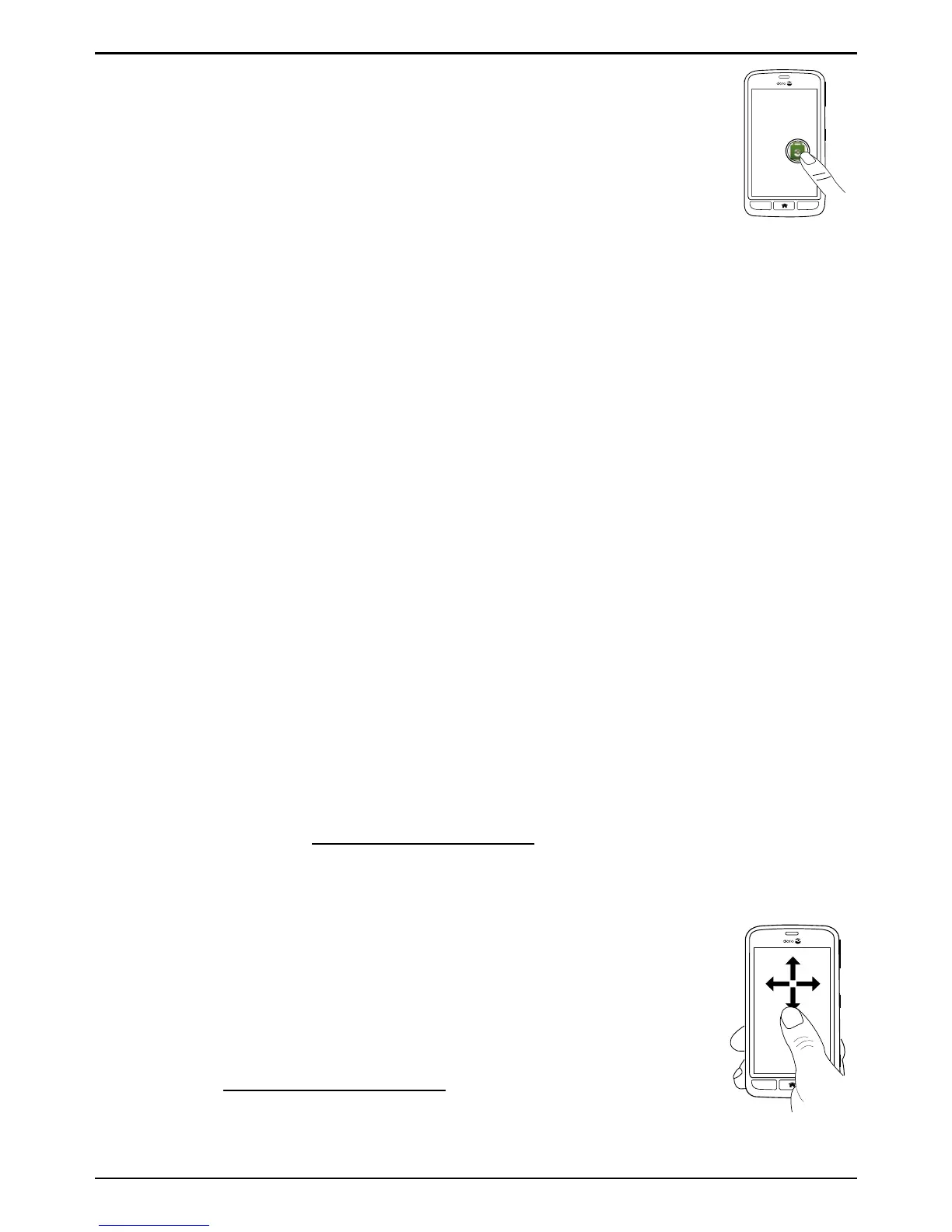
Touch or tap
• Touch or tap an item, such as a button or a program
icon, to select it or to open it. Touch can be used to
select or deselect a relevant tick box in a list of
options.
Double-tap
• Quickly tap the same item twice to zoom in on a map
or an image.
Long press
• Touch and hold an item on the screen. With a long press, you can
perform different actions such as moving an icon on the Home
screen.
Select or deselect options
• Select or deselect (tap) relevant boxes or list option.
Drag and drop
• Dragging and dropping is a way of moving something — for exam-
ple, an app on your Home screen— from one place to another. To
drag, put your finger on an app and hold down. As you move your
finger across your screen, the app is dragged across the screen, or
across several screens. Place your finger where you want the app
to go. Release your finger, and the app will drop there. Drag and
drop is displayed on the screen while dragging, to confirm that you
are doing it right. Drag and drop has to be activated before you
can use it, see Applications list, p.10.
Scroll or Swipe
• A swipe starts with your finger in one on-screen spot
and then you drag it to another on-screen spot.
Swipes can be fast, or they can be slow. Drag or flick
your finger on the screen in the direction you want to
scroll. Swipe has to be activated before you can use
it, see Applications list, p.10.
7


 To Next Page