English
regularly copy your photos from the phone's internal storage to your com-
puter as a form of backup, see Connect the phone to a computer, p.55.
These files are found in the DCIM folder on your phone. DCIM stands for
Digital Camera IMages and it is the default directory structure for digital
cameras and for smartphone cameras.
Your Google account information is set to back up automatically. Follow
below settings to make sure your contacts, system settings, apps, calen-
dar, and email will be restored whenever you set up a new device with
that same Gmail account.
Backup with Google
1. From the Home screen, select Menu
Settings Ad-
vanced settings.
2. Scroll to and select Accounts and select Google
™
.
3. Tap the green synchronization icon next to your Gmail address.
4. Make sure that every wanted item in the list is activated. Each item
needs to be activated if you want them to be backed up.
5. Press
three times to save and return Advanced settings.
6. Select Backup & reset.
7. Make sure that Back up my data is switched on.
To immediately do a backup, tap Backup account.
There are many apps that allow you to backup your photos, applications
and much more. Some apps even offer cloud storage that allows mobile
uploading, and others that allow you to restore your data should you need
to. Try searching
Play Store, see Google
™
Play Store, p.50
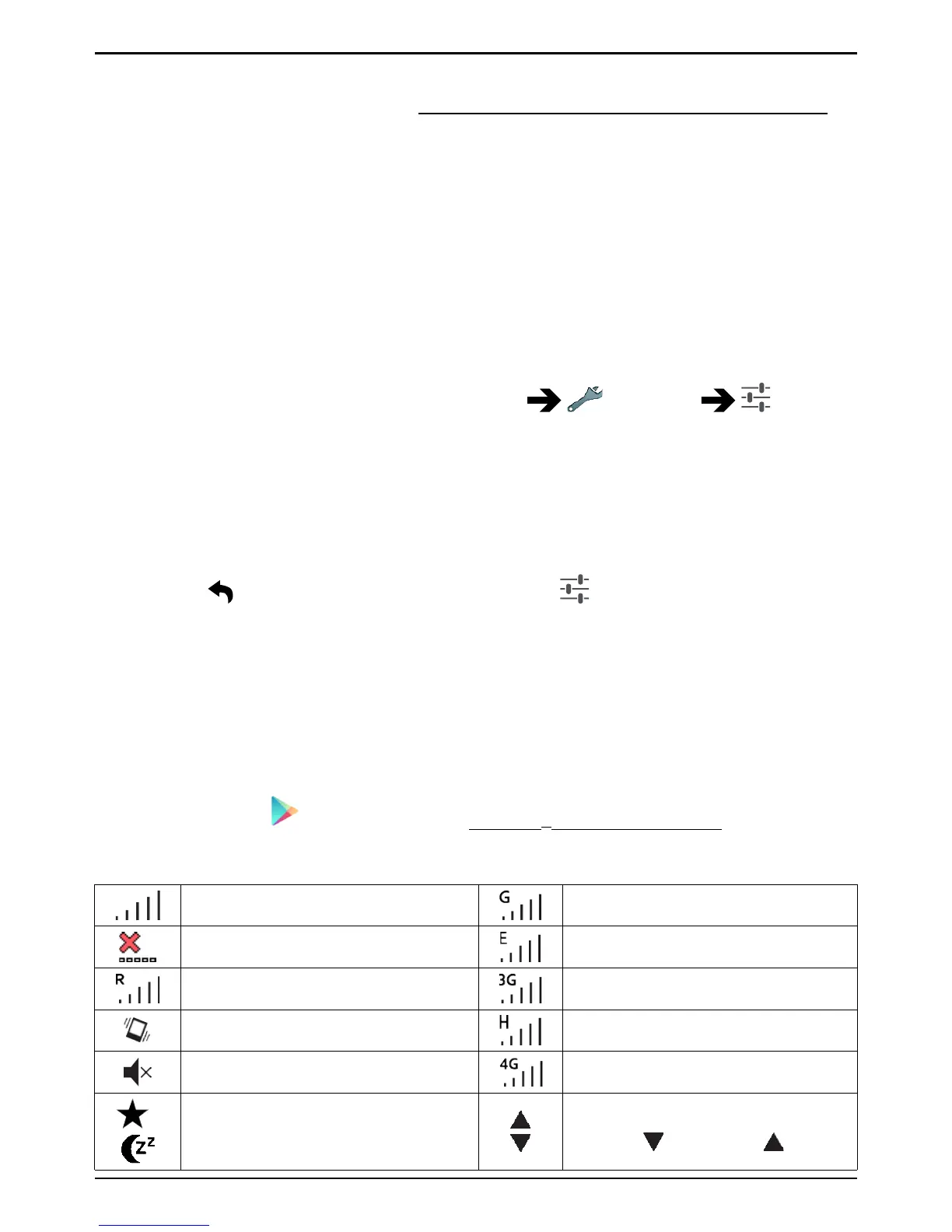
Status icons
Signal strength
2.5G GPRS data
No signal
EDGE data
Roaming (in other network)
3G data
Vibrate mode
HSPA data
Silent mode 4G data
/
Sleep mode
Data transmission:
data in
, data out .


 To Next Page