1514
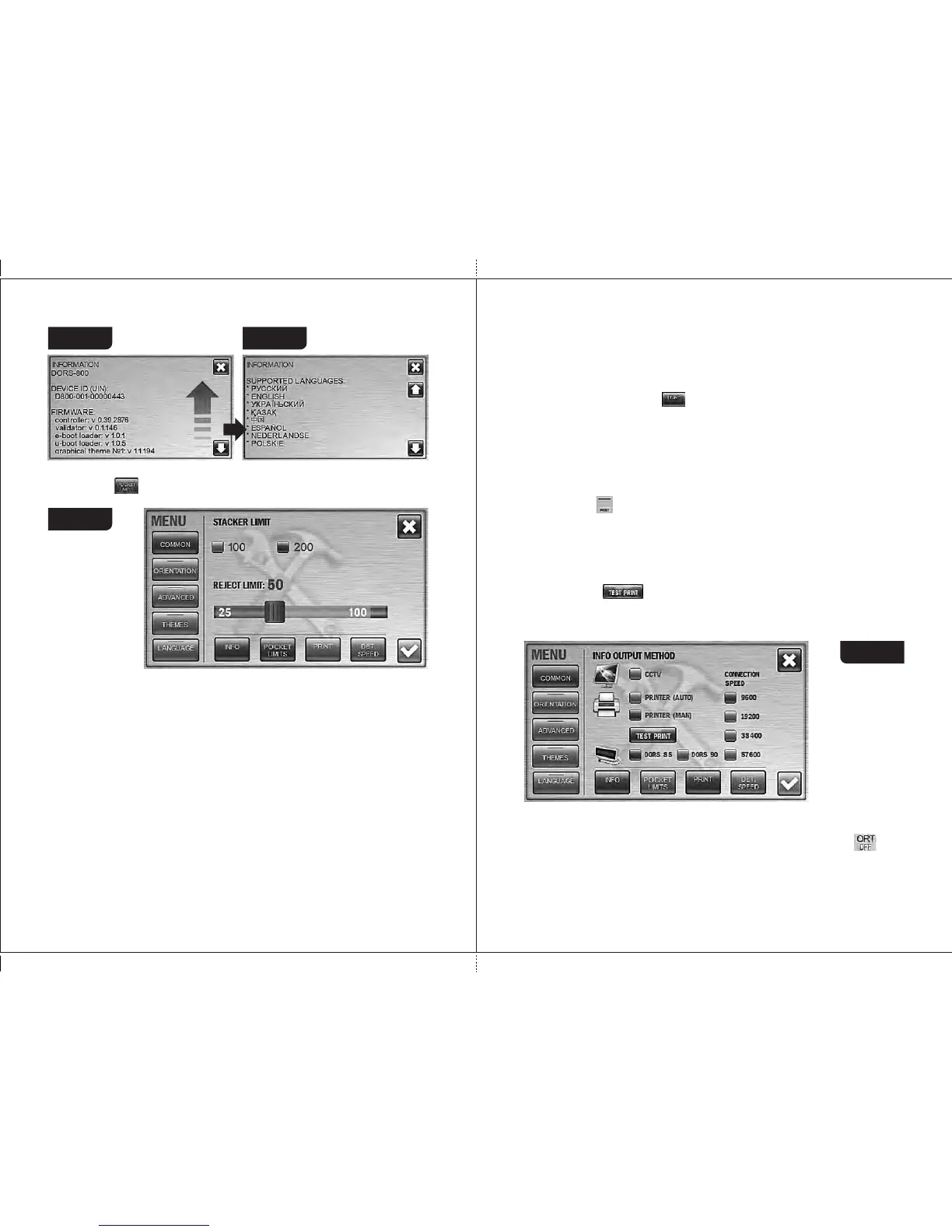
Figure 18 Figure 19
1
2
POCKETS LIMIT
Press the key to open the submenu of the pocket capacities selection
(see Figure 20).
The stacker limit is the maximum number of banknotes that can be placed
into the stacker. The limit has two possible values: 100 and 200 banknotes; as
soon as the selected value is reached, the sorter stops and resumes its
operation after the banknotes are removed from the stacker (and pressing the I
or II key, if the sorter is in the manual start mode). The selected value of the
stacker limit is highlighted in blue (see Figure 20). To change the setting, just
press the required value (it became highlighted in blue).
The reject pocket has an adjustable limit value. As soon as the specified
limit is reached, the sorter stops and resumes its operation after the banknotes
have been removed from the reject pocket (and pressing the I or II key, if the
sorter is in the manual start mode). The default (optimal) value of the reject
pocket limit is 50 banknotes. The user can change the limit within the range of
25 to 100 banknotes. To change the limit, move a slider to the required value.
The slider moves by steps of 5 notes each (25 - 30 - 35 - etc.).
Attention! For counting of worn notes we suggest the reject pocket limit
would be not more than 50 notes, otherwise it may cause unsmooth stacking
or jamming of notes.
Figure 20
DORS 800 BANKNOTE SORTERDORS 800 BANKNOTE SORTER
Note: All the banknotes that do not match to the counting/sorting criteria
get into the reject pocket, including the notes with tears and other mechanical
damages. To prevent any banknote damage, please choose such capacity of
reject pocket that corresponds to physical condition of the counting notes.
2 Submenu «ORIENTATION SORTING» (see Fig. 22)
Orientation sorting is available for modes MIX and DEN. The selected
mode of orientation sorting is displayed on the key/display . The
banknotes may be sorted with the following settings:
OFF: The banknotes are counted regardless their orientation (see
Fig. 22).
PRINT
By touching the button ( ) the submenu INFO OUTPUT METHOD is
opening (see Fig. 21).
This submenu allows to choose an external device for information
output. The external device has to be connected to jack 15 at Fig. 2:
— CCTV means video surveillance system,
— PRINTER (AUTO) means the information is printed automatically,
— PRINTER (MAN) means the information is printed by touching the
button ( ) (see item 6 at Fig. 13).
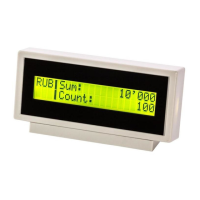
— DORS 85 means information output to external display DORS 85.
— DORS 90 means information output to external display DORS 90.
Connection speed option allows to choose the speed of sorter's COM
port. If an external device for information output is connected, the speed of
its COM port should be equal to the speed of sorter's COM port.
The button ( ) allows to output a test info to an external device. If
an external device and a connection speed are correct, a message on
successful setting will be output at relevant external device (a screen of
CCTV or a printer's receipt).
Figure 21


 To Next Page