VigorFly 200 Series User’s Guide
26
Session Timeout
Set the maximum time of service provided before
re-authentication. Set to zero to perform another
authentication immediately after the first authentication has
successfully completed. (The unit is second.)
Idle Timeout
Set the maximum time that a wireless device may remain
idle. (The unit is second.)
After finishing the settings here, please click Next.
2
2
.
.
4
4
.
.
5
5
S
S
a
a
v
v
i
i
n
n
g
g
t
t
h
h
e
e
W
W
i
i
z
z
a
a
r
r
d
d
C
C
o
o
n
n
f
f
i
i
g
g
u
u
r
r
a
a
t
t
i
i
o
o
n
n
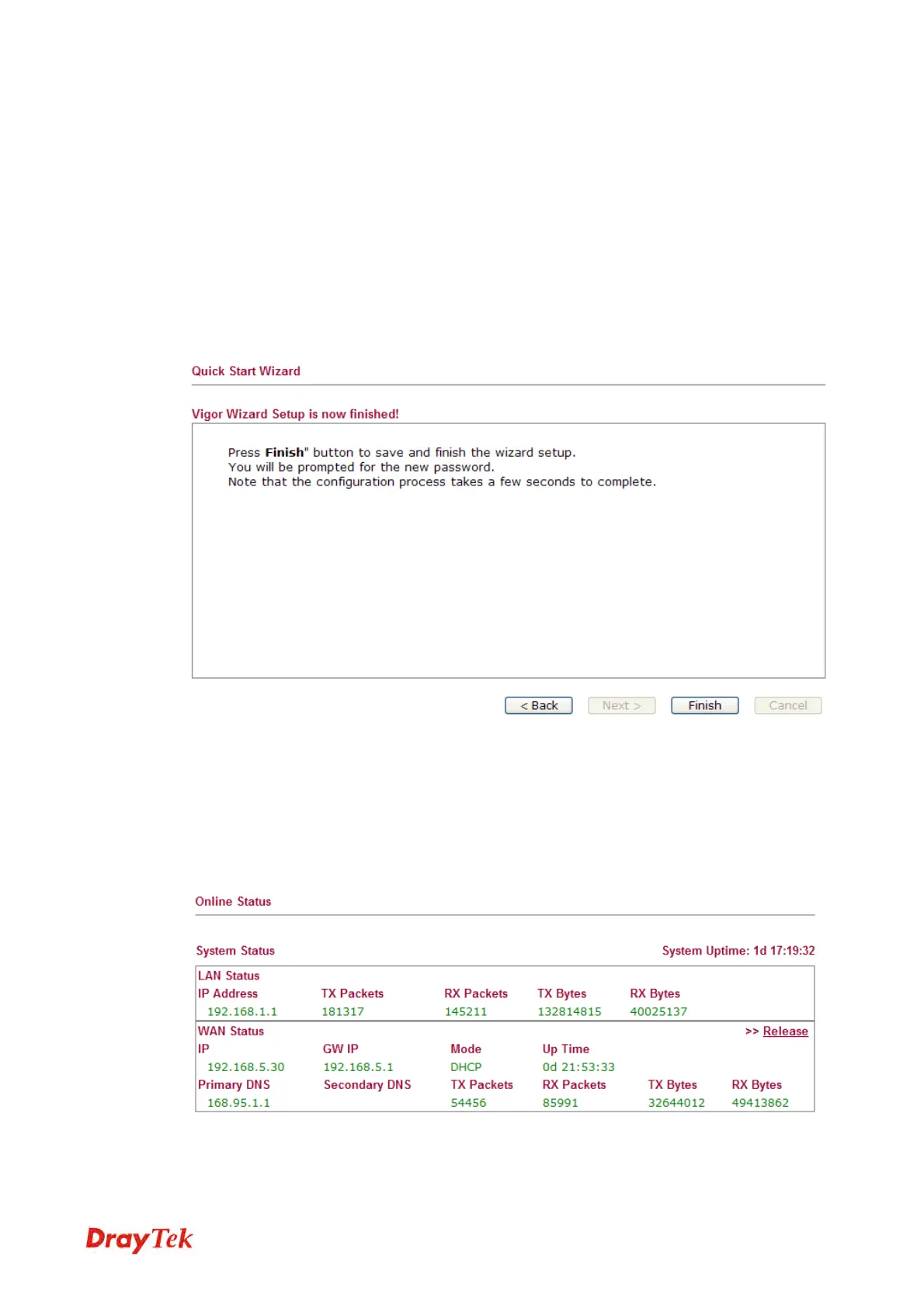
Now you can see the following screen. It indicates that the setup is complete. Different types
of connection modes will have different summary. Click Finish and then restart the router.
2
2
.
.
5
5
O
O
n
n
l
l
i
i
n
n
e
e
S
S
t
t
a
a
t
t
u
u
s
s
The online status shows the system status, WAN status, and other status related to this router
within one page. If you select PPPoE as the protocol, you will find out a link of Dial PPPoE
or Drop PPPoE in the Online Status web page.
Online status for DHCP
Detailed explanation is shown below:
LAN Status


 To Next Page