VigorFly 200 Series User’s Guide
64
3
3
.
.
7
7
D
D
i
i
a
a
g
g
n
n
o
o
s
s
t
t
i
i
c
c
s
s
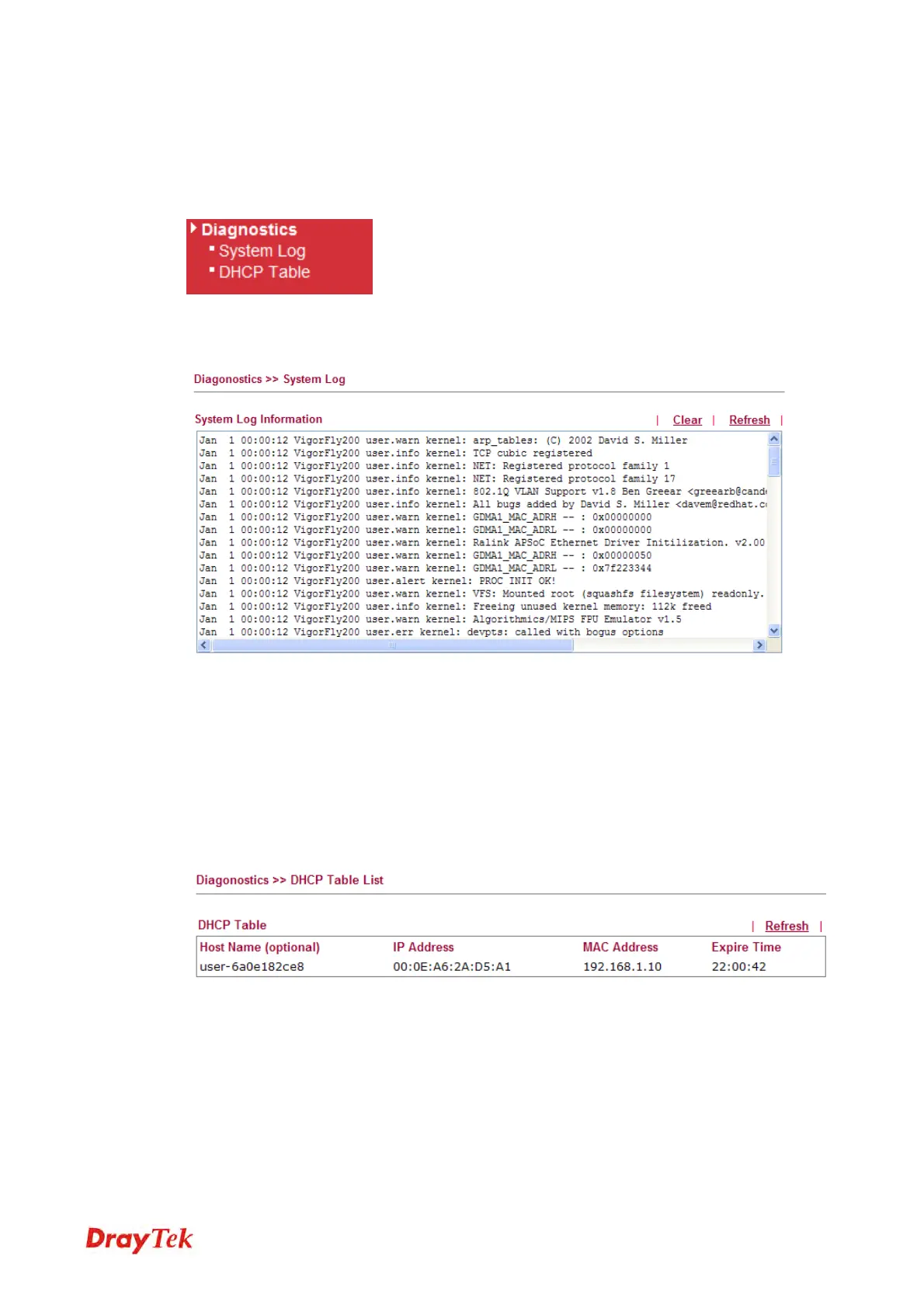
Diagnostic Tools provide a useful way to view or diagnose the status of your Vigor router.
Below shows the menu items for Diagnostics.
3
3
.
.
7
7
.
.
1
1
S
S
y
y
s
s
t
t
e
e
m
m
L
L
o
o
g
g
Click Diagnostics and click System Log to open the web page.
Clear
Click it to clear this page.
Refresh
Click it to reload the page.
3
3
.
.
7
7
.
.
2
2
D
D
H
H
C
C
P
P
T
T
a
a
b
b
l
l
e
e
The facility provides information on IP address assignments. This information is helpful in
diagnosing network problems, such as IP address conflicts, etc.
Click Diagnostics and click DHCP Table to open the web page.
Host name
Display the name of the computer accepted the assigned IP
address by this router.
IP Address
Display the IP address assigned by this router for specified
PC.
MAC Address
Display the MAC address for the specified PC that DHCP
assigned IP address for it.
Expire Time
Display the leased time of the specified PC.


 To Next Page