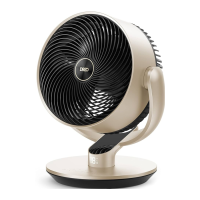
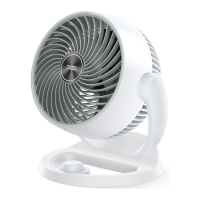
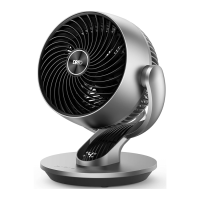
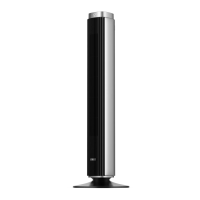
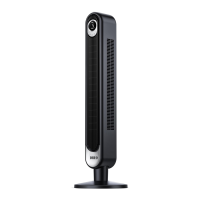
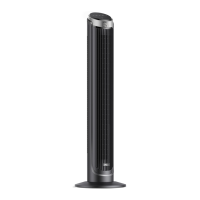
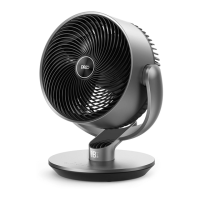
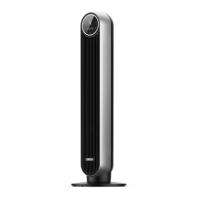
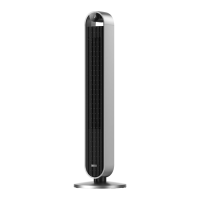
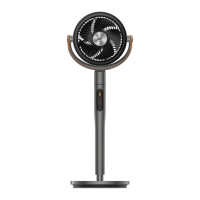
This document describes the Dreo Smart Air Circulator Fan, a device designed to improve air circulation in various indoor environments. The fan offers a range of features for both general use and specific seasonal applications, aiming to provide comfort and enhance air quality.
Function Description
The Dreo Smart Air Circulator Fan is a versatile appliance that moves air efficiently throughout a room. Its primary function is to circulate air, which can help in several ways:
- Summer Use: When paired with an air conditioner, the circulator fan can help distribute cold air more effectively, leading to better cooling and potentially reducing energy consumption.
- Winter Use: Used alongside a heater, the fan can send warm air to corners of the room, circulating it faster and improving heating efficiency.
- Spring & Fall Use: During milder seasons, the fan can be used to circulate fresh air, making indoor spaces feel more open and pleasant, akin to the outdoors.
The fan offers multiple operating modes and adjustable settings to cater to different user preferences and environmental conditions. It can be controlled via a physical control panel, a remote control, or a smart app, providing flexibility in operation.
Usage Features
The Dreo Smart Air Circulator Fan is equipped with a user-friendly control panel and an LED display that shows current settings.
Control Panel and LED Display:
- Power Button: Turns the fan on or off. A long press (10 seconds) resets the fan to factory settings.
- Mode Button: Switches between Normal and Auto modes. A long press (3 seconds) mutes or unmutes the fan's sounds.
- Fan Speed Button: Adjusts the airflow speed across 9 levels. A long press (3 seconds) activates or deactivates Turbo mode.
- Timer Button: Allows users to set an auto-off timer from 0 to 8 hours. Setting the timer to 0 hours cancels it. The display shows the set timer, reverting to fan speed after 3 seconds. For timers beyond 8 hours, the Dreo app must be used.
- Horizontal Oscillation Button: Changes the horizontal oscillation angle. Available angles are 0°, 30°, 60°, 90°, and 120°. The display flashes an icon and a number (0/1/2/3/4) to indicate the current angle. A long press (5 seconds) initiates network settings and device pairing for smart control.
- Vertical Oscillation Button: Changes the vertical oscillation angle. Available angles are 0°, 30°, 60°, and 90°. The display flashes an icon and a number (0/1/2/3) to indicate the current angle. A long press (3 seconds) turns Child Lock on or off.
- LED Display: Features auto-brightness, adapting to ambient lighting conditions. It shows icons for Normal Mode, Auto Mode, Horizontal Oscillation, Vertical Oscillation, Fan Speed, Timer Hour, and Oscillation Angle.
Working Modes:
- Normal Mode: The fan operates at a fixed speed selected by the user.
- Auto Mode: The fan's speed automatically adjusts based on the ambient temperature, optimizing comfort without manual intervention.
- Turbo Mode: The fan runs at its maximum speed, providing powerful airflow for quick cooling or air circulation.
- Natural Mode (Available in Dreo App): The fan operates with alternating speeds to simulate natural breezes.
- Custom Mode (Available in Dreo App): Allows users to set fan speed changes according to desired temperatures or time schedules.
- Sleep Mode (Available in Dreo App): Automatically mutes the fan and gradually decreases its speed every 30 minutes. The speed decreases by two levels at most and remains constant if it reaches level 3, 2, or 1 (e.g., level 9 to 7, level 8 to 6, etc.).
Additional Features:
- Child Lock: Prevents accidental changes to settings. It can be activated/deactivated by long-pressing the Vertical Oscillation button for 3 seconds. Note that Child Lock does not apply to the remote control but can be turned off by re-plugging the fan or through the Dreo app.
- Memory Function: If the fan is turned off or disconnected from power, it will resume operation with the previous settings (except the timer setting) when turned on again.
- Countdown Display: When long-pressing buttons for Factory Reset, Child Lock, Mute, or WiFi Connection, a countdown will appear on the display.
- Firmware Update: Users can check and update the fan's firmware via the Dreo app to ensure optimal performance. The display shows "U" during the update process, and the fan should not be operated until the update is complete.
Smart Connectivity:
The fan can be connected to a mobile device via the Dreo app, available on the App Store and Google Play.
- Pairing Process:
- Launch the Dreo app, sign in, or create an account.
- Enable Bluetooth on the mobile device and plug in the fan.
- Tap "+ Add Device" in the app and select the fan.
- Hold the Horizontal Oscillation button for 5 seconds to start WiFi connection settings (the WiFi icon will flash).
- Follow in-app instructions to complete the WiFi connection.
- Voice Assistant Integration: The fan supports Amazon Alexa and Google Assistant, allowing for voice control once connected through the Dreo app. A Dreo account is required to access voice assistants.
- Resetting Connection: To restart connection settings, hold the Horizontal Oscillation button again for 5 seconds.
- Unpairing/Factory Reset: Long press the Power button for 10 seconds to unpair WiFi and restore factory settings.
Remote Control:
The fan comes with a remote control for convenient operation.
- Buttons: Includes Power, Mode, Fan Speed (increase/decrease), Timer, Horizontal Oscillation, and Vertical Oscillation.
- Battery Replacement: The remote uses a CR2025 3V battery. To replace it, press the locking button to pop out the battery holder, insert a new battery with the (+) side facing up, and push the holder back until securely locked. If the remote's indicator light no longer turns on, the battery likely needs replacement.
Safety Instructions:
- Always place the fan on a flat, dry surface.
- Do not immerse the fan in water or any other liquids.
- Ensure the base is installed before use.
- Never insert fingers, pencils, or other objects into the grilles.
- Do not dismantle, repair, or modify the fan; all servicing should be performed by qualified personnel.
- Avoid operating the fan close to curtains or hanging foreign objects on the grille.
- Do not operate the fan in overly humid, high-temperature, dusty environments, or where acids or alkalis are stored.
- Avoid directing airflow directly at infants, the elderly, or patients for extended periods.
- Always unplug the fan before cleaning or when not in use for a long time.
- Do not operate the fan with a damaged cord or plug.
- Do not run the cord under carpeting or cover it with rugs.
- Do not use the fan with any solid-state speed control device.
- Use only the specified 24V/2.0A power adapter.
- The remote control battery is a lithium button/coin cell battery. Keep batteries away from children. If swallowed, seek immediate medical attention. Dispose of batteries properly.
Maintenance Features
Regular cleaning and maintenance are essential to ensure the longevity and optimal performance of the Dreo Smart Air Circulator Fan.
Outer Surface Cleaning:
- Gently wipe off dust from the outer surface with a soft, dry cloth.
Front Grille and Blades Cleaning:
- WARNING: Always turn off and unplug the fan before any cleaning or maintenance to prevent electrical shock or injury.
- Disassembly:
- Remove the screw on the front grille.
- Rotate the grille counterclockwise to detach it.
- Rotate the blade cap as shown in the manual to remove it.
- Take the blade assembly out of the shaft.
- Cleaning: Rinse the blade cap, blades, and grille under running water or wipe them with a clean, damp cloth.
- Reassembly:
- Dry all parts thoroughly.
- Insert the blade assembly back into the shaft, ensuring the centers are aligned.
- Align the point on the front grille with the corresponding point on the casing.
- Rotate the grille clockwise and reinstall the screw.
General Maintenance Reminders:
- Do not immerse the fan in water or allow water to get inside the motor housing.
- Do not use any chemical agents for cleaning.
- Store the fan in a cool, dry place and cover it to protect it from dust when not in use.
- Regularly check the appliance for signs of damage, loud noise, unusual smell, or excessive heat. If any issues are observed, refer to the troubleshooting guide or contact customer support.

 Need help?
 General

 To Next Page