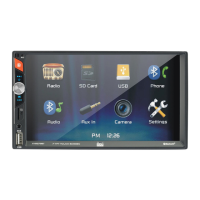
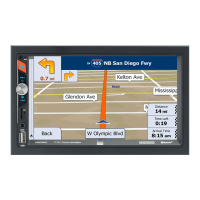
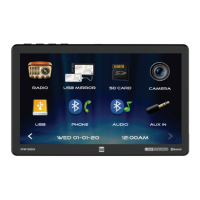
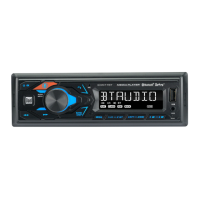
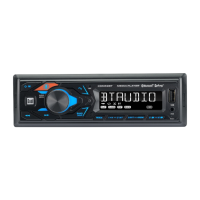
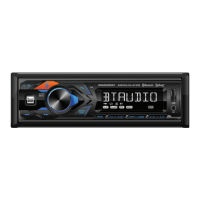
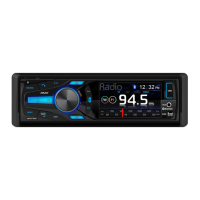
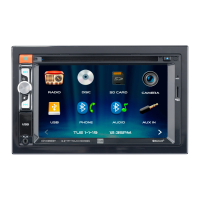
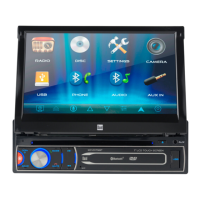
The XVM296BT is a multimedia receiver with Bluetooth® connectivity, featuring a 6.2" touch screen display. This device is designed for in-vehicle use and provides various audio and video playback options, along with hands-free calling capabilities.
Function Description
The XVM296BT serves as a central entertainment and communication hub for your vehicle. Its primary functions include:
- Radio Tuner: Access AM/FM radio stations with options for local/distance tuning and preset station storage.
- Media Playback: Play audio files from USB devices and SD cards. The unit supports MP3 files and offers features like repeat, random playback, and direct search by file number.
- Bluetooth® Connectivity: Connect Bluetooth-enabled devices for hands-free phone calls and audio streaming (Bluetooth Music). It supports auto-connect and auto-answer features for convenience.
- Auxiliary Input: Connect external audio/video devices via a 3.5mm auxiliary input located on the front panel.
- Rear Camera Input: Support for an optional rear view camera (not included) to assist with parking and reversing. The camera mode can be manually selected or automatically activated when the vehicle is in reverse.
- System Settings: Access a comprehensive settings menu to customize various aspects of the unit, including time, beep sound, camera input, loudness, radio area, touch screen calibration, and audio effects (EQ, Treble/Bass, Balance/Fader).
Usage Features
The XVM296BT is designed for intuitive operation through its touch screen and physical controls.
- Power On/Off: Press the MODE button momentarily to turn the unit on, and press and hold to turn it off.
- Volume Control: A rotary knob allows for easy adjustment of the volume level. Pressing the knob momentarily mutes the audio and pressing it again restores the previous volume. Rotating the knob while muted also cancels the mute function.
- Mode Selection: The MODE button cycles through available input modes, including Radio, SD Card, USB, Bluetooth Phone, Bluetooth Music, Auxiliary Input, Rear Camera, and Settings. The active mode is indicated on the display.
- Navigation: Tune/Track Up and Down buttons allow for frequency tuning in radio mode or track navigation during media playback.
- Main Menu Access: A house icon on the top left of the screen provides quick access to the Main Menu, where all primary functions are represented by icons.
- Touch Screen Controls: The touch screen offers direct access to important features during any mode of operation, such as dimmer, audio settings, and general settings.
- Radio Operation:
- Band Selection: Cycle between AM and FM bands.
- Seek/Tune: Press and hold the Tune Frequency Up/Down buttons to seek higher/lower frequencies, or press momentarily for step-by-step tuning.
- Local/Distance: Toggle between local and distance tuning for radio reception.
- Stereo/Mono: Toggle between stereo and mono tuning.
- Preset Stations: Press and hold a preset spot to save the current station; press momentarily to recall a saved station.
- AS/PS (Auto Store/Preset Scan): Scan presets for 10 seconds each, or press and hold to automatically find and store the strongest stations.
- USB/SD Card Operation:
- Automatic Playback: Inserting a USB device or SD card will automatically begin audio playback.
- Repeat Options: Select between Repeat 1, Repeat Folder, or Repeat Off.
- Random Playback: Enable or disable random playback of files.
- File/Track Navigation: Move to the previous or next file/track.
- Folder Navigation: Move to the previous or next folder.
- Pause/Resume: Pause or resume playback.
- Direct Search: Enter a file number directly to start playback.
- Bluetooth® Operation:
- Pairing: The unit broadcasts a pairing signal when no devices are connected. Pair your Bluetooth device (e.g., phone) with the unit using the device name "XVM296BT" and passcode "0000".
- Auto-Connect: Most Bluetooth devices will automatically connect if in range and the auto-connect feature is enabled in the settings.
- Phone Keypad: Use the on-screen keypad to dial phone numbers.
- Call Management: Buttons for connecting (Talk) and ending (End Call) calls.
- Available Devices: View a list of available Bluetooth devices.
- Bluetooth Music: Access and stream audio from your paired Bluetooth device.
- Rear Camera Operation:
- Manual Selection: Touch the CAMERA icon from the Main Menu or any operational mode to view the camera feed. Touch the top left area of the screen to exit camera mode. This mode is suitable for dedicated cameras that are always on.
- Auto Selection: The unit automatically switches to camera mode when connected to the vehicle's reverse lamp circuitry and reverse gear is engaged.
Maintenance Features
To ensure optimal performance and longevity of the XVM296BT, certain maintenance practices are recommended:
- Cleaning the Monitor: Use only a dry silicone cloth or soft cloth to clean the monitor. Avoid stiff cloths or volatile solvents like paint thinner and alcohol, as they can scratch the surface or remove printing.
- Fuse Replacement: When replacing a fuse, always use a new one with the prescribed rating (10 amp ATC mini style fuse). Disconnect the wiring harness first to prevent short circuits. Using an incorrect fuse rating can cause malfunction.
- Reset Function: If the unit experiences abnormal operation or becomes inoperable, use the tip of a pen to press the RESET button. This will reset the main processor to default settings.
- Wiring Integrity: Ensure all wiring connections (ground, ignition, battery, speaker, reverse, etc.) are secure and correct. Use automotive-grade cables for extensions to prevent voltage drops.
- Environmental Protection: Avoid installing the unit in areas exposed to direct sunlight, excessive heat, dust, dirt, excessive vibration, or water splashing.
- Liquid Crystal Fluid: In case the LCD is damaged and liquid crystal fluid leaks, avoid touching it as it can be hazardous. If contact occurs, wash it off with soap immediately.
- Troubleshooting: Refer to the troubleshooting guide in the manual for common issues like no power, no sound, blowing fuses, or display problems. If issues persist, contact customer support.

 Need help?
 General

 To Next Page