DuraLabel.com | 800.788.5572
5.1 Continuous Vinyl Printing Instructions | 11
5. Conguring Printer Drivers
IMPORTANT! Perform the driver conguration before opening the document you plan
to print or close any documents you currently have open before making these changes.
A. Click Start > Devices and Printers. A Devices, Printers and Faxes window appears.
B. Right-click the Graphic Products DuraLabel PRO/PRO 300 icon and select Printing
preferences. A Printing Preferences dialog box appears.
C. Click the Page Setup tab and select Landscape or Portrait, depending on your
label’s orientation.
D. If your label size is not shown in the Stock Name drop-down menu, click Edit and
set the size to match your label size.
NOTE: Your DuraLabel PRO print drivers are preset to several print values. Please be
aware that changing a preset value is not fully supported by all software programs. For
best results, make changes to preset values from the Devices and Printers window.
5.1 Continuous Vinyl Printing Instructions
Your printer driver has been preset to common settings to reduce the steps needed to
set them manually. You can change your settings by following these steps:
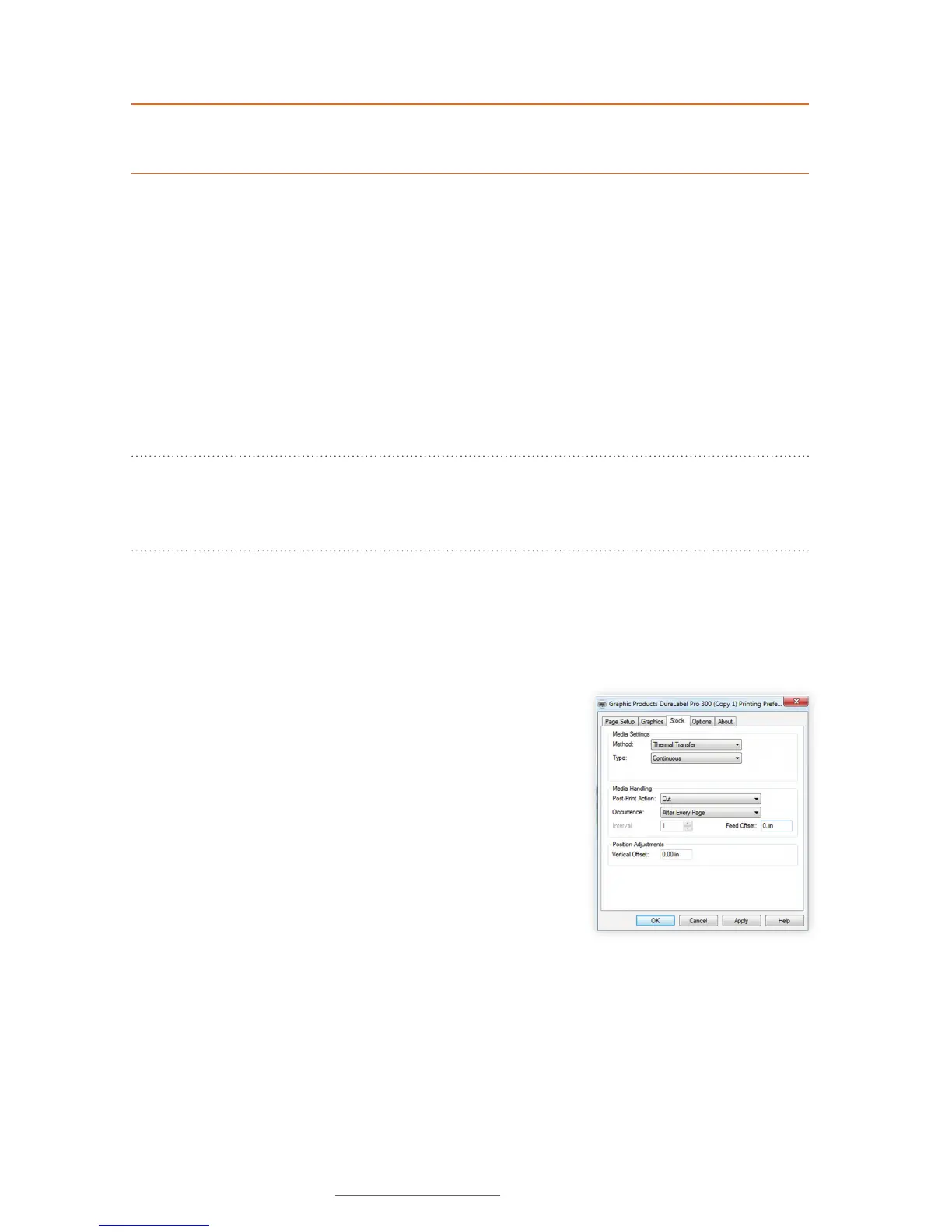
A. Select the Stock tab and set Type to Continuous. To
cut after each label, select Cut from the Post-Print
Action drop-down menu and After Every Page from
the Occurrence drop-down menu, then click OK.
B. To cut after each job, select Cut from the Post-Print
Action drop-down menu and select After Job from the
Occurence drop-down menu.
C. Click Apply, then OK.
These settings may be adjusted in Printer Properties when
printing your labels.
Printing Preferences dialog box, with Type
set to “Continuous” and Occurrence set
to “After Every Page” on the Stock tab



 To Next Page