AIR setups
Dynaudio Professional AIR reference manual – 2014-09-28 42
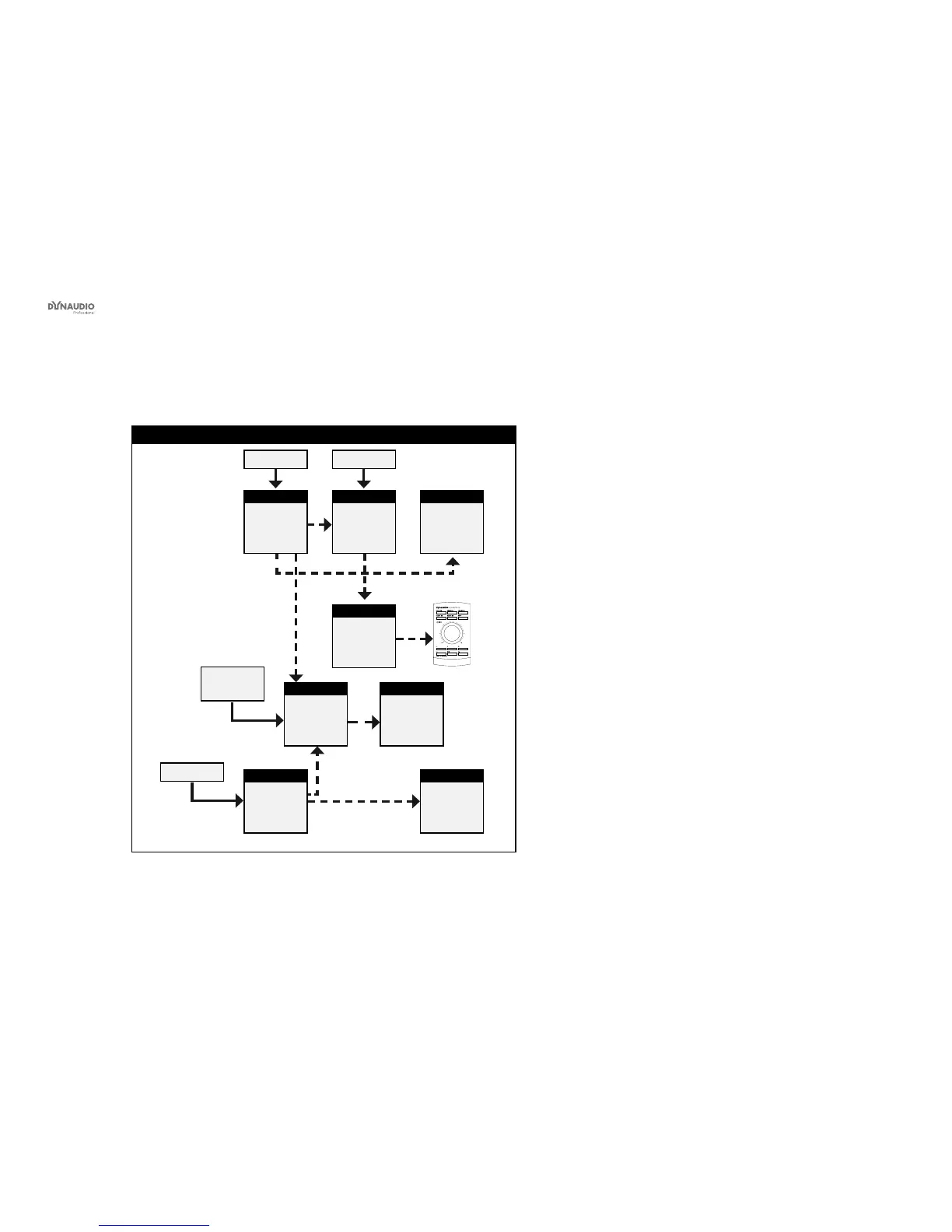
7.1 setup – analog or digital
7.1 setup – analog or digital
Master
Left
System Ctrl.
Master
Left
Back
Master
Left
surround
Slave
Right
surround
Master
Center
L + R C + LFE
L B. + R B.
L sur.
R sur.
Slave
Right
Back
Sub
Subwoofer
Slave
Right
Fig. 23: This illustration shows how to connect an analog or digital 7.1 setup
Understanding and using this setup
It is not possible to choose a 7.1 setup in the setup
menu. You need to choose either a 5.1 or 6.1 setup and
set up the Left surround and Right surround speakers
for “L Inner” and “R Inner” tasks respectively.
►
Audio signals are represented by solid lines.
►
TC link signals are represented by dashed lines.
Digital connections
►
The center monitor is set as the System Controller
by setting the TC Link button on the rear panel to
the “out” position.
►
The left monitor receives both the left and right
input signals. The right monitor is fed via the TC
LINK RJ-45 connection from left to right.
►
The center monitor receives both the Center and
LFE signals. The LFE monitor is fed via the TC
LINK RJ-45 connection from Center to LFE.
►
The left surround monitor receives both the left sur-
round and right surround signals.
►
The right surround monitor is fed via the TC LINK
RJ-45 connection from left surround to right sur-
round.
►
The left back monitor receives both the left back
and the right back signal. The right back monitor
is fed via the TC LINK RJ-45 connection from left
back to right back.
►
With bass management activated, low-frequency
information is extracted from the ve main chan-
nels and fed to the subwoofer, where it is summed
with the LFE channel. With bass management
activated, low-frequency information is not extract-
ed for the left and right inner monitors.
►
The AIR Remote or a computer running the AIR
Control software (both optional) can be connected
to any available TC LINK Out connection.


 To Next Page