EasyManua.ls Logo

Dynex DX-46L150A11 - User Manual

Dynex DX-46L150A11
38 pages
Print Icon
To Next Page IconTo Next Page
Loading...
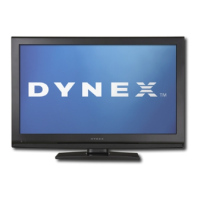
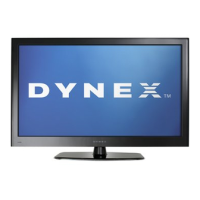
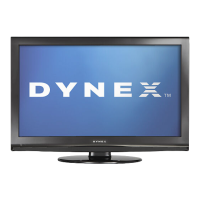
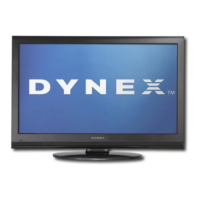
32", 37", 40", and 46" LCD TVs
DX-32L150A11
DX-37L150A11
DX-40L130A11
DX-46L150A11
USER GUIDE
DX-32L-37L-46L150A11_10-0012.book Page 1 Thursday, January 14, 2010 8:30 AM

Table of Contents

Other manuals for Dynex DX-46L150A11

Questions and Answers

  • A
    Aaron MosesAug 12, 2025
    Why is my Dynex LCD TV remote control not working?
    • A
      Ashley BaileyAug 13, 2025
      If your Dynex LCD TV remote control isn't working, first, ensure the TV's power cord is plugged in. Then, check for any obstructions between the remote and the TV's remote control sensor, located on the front of the TV. Next, make sure the batteries are correctly installed in the remote. If the problem persists, try replacing the batteries with new ones.
  • W
    Wendy JohnstonAug 16, 2025
    What to do if my Dynex DX-46L150A11 LCD TV has no picture and no sound?
    • T
      tracy11Aug 16, 2025
      If your Dynex LCD TV has no picture and no sound, ensure the power cord is properly plugged in. Then, press the POWER button on either the TV or the remote control. Verify that you've selected the correct video input source. As a final step, try changing to another channel, as the station itself might be experiencing technical difficulties.
  • T
    Thomas GonzalezAug 20, 2025
    How to fix a Dynex LCD TV with a good picture but no sound?
    • A
      Angela WilliamsAug 20, 2025
      If your Dynex LCD TV has a good picture but no sound, first, make sure that the sound is not muted. Then, verify that the sound mode is set to either Stereo or Mono.
  • C
    Cody BatesAug 25, 2025
    Why is the picture on my Dynex DX-46L150A11 LCD TV dark, poor, or not showing, but the sound is good?
    • L
      Lori ShermanAug 25, 2025
      If you're experiencing a dark, poor, or absent picture on your Dynex LCD TV while the sound is working, try adjusting the brightness settings. Also, ensure that the correct picture mode is selected. Finally, check that the antenna or cable TV is securely and correctly connected.
  • S
    Shannon RyanAug 27, 2025
    What to do if my Dynex DX-46L150A11 LCD TV only shows snow?
    • R
      Robert MasonAug 27, 2025
      If your Dynex LCD TV screen displays only snow (noise), first try switching to another channel, as the broadcast station may be experiencing issues. Ensure that your antenna or cable TV connection is both correctly and securely connected. Finally, check the signal strength.
  • P
    perezandrewAug 31, 2025
    How to remove dotted lines or stripes on Dynex DX-46L150A11 LCD TV screen?
    • M
      Martha BlackSep 1, 2025
      To address dotted lines or stripes appearing on your Dynex LCD TV screen, try adjusting the antenna. Also, move the TV away from potential noise sources like cars, neon signs, or hair dryers.
  • S
    Scott YatesSep 4, 2025
    Why does my Dynex DX-46L150A11 show double images?
    • M
      Mrs. Megan Wall DVMSep 4, 2025
      If your Dynex LCD TV is showing double images, try using a highly directional outdoor antenna or cable TV.
  • G
    georgegainesSep 7, 2025
    Are bright or dark spots on my Dynex DX-46L150A11 LCD TV normal?
    • A
      Alicia HamiltonSep 7, 2025
      A few bright or dark spots are normal on an LCD screen and should not affect the operation of your Dynex LCD TV.

Summary

CHILD SAFETY

Important safety instructions

Crucial guidelines for safe operation and installation of the product.

Installing and Removing the Stand

Installing the stand

Step-by-step instructions for attaching the TV stand.

Installing a wall-mount bracket

Instructions for safely mounting the TV using a wall bracket.

TV Components

Accessories

Lists all items included in the TV package with the purchase.

Front panel components

Identifies components on the front of the TV.

Side panel components

Identifies components on the side of the TV.

Back panel components

Identifies components on the back of the TV.

Remote Control Operation

Remote control overview

Details the functions and layout of the remote control.

Installing batteries and aiming

Guide on how to install batteries and aim the remote for optimal use.

Universal Remote Programming

Making Connections

Selecting a location

Advice on choosing the best placement for the TV to avoid glare and eye strain.

Connecting the power

Steps to safely connect the TV to a power source using the AC power cord.

Connecting HDMI devices

How to connect devices like Blu-ray players or game consoles via HDMI.

Connecting component video

Instructions for connecting devices using component video cables.

Connecting antenna, cable, or satellite

Guide for connecting broadcast signal sources like antennas and cable boxes.

Connecting VCR

Steps to connect older video devices like VCRs using AV or S-Video cables.

Connecting camcorders or game consoles

How to connect devices like camcorders or game consoles via AV cables.

Connecting a computer

Instructions for connecting a PC to the TV using VGA and audio cables.

Connecting a home theater system

How to connect audio systems using analog or digital audio cables.

Turning on TV for the First Time

Connecting headphones

Instructions for plugging in headphones for private listening.

Initial setup wizard

Guide for initial TV setup and configuration using the Setup Wizard.

Understanding Basic TV Operations

Turning TV on and off

How to power the TV on, turn it off, and use standby mode.

Selecting video input source

Guide to choosing the correct input for connected devices.

Selecting a channel

Methods for tuning into TV channels using the remote or number buttons.

Adjusting volume

How to control the TV's sound level and mute the audio.

Displaying program information

Accessing on-screen banners for channel, resolution, and program details.

Navigating Menus and Settings

Adjusting basic settings

Steps to access and modify fundamental TV picture and setup configurations.

Adjusting Picture Settings

Adjusting TV picture settings

Detailed guide on adjusting picture settings like contrast, brightness, and color.

Adjusting computer image

How to optimize picture settings when the TV is used as a computer monitor.

Adjusting Sound Settings

Adjusting sound modes

Guide to customizing sound modes, bass, treble, and balance.

Selecting audio mode

How to choose analog and digital audio tracks for optimal sound.

Channel Management

Playing TV audio only

Method to turn off the TV picture and listen only to audio.

Automatic channel scanning

Process for scanning and storing available TV channels automatically.

Selecting signal source

How to switch between different input sources like Antenna, Cable, or HDMI.

Hiding channels

Steps to hide channels from the channel list to skip them.

Setting up favorite channels

Creating a personalized list of preferred channels for quick access.

Adding or changing channel labels

Renaming channels for easier identification and organization.

Parental Controls

Checking digital TV signal strength

How to check the quality of digital TV signals for better reception.

Turning parental controls on or off

Steps to enable or disable parental controls and set a password.

Setting or changing password

Procedures for setting or modifying the parental control access password.

Turning button lock on or off

How to lock or unlock the TV's physical buttons to prevent unauthorized changes.

Setting parental control levels

Configuring rating systems to block or allow specific TV programs and movies.

Closed Captioning

Downloading rating information

Download TV rating information for use with parental controls.

Turning closed captioning on or off

How to activate or deactivate closed captioning display for dialogue and sound.

Selecting closed captioning mode

Choosing different modes for closed caption display style and content.

Customizing digital TV captioning styles

Adjusting font, color, and opacity for digital closed captions.

Time and Menu Settings

Setting date and time

Manually setting the TV's internal clock, time zone, and daylight saving.

Setting sleep timer

Configuring the TV to automatically turn off after a set period.

Selecting menu language and transparency

Changing the language and background transparency of on-screen menus.

Labeling input sources

Customizing names for input sources to easily identify connected devices.

Restoring default settings

Resetting customized settings back to factory defaults.

Troubleshooting

Video and audio problems

Solutions for common problems related to picture and sound issues.

Remote control problems

Troubleshooting steps for issues with the remote control not working.

Maintenance and Specifications

Cleaning the TV

Instructions for safely cleaning the TV screen and surfaces.

Technical specifications

Details dimensions, weight, power, and connection ports.

Legal Notices

FCC warning and cable requirements

Compliance statements for FCC rules, RF/EMI connectors, and Canadian standards.

Warranty Information

US and Canada Markets warranty

Details warranty coverage, duration, and service for US/Canadian purchasers.

Mexico Market warranty

Information on warranty coverage and service for Mexican purchasers.

Warranty exclusions

Exclusions from the limited warranty, such as cosmetic damage or misuse.

Dynex DX-46L150A11 Specifications

General IconGeneral
Screen Size46 inches
Display TypeLCD
Resolution1920 x 1080
Aspect Ratio16:9
HDMI Ports3
USB Ports1
Weight35.3 lbs
Refresh Rate60Hz
Brightness500 cd/m²
Viewing Angle178°(H) / 178°(V)
Speakers2 x 10W
Audio Output10W x 2
InputsComponent, Composite, USB

Related product manuals