EasyManua.ls Logo

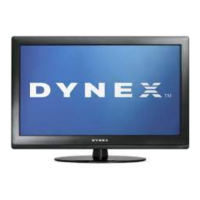
Dynex DX-46L262A12 - User Manual

Dynex DX-46L262A12
48 pages
Print Icon
To Next Page IconTo Next Page
Loading...
32” /37” /46” LCD TV
DX-32L200A12
DX-37L200A12
DX-46L262A12
USER GUIDE
DX-32L-37L-46L_11-1082_MAN_V2_EN.book Page 0 Tuesday, November 22, 2011 1:09 PM

Table of Contents

Other manuals for Dynex DX-46L262A12

Questions and Answers

  • M
    mariajonesSep 23, 2025
    How to prevent after images on Dynex LCD TV?
    • D
      Deanna LloydSep 23, 2025
      If you see after images on your Dynex LCD TV, avoid displaying a still image, such as a logo, game, or computer image, for an extended period of time. This can cause a permanent after-image to be burned into the screen. This type of damage is not covered by your warranty.
  • M
    Matthew NelsonAug 25, 2025
    Why aren't the control buttons working on my Dynex LCD TV?
    • J
      Janice HigginsAug 25, 2025
      Make sure that the Button Lock option is set to No on your Dynex LCD TV. If that doesn't work, unplug the power cord, wait a few seconds, then plug the cord back in and turn on your TV.
  • R
    Rachel BrownAug 25, 2025
    What to do if control buttons on Dynex LCD TV do not work?
    • K
      Katherine SandersAug 26, 2025
      If the control buttons on your Dynex LCD TV do not work, ensure that the Button Lock option is set to NO. If that doesn't work, unplug the power cord, wait a few seconds, then plug it back in and turn on the TV.
  • K
    Kayla MooreAug 27, 2025
    What to do if my Dynex DX-46L262A12 LCD TV has no picture and no sound?
    • J
      james56Aug 27, 2025
      First, press the power button on the TV or the remote control. Make sure the power cord is plugged in securely. Check that the correct video input source is selected. Also, ensure the antenna or cable TV is connected correctly and securely. Try another channel to rule out station problems. Adjust the contrast and brightness. Finally, make sure the incoming signal is compatible and check the closed caption settings.
  • S
    Sean OwensSep 23, 2025
    Why some settings on my Dynex LCD TV cannot be accessed?
    • M
      Maria TaylorSep 23, 2025
      If some settings on your Dynex LCD TV cannot be accessed (are grayed out), it means the setting is not available in the current video input mode.
  • C
    Carla BrooksSep 13, 2025
    Why does my Dynex LCD TV have no color?
    • L
      lisabryantSep 13, 2025
      If your Dynex LCD TV has no color, a dark picture, or incorrect colors, try switching to another channel, as the station might have issues. Adjust the color saturation. Ensure the video cables are correctly and securely connected to the back of the TV, as well as the antenna or cable TV connection. If you're using an antenna, the digital channel signal may be low. If the signal strength is low, adjust the antenna or use a highly directional outdoor antenna or set-top antenna with a built-in amplifier.
  • M
    Michael CooperSep 12, 2025
    Why is my Dynex LCD TV screen dark but sound is good?
    • N
      Nathan MillsSep 12, 2025
      If your Dynex LCD TV shows a dark, poor, or no picture (but the screen is lit) while the sound is good, try switching to another channel, as the station might be experiencing problems. Make sure that the antenna or cable TV is connected correctly and securely. Adjust the brightness and ensure the correct picture mode is selected. If you're using an antenna, the digital channel signal may be low. If the signal strength is low, adjust the antenna or use a highly directional outdoor antenna or set-top antenna with a built-in amplifier. Also, ensure the video cables are connected securely and try a new set of video cables, as the current ones may be faulty.
  • M
    Matthew LopezSep 12, 2025
    Why does my Dynex LCD TV only show snow?
    • T
      Terri CookSep 12, 2025
      If your Dynex LCD TV displays only snow (noise) on the screen, try changing to another channel in case the station is experiencing problems. Make sure that the antenna or cable TV is connected correctly and securely. If you're using an antenna, the digital channel signal may be low. If the signal strength is low, adjust the antenna or use a highly directional outdoor antenna or set-top antenna with a built-in amplifier.
  • A
    Alejandra RodriguezSep 4, 2025
    What to do if there's no sound from one of the speakers on my Dynex DX-46L262A12 LCD TV?
    • S
      shawn15Sep 4, 2025
      Adjust the audio balance settings on your Dynex LCD TV. Also, make sure that the audio cables are connected correctly and securely to the back of your TV.
  • E
    Eric LopezSep 2, 2025
    Why are there no channels after the auto channel search on my Dynex DX-46L262A12?
    • B
      Barbara HarrisSep 2, 2025
      Keep in mind that reception can vary by channel depending on the broadcast power level of a given station. Make sure the antenna or cable/satellite TV is connected securely to your Dynex LCD TV. You might also want to try replacing the cable between the antenna/cable or cable/satellite box and your TV.

Summary

CHILD SAFETY

Tune into safety

Safety tips for using TVs and furniture safely, preventing tip-overs.

Wall mounting safety

Guidelines for safely mounting your TV to a wall, emphasizing proper hardware.

Important safety instructions

General safety warnings

Covers electric shock, lightning, power lines, and general handling precautions.

LCD panel handling

Precautions for safely handling the TV's glass screen and liquid crystal panel.

Replacement parts & service

Guidance on using specified replacement parts and referring service to qualified personnel.

Cautions and Environmental Notes

Damage requiring service

Conditions under which the TV requires professional servicing and safety precautions.

Outdoor antenna grounding

Instructions for grounding outdoor antennas to protect against surges and static.

Environmental considerations

Notes on condensation, mobile phone interference, and product disposal.

Installing the stand or wall-mount bracket

Installing the stand

Step-by-step guide for attaching the TV stand to the unit.

Installing a wall-mount bracket

Instructions for mounting the TV to a wall using a compatible bracket.

TV Components and Front Controls

Package contents

Lists items included in the TV box such as remote, stand, and cables.

Front panel controls

Identifies and describes the function of the remote sensor and power indicator.

Side Connections and Remote Control

Side panel connections

Details the various ports on the side of the TV for connecting devices.

Remote control buttons

Explains the function of each button on the TV's remote control.

Making Connections

What connection should I use?

Guide to selecting the best connection type (HDMI, Component, Composite).

Connecting power

How to connect the TV's AC power cord to an outlet.

Connecting Various Devices

Connecting a cable or satellite box

Steps for connecting cable/satellite boxes via HDMI, DVI, Component, Composite, Coaxial.

Video and Audio Connections

Connecting an HDMI or DVI device

How to connect devices using HDMI or DVI cables for best quality.

Connecting a component video device

Instructions for connecting devices using component video cables.

Connecting Older Devices

Connecting a composite video device

Steps for connecting devices using composite video cables (AV).

Connecting a VCR

How to connect a VCR using composite video cables.

Connecting More Devices

Connecting a camcorder or game console

Guide for connecting gaming consoles or camcorders via composite cables.

Connecting a USB flash drive

How to connect a USB drive to view photos and other media.

Audio and Initial Setup

Connecting a basic home theater system

Instructions for connecting audio systems using digital coaxial cables.

Installing remote control batteries

Steps for inserting batteries into the remote control.

Remote Control and TV Operation

Aiming the remote control

How to properly aim the remote control at the TV's sensor.

Turning on your TV for the first time

Guide for the initial setup process using the Setup Wizard.

Understanding TV Basics

Selecting the video input source

How to switch between different connected devices and inputs.

Using the on-screen menus

Explanation of how to navigate and use the TV's on-screen menus.

Navigating Menus and Channels

Navigating the menus

General instructions on using the MENU, ENTER, and arrow buttons.

Selecting a channel

Methods for changing channels using number buttons, CH+/CH-, or channel list.

Adjusting Volume and Picture

Adjusting the volume

How to increase, decrease, or mute the TV's sound.

Adjusting the TV picture

Options for customizing picture settings like mode, contrast, brightness, and color.

Advanced Picture and Sound Settings

Picture Mode Options

Details on Vivid, Standard, Energy Saving, and Custom picture modes.

Adjusting Sound Settings

How to change sound modes, treble, bass, balance, and auto volume.

Sound Modes and Features

Sound Mode Options

Explanation of Standard, News, Music, Movie, and Custom sound modes.

Playing TV audio only

How to disable the picture and listen to audio only.

Changing Channel Settings

Auto Channel Scan

How to scan for and store available TV channels.

Hiding channels

Method to hide channels from the channel list to skip them.

Channel List Management

Setting up a favorite channel list

Creating a custom list of preferred channels for easier tuning.

Viewing a favorite channel

How to access and tune to channels from the favorite list.

Advanced Channel Features

Adding or changing a channel label

Assigning custom names to channels for easier identification.

Checking the digital signal strength

How to check the signal quality for digital channels.

Parental Controls Setup

Setting or changing the password

Process for setting or modifying the parental control password.

Setting parental control levels

How to set ratings to block specific TV and movie content.

Parental Control Details

U.S. TV ratings (content-based)

Explanation of US TV rating categories and their meanings.

U.S. movie (MPAA) ratings

Explanation of MPAA movie rating categories and their meanings.

Blocking Content

Canadian English ratings

Explanation of Canadian English rating categories and their meanings.

Canadian French ratings

Explanation of Canadian French rating categories and their meanings.

Blocking Unrated TV and Control Buttons

Blocking unrated TV

How to block TV programs that do not have a rating signal.

Locking control buttons

Securing the TV's physical buttons to prevent unauthorized use.

Downloading Rating Information

Downloading rating information

Process for downloading advanced V-Chip ratings for digital channels.

Using Closed Captioning

Turning closed captioning on or off

How to enable or disable closed captions (subtitles) for programs.

Selecting the closed captioning mode

Choosing different modes for analog and digital closed captions.

Customizing Closed Captioning

Analog caption settings

Options for setting analog captions like CC1-CC4 and Text1-Text4.

Digital caption settings

Options for setting digital captions like CC1-CC4 and CS1-CS6.

Customizing Digital Caption Styles

Customizing digital closed captioning styles

Adjusting font style, size, color, and background for digital captions.

Adjusting Time and Sleep Timer

Setting the clock

How to manually or automatically set the TV's date and time.

Setting the sleep timer

Configuring the TV to turn off automatically after a set period.

Adjusting Menu Settings

Selecting the menu language

Changing the on-screen display language to English, French, or Spanish.

Labeling an input source

Assigning custom labels to video input sources for easy identification.

System Information and Defaults

Displaying system information

How to view TV model name and firmware version.

Restoring settings to default

Resetting all TV settings (except password) to factory defaults.

Using a USB Flash Drive

Switching to USB mode

Steps to select USB as the input source to view media.

Browsing photos

Navigating and viewing JPEG photos from a connected USB drive.

USB Photo Features

Viewing your favorite photos

Accessing photos previously marked as favorites.

Viewing photos in a slideshow

Displaying photos from a USB drive in an automated slideshow.

Customizing Slideshow Settings

Customizing slideshow settings

Adjusting repeat, shuffle, speed, and transition effects for slideshows.

Maintaining and Troubleshooting

Cleaning

Instructions for safely cleaning the TV screen and surfaces.

Servicing

Guidance on when and how to contact authorized service personnel.

Troubleshooting Common Issues

Video and audio problems

Solutions for picture issues like black bars, no picture, or incorrect color.

Sound problems

Solutions for issues related to no sound, poor audio quality, or speaker problems.

Troubleshooting Specific Problems

Snow;Noise and Dotted Lines

Solutions for static noise on screen or horizontal/vertical stripes.

Double Images and Spots

Troubleshooting tips for double images or bright/dark spots on the screen.

Remote Control and General Troubleshooting

Remote control issues

Solutions for when the remote control is not working or needs programming.

General TV problems

Solutions for issues like no power, 'no signal' message, or lost password.

Specifications Overview

Warranty Information

Details on the product's warranty period and coverage.

Input and Output Specifications

Technical details on supported inputs, outputs, and resolutions.

Detailed Specifications

Screen and Audio Specifications

Technical specs for screen size, type, resolution, and audio output.

Power and Miscellaneous Specs

Information on power consumption, languages, and VESA mount.

Legal Notices and Compliance

FCC Part 15 Compliance

Statement regarding compliance with FCC rules for digital devices.

Cable and Trademark Notices

Information on cable requirements and Dolby/HDMI trademarks.

One-Year Limited Warranty

Warranty Definitions

Defines terms used in the warranty statement, like 'Product' and 'Warranty Period'.

Obtaining Warranty Service

Instructions on how to get service or repair for the product.

Warranty Exclusions and Limitations

What the warranty does not cover

List of conditions and damages not covered by the limited warranty.

Legal limitations and contact

Legal disclaimers, limitations of liability, and contact information.

Dynex DX-46L262A12 Specifications

General IconGeneral
Screen Size46 inches
Resolution1920 x 1080
Display TypeLCD
HDMI Ports3
USB Ports1
Contrast Ratio5000:1
Brightness450 cd/m²
Audio Output10W x 2
Refresh Rate60 Hz
Aspect Ratio16:9
Built-in TunerATSC/NTSC
InputsComponent, Composite

Related product manuals