7
VIEWING LIVE GAUGES
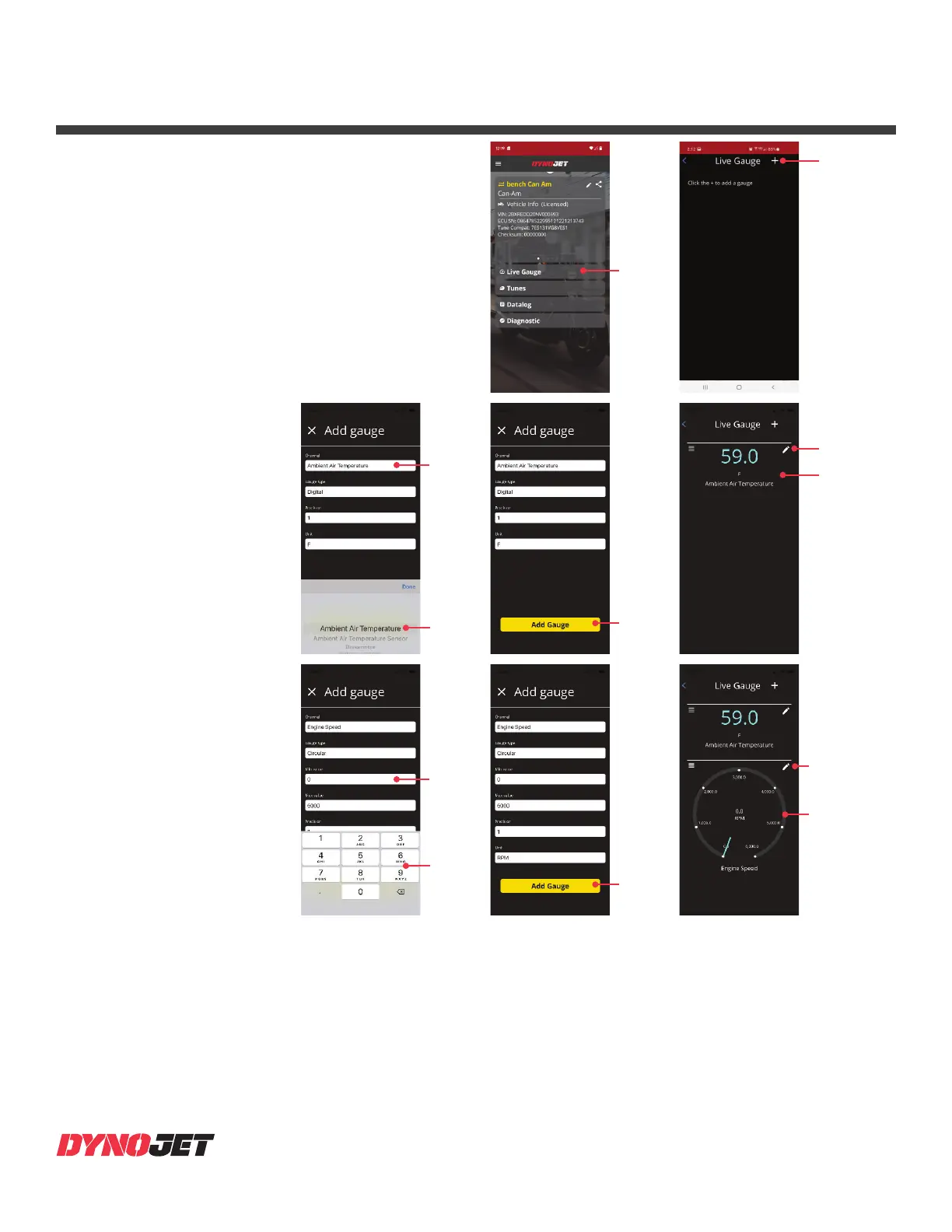
Your Power Vision 4 allows you to confi gure digital and
circular gauges for real time monitoring. The Power
Vision must be connected to the vehicle to view live
gauges.
1 Connect the Power Vision to the vehicle diagnostic port.
2 Start the vehicle.
3 Press Live Gauge.
4 Press + to add a gauge.
5 Add a digital gauge.
• Press the Channel fi eld to view a list of the available
options for that fi eld.
• Press the Gauge Type fi eld and select digital.
• Press the Precision fi eld and
select the precision.
• Press the Unit fi eld and select a
unit.
6 Once you have completed your
selections, press Add Gauge.
7 Press the Pencil to edit or
remove the gauge.
Digital gauge
added
Live Gauge
Press + to add a
gauge
Press Add
Gauge
8 Add a circular gauge.
• Press the Channel fi eld to view
a list of the available options for
that fi eld.
• Press the Gauge Type fi eld and
select circular.
• Press the Min Value and Max
Value and use the number pad to
enter your values.
• Press the Precision fi eld and
select the precision.
• Press the Unit fi eld and select
a unit.
9 Once you have completed your
selections, press Add Gauge.
10 Press the Pencil to edit or
remove the gauge.
Press the
fi eld to view
available
options
Available
options
Press Pencil
to edit
Circular gauge
added
Press Pencil
to edit
Press the
fi eld to view
available
options
Number pad
Press Add
Gauge









 To Next Page