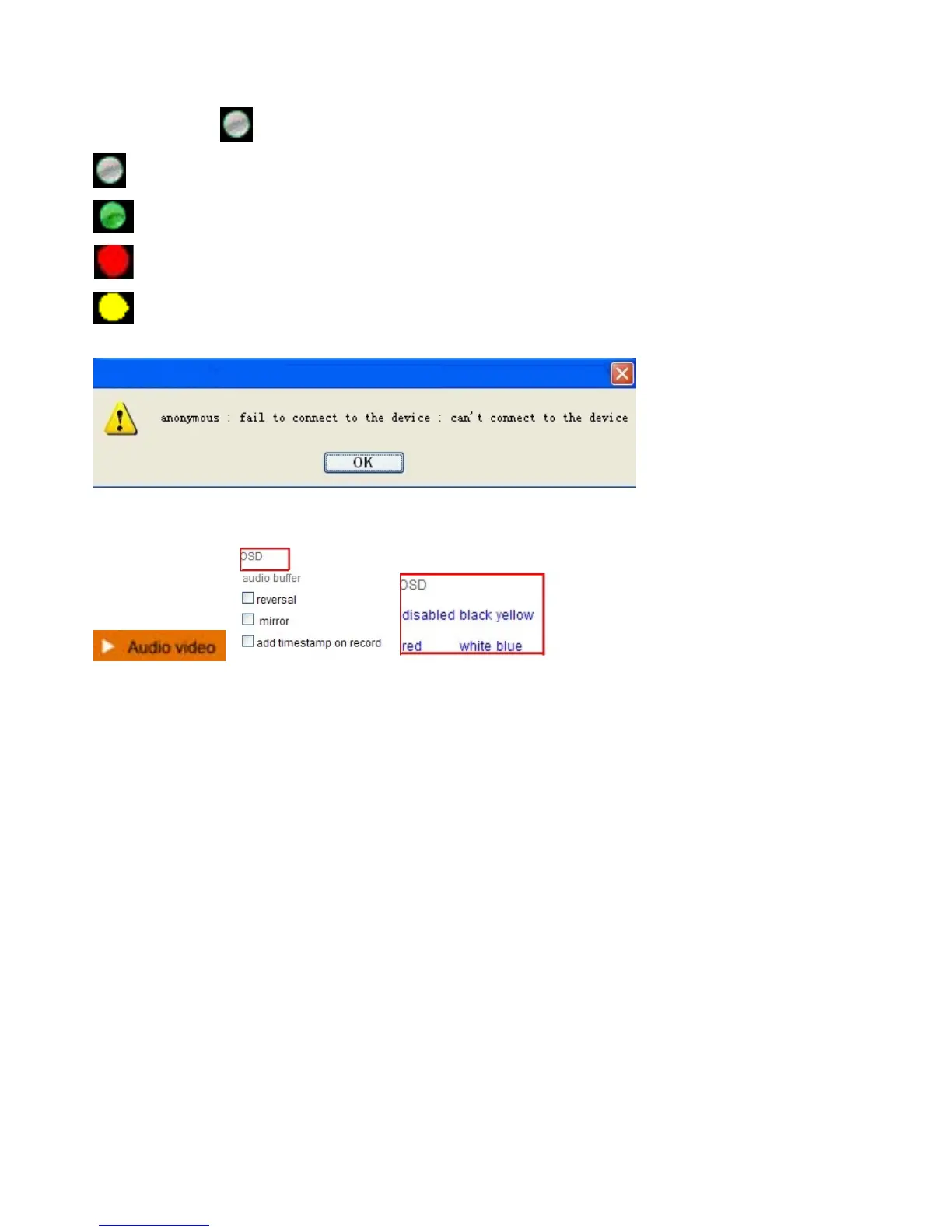
Status of Channels:
There are 9 icons
at the bottom of the UI which show the status of each channel of the camera.
Grey color, means there is no device connected to the main device for this channel.
Green color, means the device is connected for this channel, and it works well.
Red color, means the device for this channel is recording.
Yellow color, means this channel is set in multi-device already, but it fails to connect to the main
device.
OSD Settings:
Figure 3.6
OSD: Means “On-Screen Display”, click “Audio video” > “OSD”, set display date and time on the video.
Disabled: Clicking this one means clear the OSD.
Color: Can set the OSD text color as black, yellow, red, white, blue etc.
Add time stamp on record: if you click this, there will be time OSD on record video files.


 To Next Page