March 2013 14 IPV58
1.7.3 Network Configuration
In this page, you can configure the Network parameter.
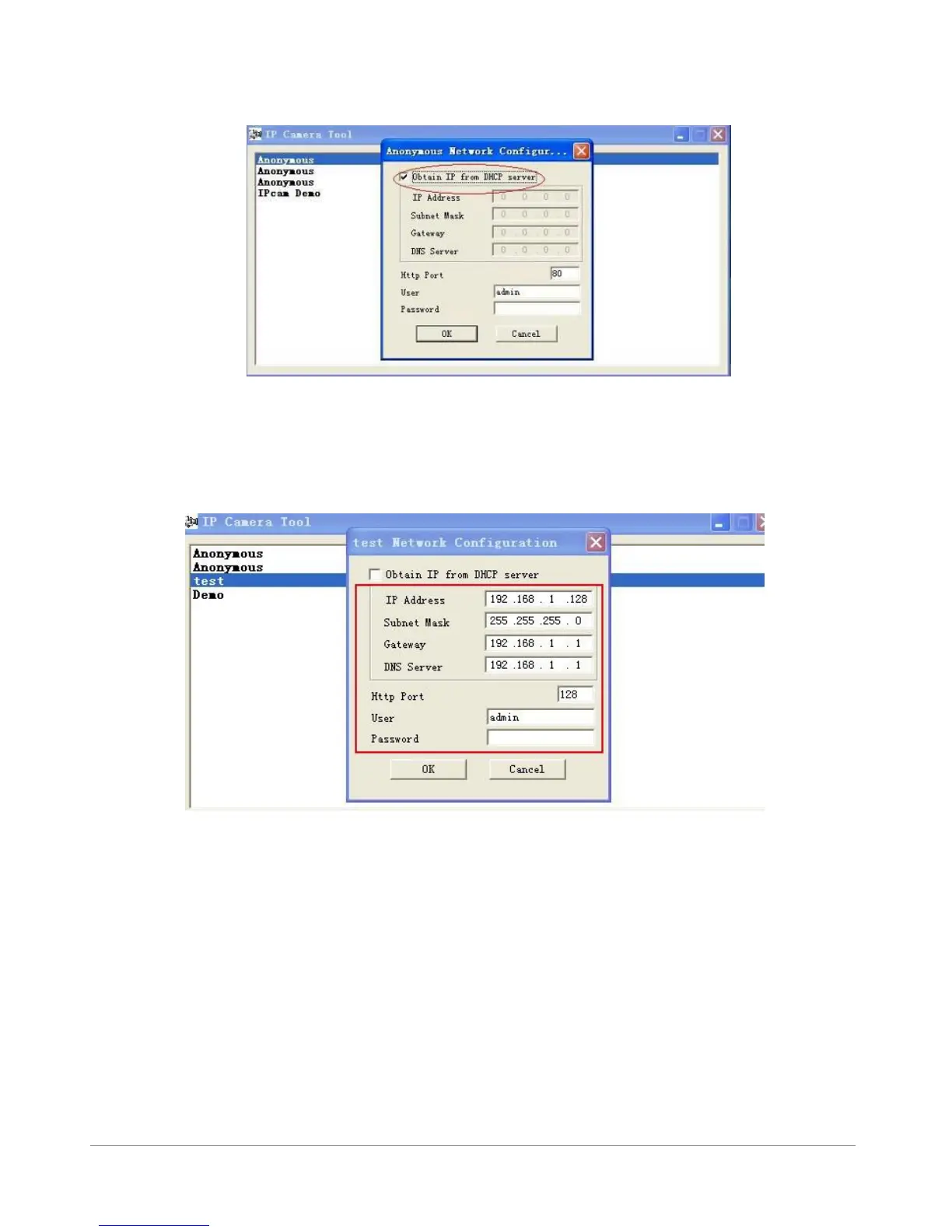
Figure2.2
Obtain IP from DHCP server: If clicked, the device will obtain IP from DHCP server. In other words, the
camera will have a dynamic IP. (Make sure the Router which the camera connects has DHCP function and
DHCP is enabled). (Figure 2.2)
Figure 2.3
IP address: Fill in the IP address assigned and make sure it is in the same subnet as the Gateway, and
the subnet should be the same as your computer or router. (I.e. the first three sections are the same)
Subnet Mask: The default subnet mask of the equipment is: 255.255.255.0. You can find the subnet
mask from your PC or router.
Gateway: Make sure it is in the same subnet with PC’s IP address .Here gateway is the LAN IP of your
router.
DNS Server: IP address of IPS network provider. You can also set it’s the same as the Gateway.
NOTE: You can find the Subnet Mask, Gateway, DNS Server from your router, or check the local
connection status of your computer, get all the parameters. Normally two DNS servers are optional.



 To Next Page