March 2013 13 IPV58
1.7.1 Six Options Available
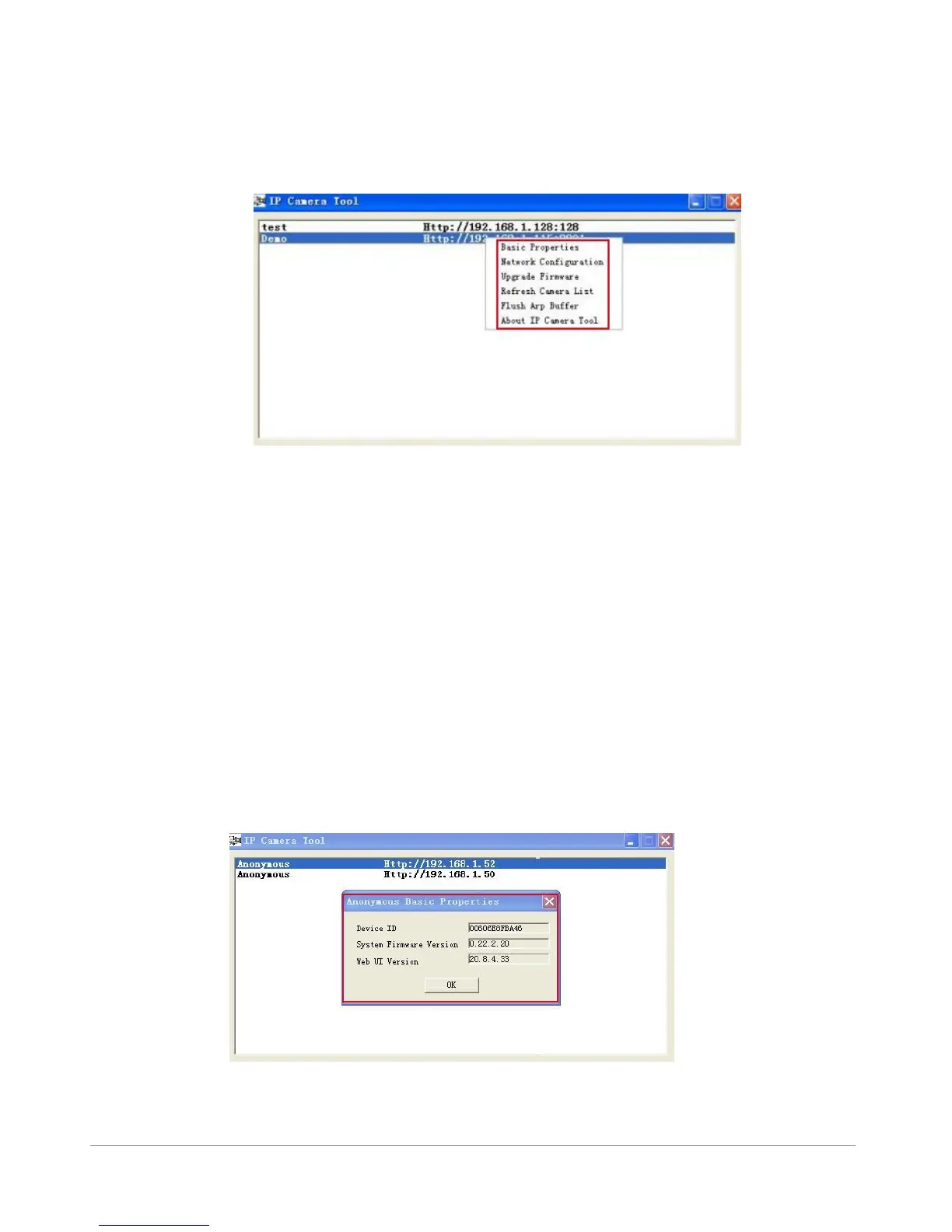
Choose the IP Camera and Click the right mouse button on that camera, there are six options: (Figure 2.0).
Basic Properties, Network Configuration, Upgrade Firmware, Refresh Camera List, Flush Arp
Buffer, About IP Camera Tool.
Figure2.0
1.7.2 Basic Properties
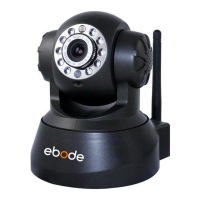
There are some device information in the Basic Properties, such as Device ID, System Firmware
Version, Web UI Version.(Figure 2.1)
The Device ID just is the camera’s MAC ID, which should be the same as showed on the sticker at the
bottom of camera. Every camera has its unique MAC ID. So if there are many IP address showed in the list,
check the MAC ID, you can ensure which camera is it.
Sometimes, if there is no IP address showed on the IP Camera tool, maybe it’s blocked by firewall, then
add the MAC ID to the router, and give it a fixed IP or add the MAC ID as a trusted site. There are two MAC
Address, one is Device MAC ID, the other is WIFI MAC ID.
WIFI MAC ID, you can find it from the sticker at the bottom of the camera, if this sticker lost, you can
login your WIFI router, check the host status, which will show all the WIFI device connect to this router,
you can also find the IPCAM’s WIFI MAC ID there.
Figure2.1



 To Next Page