March 2013 12 IPV58
NOTE: The software searches IP Servers automatically over LAN. There are 3 cases:
1. No IP Cameras found within LAN. After about 1 minute search, the Result Field will show “not found IP
Server” and the program shut automatically.
2. IP Cameras have been installed within LAN. All the IP Cameras will be listed and the total number is
displayed in the result field as shown in Figure 1.9
3. The IP Cameras installed within LAN do not share the same subnet with the monitoring PC. A prompt
as shown in result field (prompt: Subnet doesn’t match, double click to change!). Click the left
mouse button to choose the prompt and click the right mouse, choose Network Configuration to set the
static IP address of the Camera to the same subnet as LAN. (Figure 2.3)
NOTE: If it shows” Subnet doesn’t match, double click to change!”, you can also choose ”Obtain IP
from DHCP Server” to get a dynamic IP. (Figure 2.2) If the camera still doesn`t show in the IP Camera
Tool please use the Reset button on the bottom of the camera and hold it for 15 seconds with the power on.
(Figure 1.3)
Please be sure your computer is on the same network as the camera !
Mac Users:
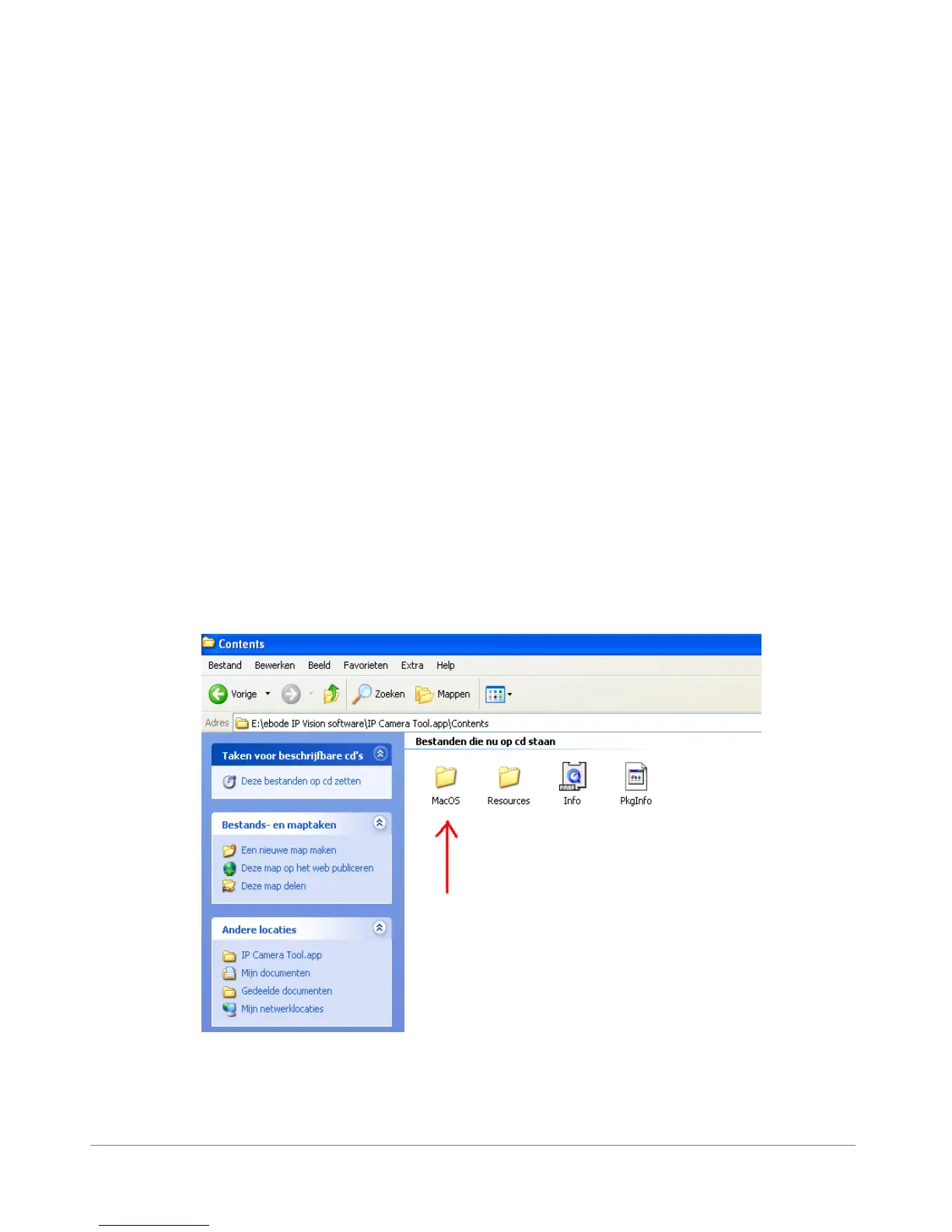
Browse to the Mac folder x:\ebode IP Vision software\IP Camera Tool.app\Contents
and install the IP Camera Tool.



 To Next Page