23
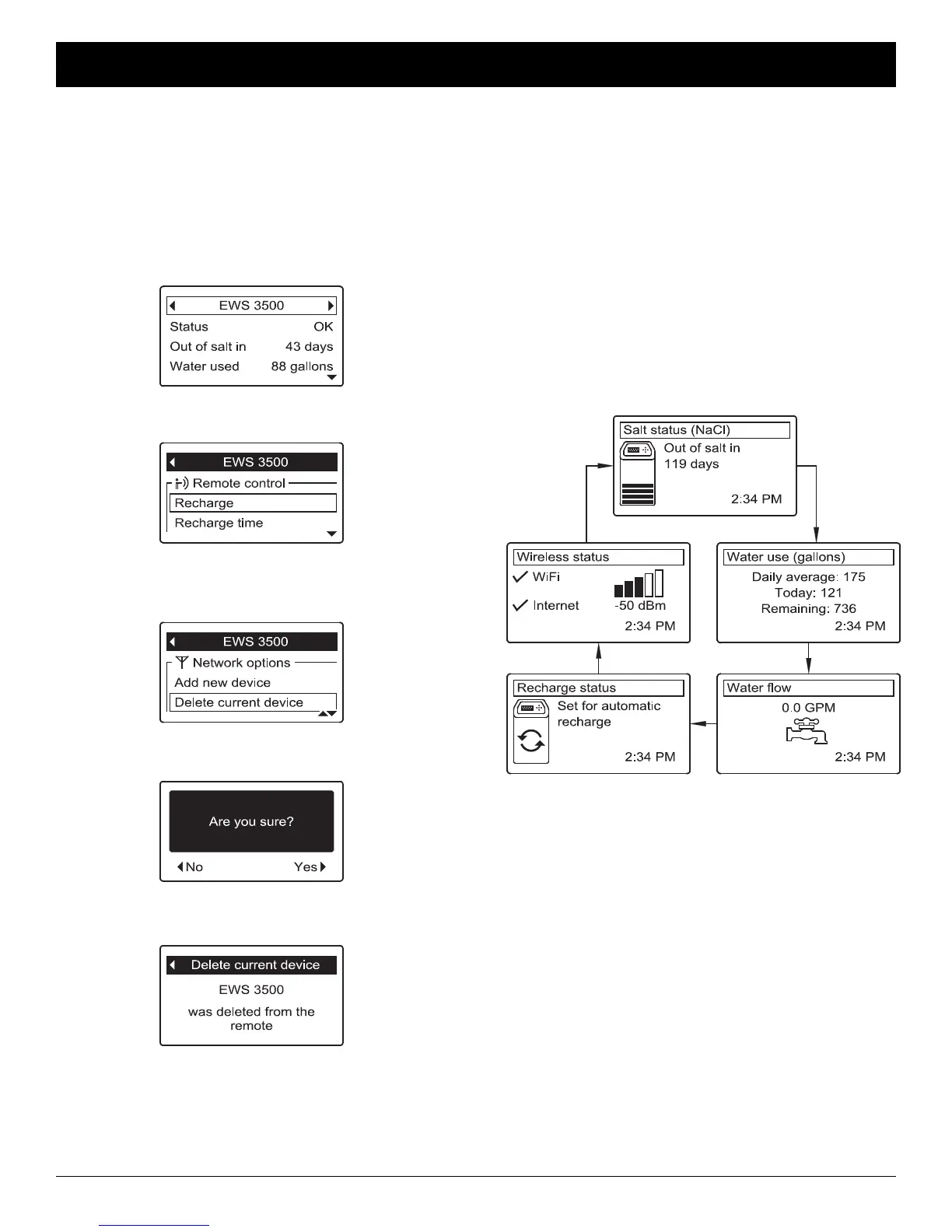
FIG. 74
FIG. 76
FIG. 78
FIG. 75
FIG. 77
2. Press the remote’s SELECT (¡) button to display the
device menu (See Figure 75).
3. Press the DOWN (6) button to scroll through the
menu options until Delete current device is high-
lighted in a box (See Figure 76).
6. To exit this screen, press the LEFT (3) button or
wait 30 seconds for it to exit automatically.
4. Press the SELECT (¡) button. The screen shown in
Figure 77 will appear.
5. Press the RIGHT (4) button. The screen shown in
Figure 78 will appear.
DELETING A DEVICE
To delete a device from the remote (possible reasons
for deleting a device include replacing or upgrading the
conditioner/refiner’s electronic control):
1. Press the remote’s LEFT (3) or RIGHT (4) buttons
to manually advance to the status screen for the
device to delete. The device name will show in the
header. (See Figure 74).
Pressing the conditioner/refiner’s RIGHT (4) button
manually advances to the next screen in the sequence.
Pressing the LEFT (3) button manually returns to the
previous status screen. If no buttons are pressed for 30
seconds, the automatic rolling sequence resumes.
ECOWATER
S Y S T E M S
Conditioner/Refiner Operation
FIG. 79
*Water remaining before the next recharge.
During normal operation, the EcoWater Systems condi-
tioner/refiner’s display shows up to five status screens.
Page 29 explains how individual screens can be turned
on or off. Each is shown for six seconds, in a rolling
sequence (See Figure 79).
The “Wireless status” screen will only be shown on Wi-
Fi systems. The check marks indicate the following:
P WiFi - The softener is connected to a Wi-Fi router.
P Internet - The softener is connected to a Wi-Fi router
which is connected to the internet.
*
NORMAL OPERATION
CONDITIONER/REFINER STATUS SCREENS
continued on the next page



 To Next Page