20
SETTING TIME FORMAT
U
se this feature to select a 12-hour (AM/PM) or 24-hour
clock.
1. From any of the rolling status screens, press the
SELECT (¡) button to display the Main menu.
2. Press the DOWN (6) button to scroll through the
menu options until User preferences is highlighted.
3. Press the SELECT (¡) button to display the User
preferences menu.
4. Press the DOWN (6) button to scroll through the
menu options until Time format is highlighted.
5. Press the SELECT (¡) button to display the Time
format menu (See Figure 60).
12-hour AM/PM
24-hour
Time format
FIG. 60
6. If the desired time format already has a dot next to it
(See Figure 60), go to Step 7. Otherwise, press the
DOWN (6) or UP (5) buttons to scroll to the other
time format, then press SELECT (¡) to choose it.
7. Press the SELECT (¡) button. The display will go
back to the User preferences menu.
8. Press the LEFT (3) button twice to return to the
rolling status screens.
SETTING VOLUME UNITS
Use this feature to select gallons or liters as volume
units.
1-3. Go to the User preferences menu by following
Steps 1-3 in “Setting Time Format” above.
4. Press the DOWN (6) button to scroll through the
menu options until Volume units is highlighted.
5. Press the SELECT (¡) button to display the Volume
units menu (See Figure 61).
gallons
liters
Volume units
FIG. 61
6. If the desired volume unit already has a dot next to it
(See Figure 61), go to Step 7. Otherwise, press the
DOWN (6) or UP (5) buttons to scroll to the other
volume unit, then press SELECT (¡) to choose it.
7. Press the SELECT (¡) button. The display will go
back to the User preferences menu.
8. Press the LEFT (3) button twice to return to the
rolling status screens.
ECOWATER
S Y S T E M S
Filter Operation
SETTING THE LANGUAGE
W
hen the filter’s electronic control is first powered up, a
“wizard” screen prompts you to set the language (See
Page 10). To change the language:
1
. From any of the rolling status screens, press the
SELECT (¡) button to display the Main menu.
2. Press the DOWN (6) button to scroll through the
menu options until User preferences is highlighted
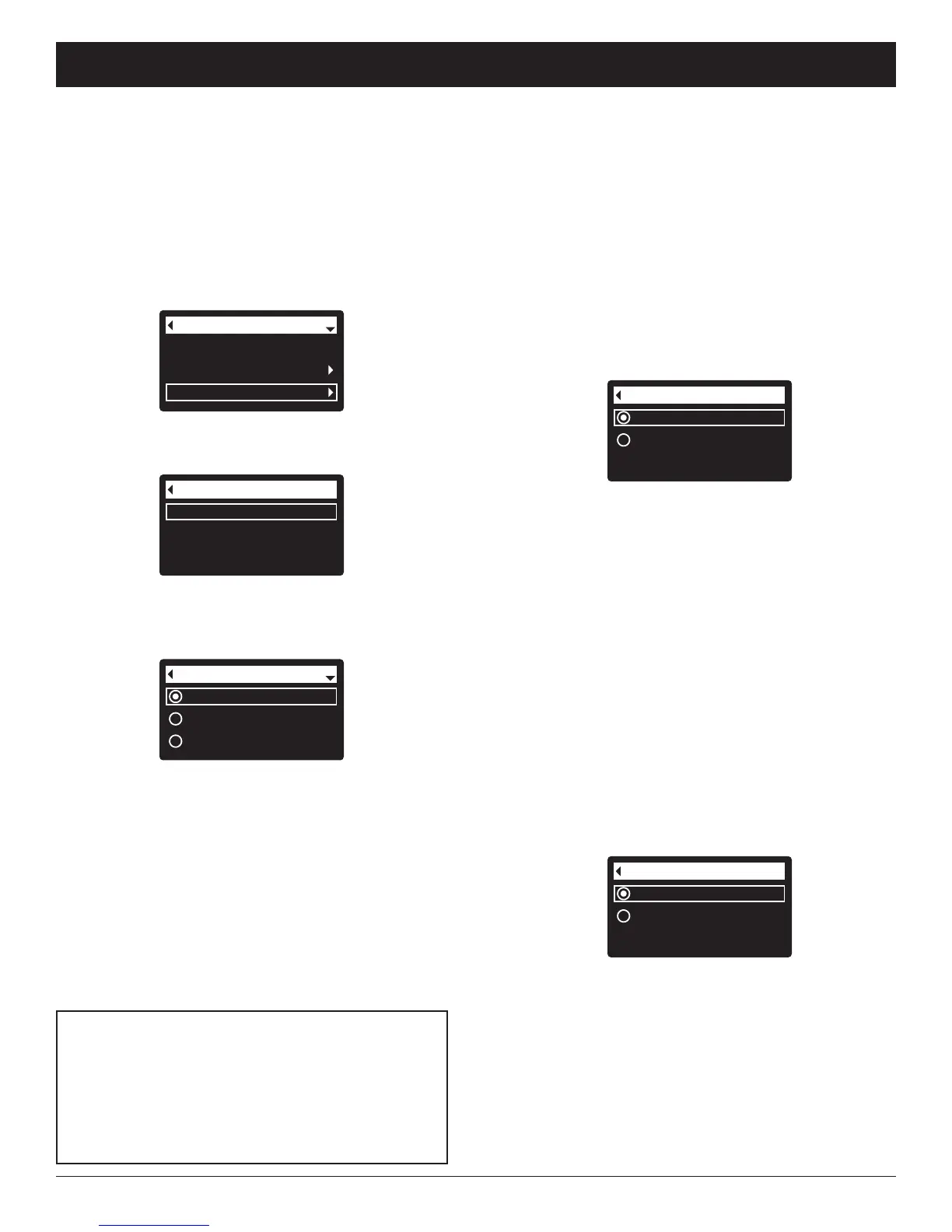
(See Figure 57).
4. Make sure Language is highlighted.
5. Press the SELECT (¡) button to display the
Language menu (See Figure 59).
Recharge
Basic settings
User preferences
Main menu
FIG. 57
Language
Time format
Volume units
User preferences
FIG. 58
3. Press the SELECT (¡) button to display the User
preferences menu (See Figure 58).
English
Español
Français
Language
FIG. 59
6. If the desired language already has a dot next to it
(See Figure 59), go to Step 7. Otherwise, press the
DOWN (6) or UP (5) buttons to scroll to the desired
language, then press SELECT (¡) to choose it. The
choices are: English, Spanish, French, Italian,
German, Dutch, Polish, Russian, Hungarian, Turkish,
Lithuanian, Greek, Romanian, Czech, Slovak,
Bulgarian, Serbian or Croatian.
7. Press the SELECT (¡) button. The display will go
back to the User preferences menu (Figure 58).
8. Press the LEFT (3) button twice to return to the
rolling status screens.
TO SET THE FILTER TO ENGLISH IF
ANOTHER LANGUAGE IS DISPLAYED:
From the rolling status screens, press SELECT (¡).
Press DOWN (6) three times, then press SELECT
(¡) twice. Press UP (5) to scroll to English at the
top of the list, then press SELECT (¡) twice. Press
LEFT (3) twice to exit all menus.



 To Next Page