22
CYCLE TIMES
U
se these features to change the following filter opera-
tions:
=Backwash time
=F
ast rinse time (aspirate time)
To display these screens:
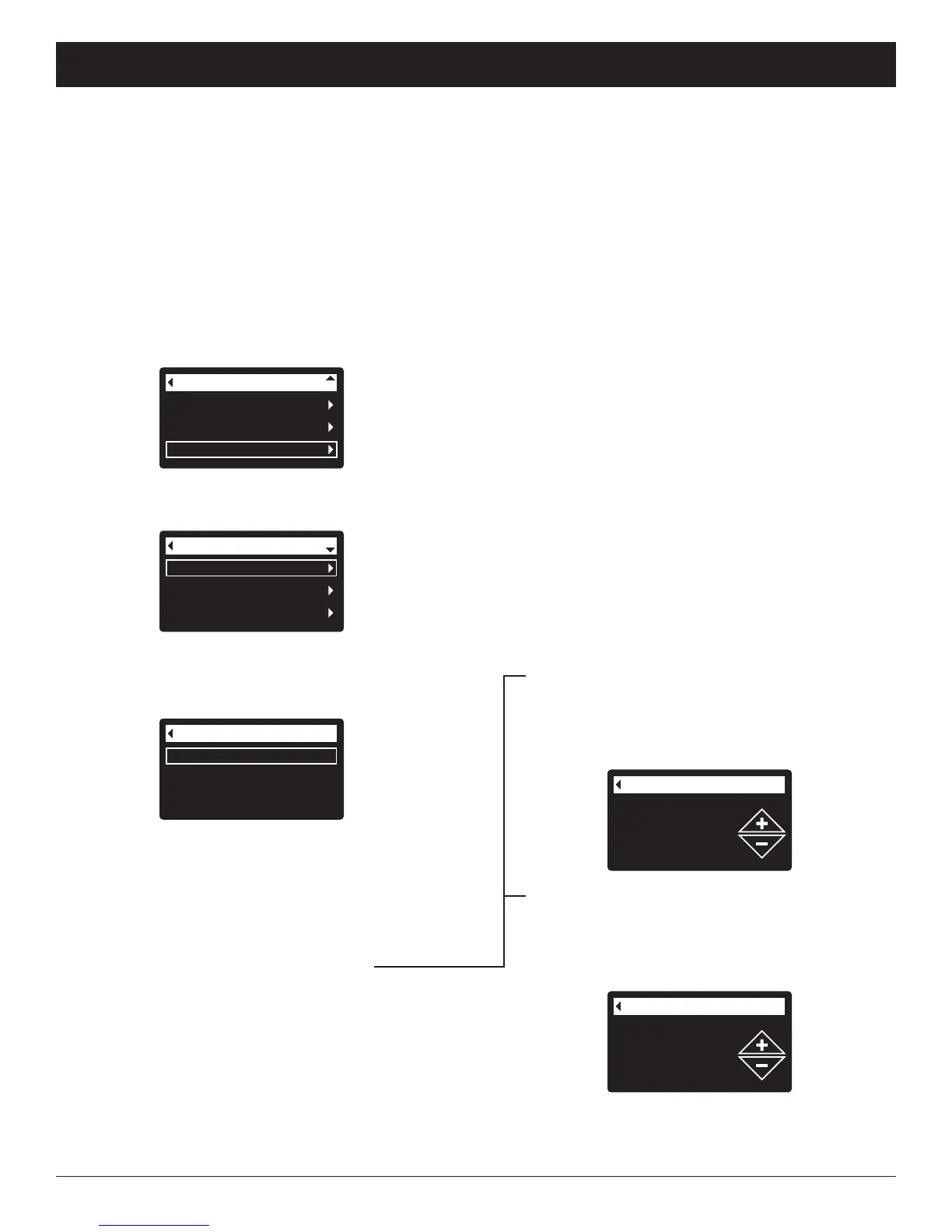
1. From any of the rolling status screens, press the
SELECT (¡) button to display the Main menu.
2. Press the DOWN (6) button to scroll through the
menu options until Advanced settings is highlighted
(See Figure 73).
Backwash time
Fast rinse time
Cycle times
FIG. 75
6. Press the DOWN (6) button to scroll through the
menu options until the desired option is highlighted
(See list at the top of this column).
7. Press the SELECT (¡) button to display the desired
cycle time screen (See Figures 76 & 77).
8. See the right column on this page for specific
instructions on each cycle time screen.
9. Press the SELECT (¡) button. The display will go
back to the Cycle times menu (Figure 75).
10. Press the LEFT (3) button three times to return to
the rolling status screens.
Cycle times
Special features
Troubleshooting
Advanced settings
FIG. 74
4. Make sure Cycle times is highlighted.
5. Press the SELECT (¡) button to display the Cycle
times menu (See Figure 75).
User preferences
System information
Advanced settings
Main menu
FIG. 73
3. Press the SELECT (¡) button to display the
Advanced settings menu (See Figure 74).
FIG. 76
Fast rinse time
75 minutes
FIG. 77
8b. Fast rinse time: Press the UP (5) or DOWN
(6) buttons to change the fast rinse time (aspi-
rate time). Hold the button down to rapidly
advance. The fast rinse time can be set from 1
to 99 minutes* (See Figure 77).
ECOWATER
S Y S T E M S
Filter Operation
*Reducing the backwash and fast rinse times below a fil-
ter model’s default settings is not recommended.
8a. Backwash time: Press the UP (5) or DOWN
(6) buttons to change the backwash time.
Hold the button down to rapidly advance. The
backwash time can be set from 1 to 99 min-
utes* (See Figure 76).



 To Next Page