20
Installing the Motherboard
IDE devices enclose jumpers or switches used to set the IDE device as MASTER or
SLAVE. Refer to the IDE device user’s manual. Installing two IDE devices on one
cable, ensure that one device is set to MASTER and the other device is set to SLAVE.
The documentation of your IDE device explains how to do this.
Installing a Hard Dish Drive/CD-ROM/SATA Hard Drive
.
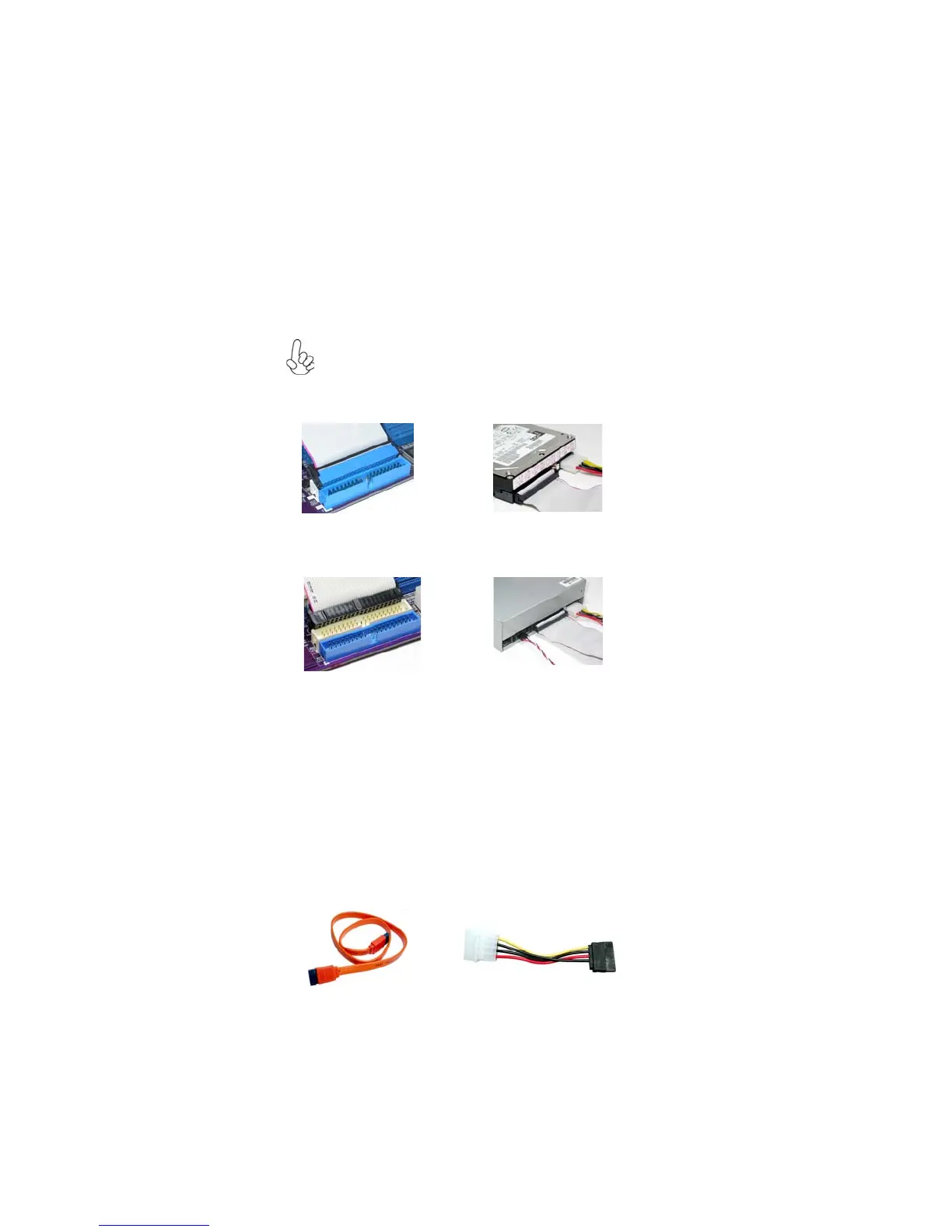
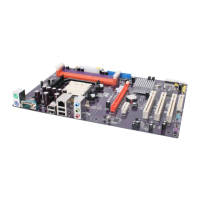
You must orient the cable connector so that the pin1 (color) edge of
the cable corresponds to the pin 1 of the I/O port connector.
IDE1: Primary IDE Connector
The first hard drive should always be connected to IDE1.
IDE2: Secondary IDE Connector
The secondary drive on this controller must be set to slave mode. The configuration
is the same as IDE1.
About SATA Connectors
Your motherboard features four SATA connectors supporting a total of four drives.
SATA , or Serial ATA (Advanced Technology Attachment) is the standard interface
for the IDE hard drives which are currently used in most PCs. These connectors are
well designed and will only fit in one orientation. Locate the SATA connectors on the
motherboard and follow the illustration below to install the SATA hard drives.
Installing Serial ATA Hard Drives
To install the Serial ATA (SATA) hard drives, use the SATA cable that supports the
Serial ATA protocol. This SATA cable comes with an SATA power cable. You can
connect either end of the SATA cable to the SATA hard drive or the connector on the
motherboard.
SATA cable (optional)
SATA power cable (optional)
About IDE Devices
Your motherboard has two IDE channel interfaces (IDE1 & IDE2). Two IDE ribbon
cables supporting four IDE devices is bundled with the motherboard.
This section describes how to install IDE devices such as a hard disk drive and a CD-
ROM drive



 To Next Page