EdgeMarc 2900 Series Hardware Installation Guide
6.
Click OK.
7.
After you have logged in to the system for the first time with the default
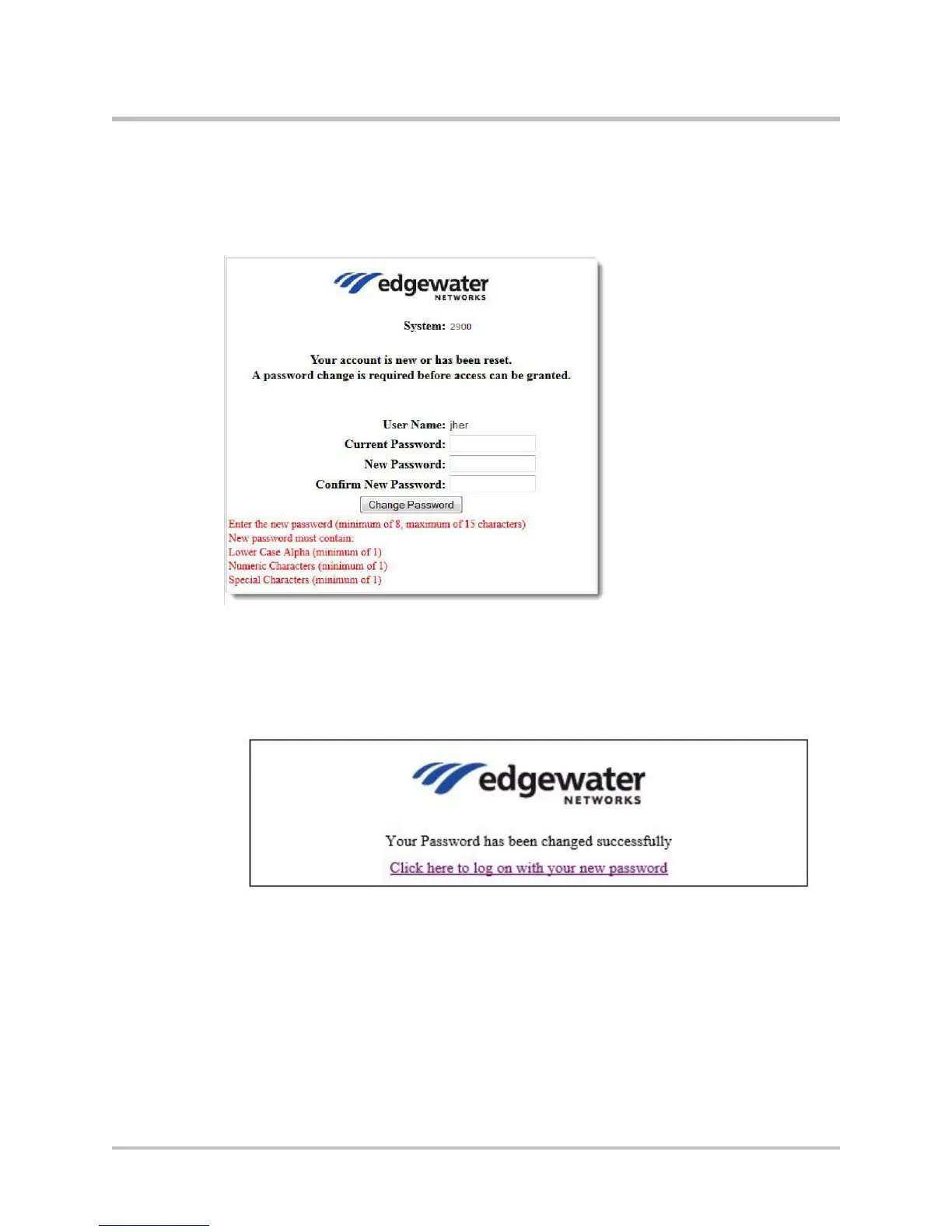
credentials, you are directed to the Change Password page (Figure 5-2).
Figure 5-2 Change Password Page
8.
Enter your Current and New Passwords in the Change Password Page
according to the new password instructions given in the page and then click
Change Password. The Password Change Confirmation Page will be
displayed (Figure 5-3).
Figure 5-3 Password Change Confirmation Page
9.
Select Click here to log on with your new password from the Password
Change Confirmation Page (Figure 5-3).
10.
You will be navigated again to the EdgeMarc login screen (Figure 5-4). Log
in to the EdgeMarc Admin landing page (Figure 5-5) with your User Name
and New Password from the EdgeMarc login screen.
© 2017 Edgewater Networks. All Rights Reserved. 27


 To Next Page