11
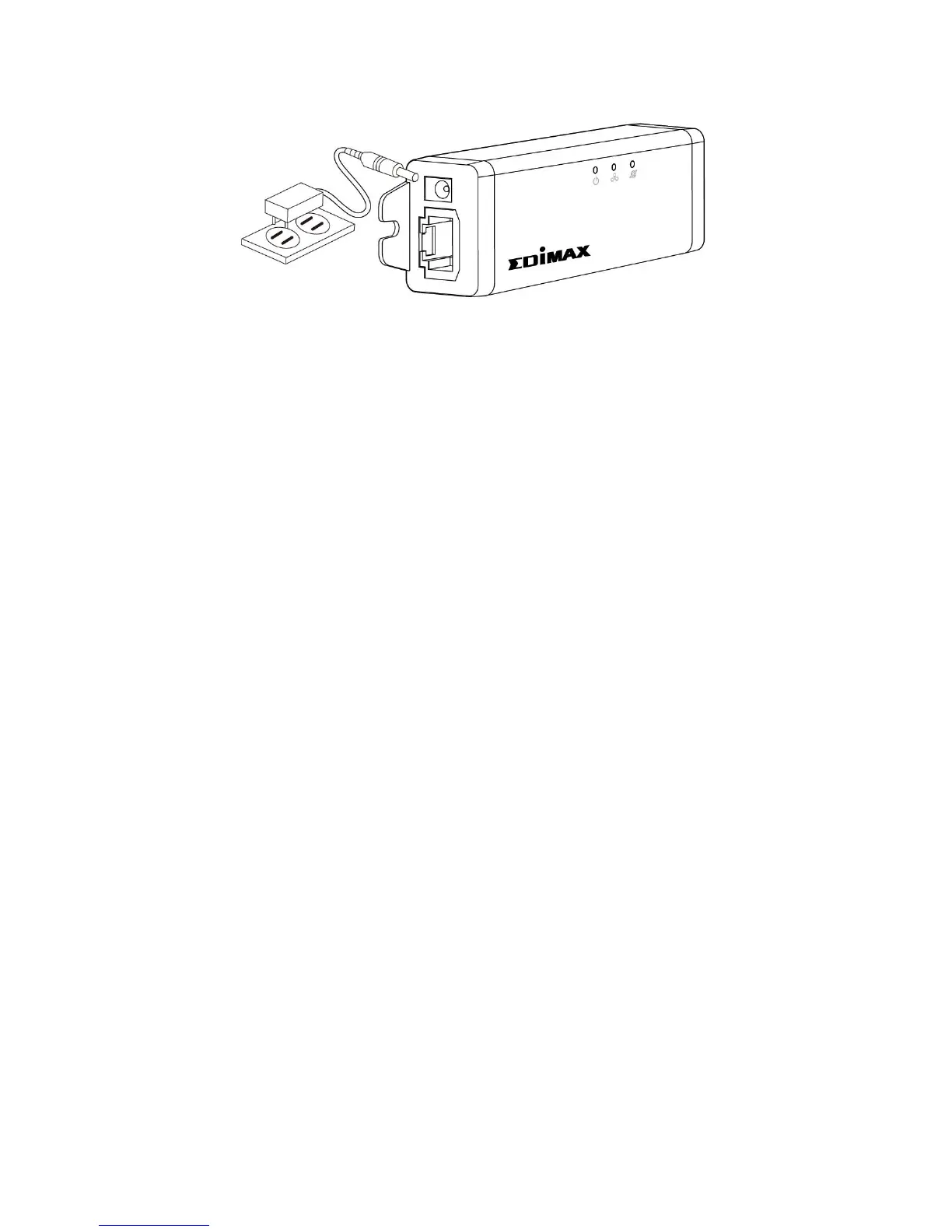
3. Connect the power adapter to the indoor main unit and to a power supply.
4. Wait a moment for the camera to power on. The green power LED will
flash slowly when it’s ready.
Now you need to connect your network camera to your network. There are
three easy ways:
A. With the free EdiView II app on Android or iPhone: III-1. EdiView II App.
B. Using a computer and EdiView Finder: III-2. EdiView Finder.
C. Using WPS (Wi-Fi Protected Setup), a simple method to connect your
camera to your wireless network. Refer to III-4. WPS.
After connecting your camera to your network using one of the methods
above, you can view your camera’s live image or configure its settings:
Local network:
A. Using the web based management interface (see IV. Web Based
Management Interface.).
B. Using the 16 channel viewer software (see VI. 16 Channel Viewer
Software).
Remotely (from any Internet connection):
A. Using the camera’s cloud ID (see V. Myedimax.com).
B. Using the EdiView II app.
Follow the instructions in Outdoor Installation if you need help installing your
camera outside.


 To Next Page