36
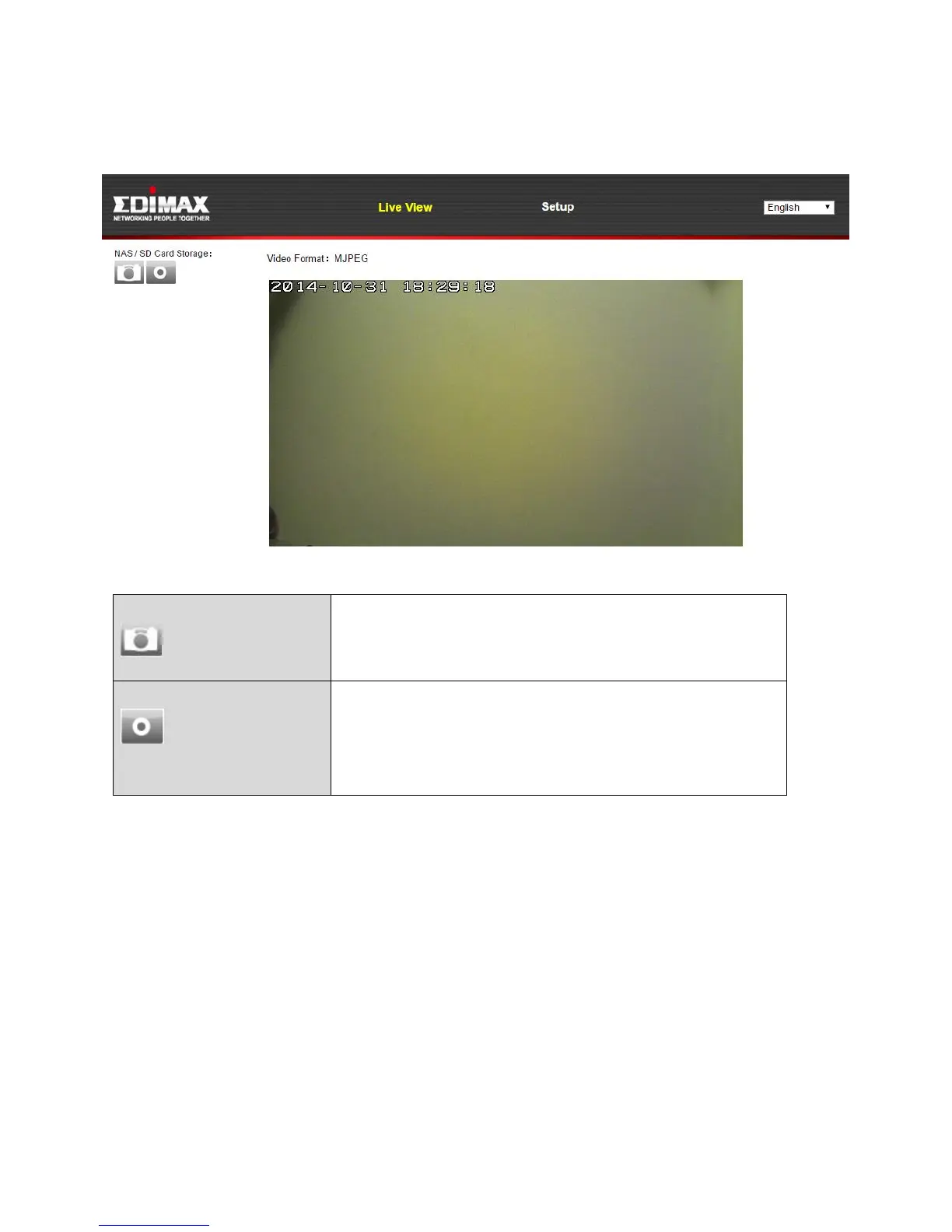
4. For computer users, the “Live View” screen will be displayed, as shown
below. On the live view screen you can see a live stream from your camera
and use the icons on the left side.
Save a snapshot (image) of the network
camera’s current view. You will be prompted
to select a location to save the image.
Record video. You will be prompted to select
a location to save the recording. The icon will
display blue while recording, click the icon
again to stop recording.
5. Select “Setup” at the top center and use the menu down the left side to
navigate to the network camera’s various settings. Each menu item is
described in the following chapters.


 To Next Page