Functions and settings in the menu:
Open file: If the receiver has found files to be updated on the USB memory device, they will
be displayed. Specify the file to be updated with the arrow buttons or OK button.
If no files were found, it will be indicated with 'No File'.
Update Mode: Use the arrow buttons or OK button to set the parts of the software to be
updated.
Start: If the software file and Update Mode are specified, navigate with the up/down
arrow buttons to the 'Start' item. Press the OK button and the Update process
starts.
Attention: The software update starts immediately after pressing the OK button and must not be
interrupted.
Backup to USB/HDD
Functions and settings in the menu:
Backup of the file: Determine the file name for the backup file here. Press the OK button to
display a letter and number field and specify with the arrow buttons and OK
button the name for the backup file. Delete the last character by navigating
in the letter field with the arrow buttons to the area '<-' and press the OK
button. Confirm the input by navigating to the OK area and pressing the
'OK' button on the remote control. Use the 'EXIT' button to exit the input
window.
Backup to USB/HDD: Navigate with the up/down arrow buttons to this menu item and press the
OK button to start the backup.
Http Update
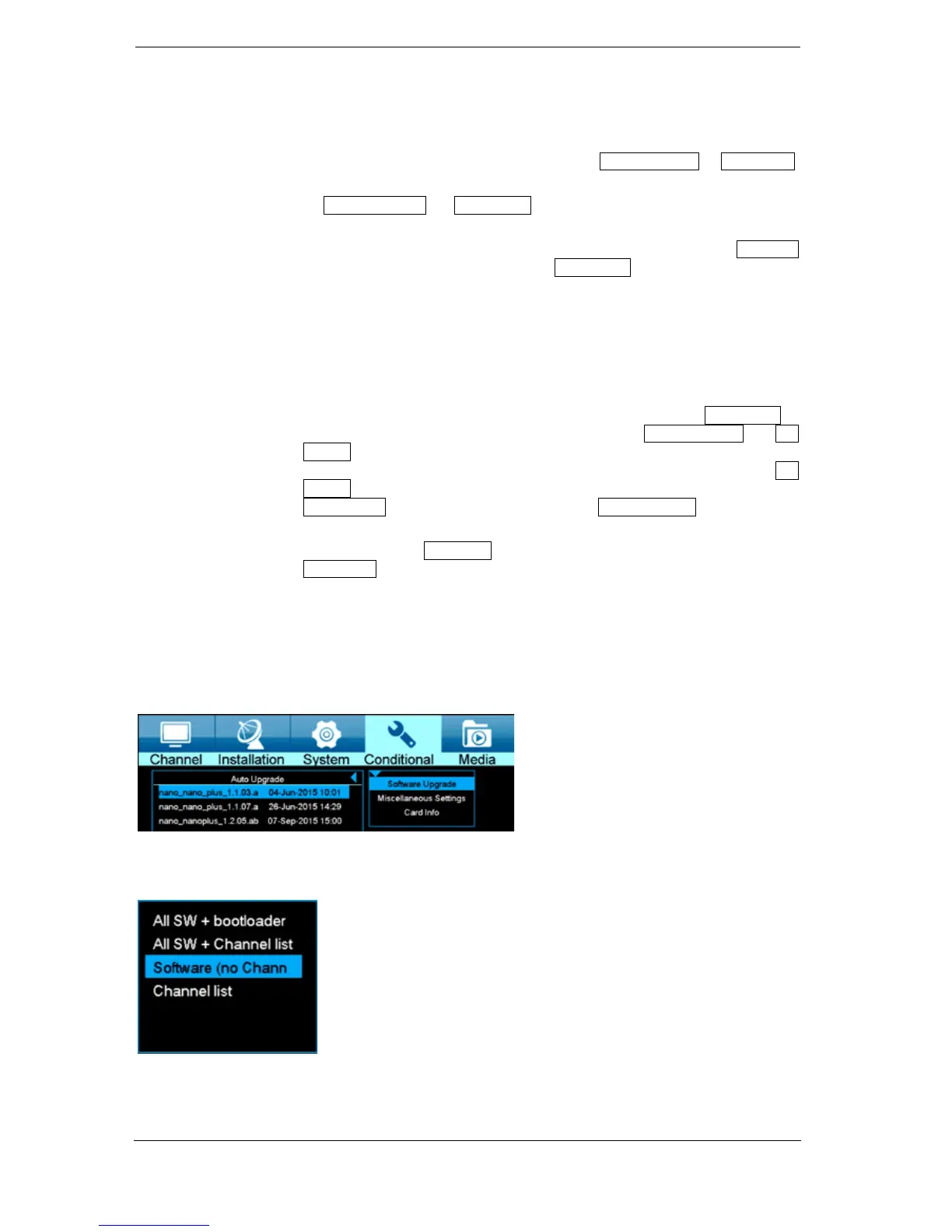
In a few steps to the current version. Please select the option Http Update and then Auto Update. It is
possible on the next page to select the desired option to be transferred to the box. Please pay attention
to the date in the image name.
NEW Version
Use the red button to start the process. Please select now how to flash your image. Use the OK button
to start the flash process. The flash process starts automatically after the download.


 To Next Page