Version of 14 June 2016 23
If the upgrade process is not
started, it is possible to exit
the ‘Auto Upgrade’ menu by
pressing the EXIT button.
Update from USB/HDD
Standard: This menu is only
accessible if a suitable USB
data storage is connected and
recognised by the receiver.
Otherwise, this menu is not
accessible.
Another prerequisite for a
‘USB/HDD Update’ is that
the appropriate software le
is located on the USB data
storage. This le with the
‘.abs’ le extension can be
downloaded from the Edision
website via a PC with Internet
connection.
http://www.edision.gr
“Progressiv HD C nano plus”
Save the downloaded le from
your PC onto the USB data
storage and plug this USB data
storage device into the USB port
of “Progressiv HD C nano plus”.
Note: In these circumstances,
the upload speed via USB
depends on the data in the USB
memory. It is recommended to
prepare the USB memory device
rst via the «HDD formatting»
(ALL data will be deleted) item in
the ‘USB’/’Memory Information’
menu (to format, start with the
yellow button) and then save the
software le (.abs) inside.
Functions and settings in the
menu:
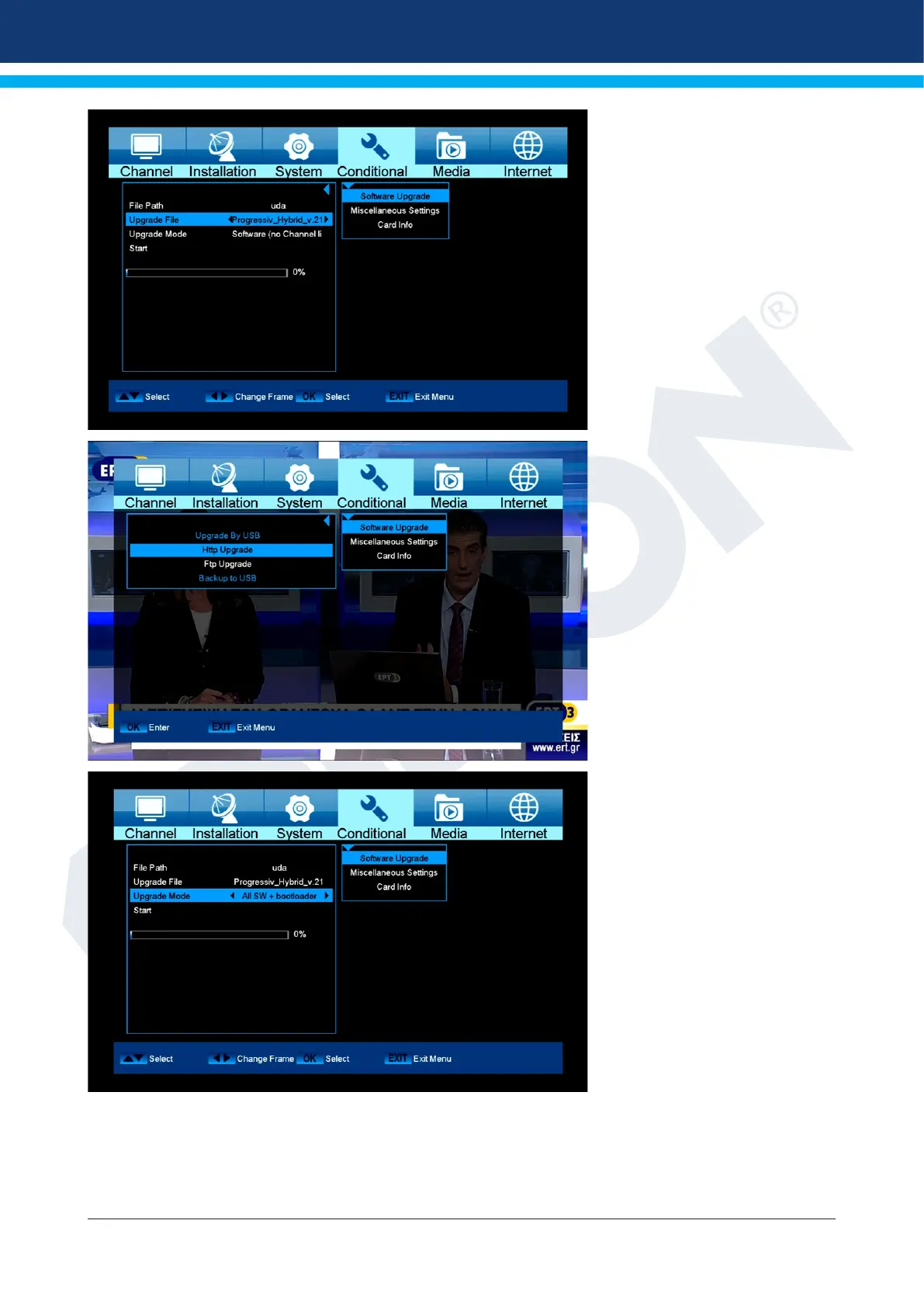
Open le: If the receiver has
found les to be updated on the
USB memory device, they will
be displayed. Specify the le
to be updated with the arrow
buttons or OK button. If no les
were found, it will be indicated
with ‘No File’.
Update Mode: Use the
arrow buttons or OK button to
set the parts of the software to be updated.
Start: If the software le and Update Mode are specied, navigate with the up/down arrow buttons to the
‘Start’ item. Press the OK button and the Update process starts.
Attention: The software update starts immediately after pressing the OK button and must not be interrupted.


 To Next Page