24 Version of 14 June 2016
Backup to USB/HDD
Functions and settings in the menu:
Backup of the le: Determine the le name for the backup le here. Press the OK button to display a
letter and number eld and specify with the arrow buttons and OK button the name for the backup le. Delete
the last character by navigating in the letter eld with the arrow buttons to the area ‘<-’ and press the OK
button. Conrm the input by navigating to the OK area and pressing the ‘OK’ button on the remote control.
Use the ‘EXIT’ button to exit the input window.
Backup to USB/HDD: Navigate with the up/down arrow buttons to this menu item and press the OK button
to start the backup.
Http Update
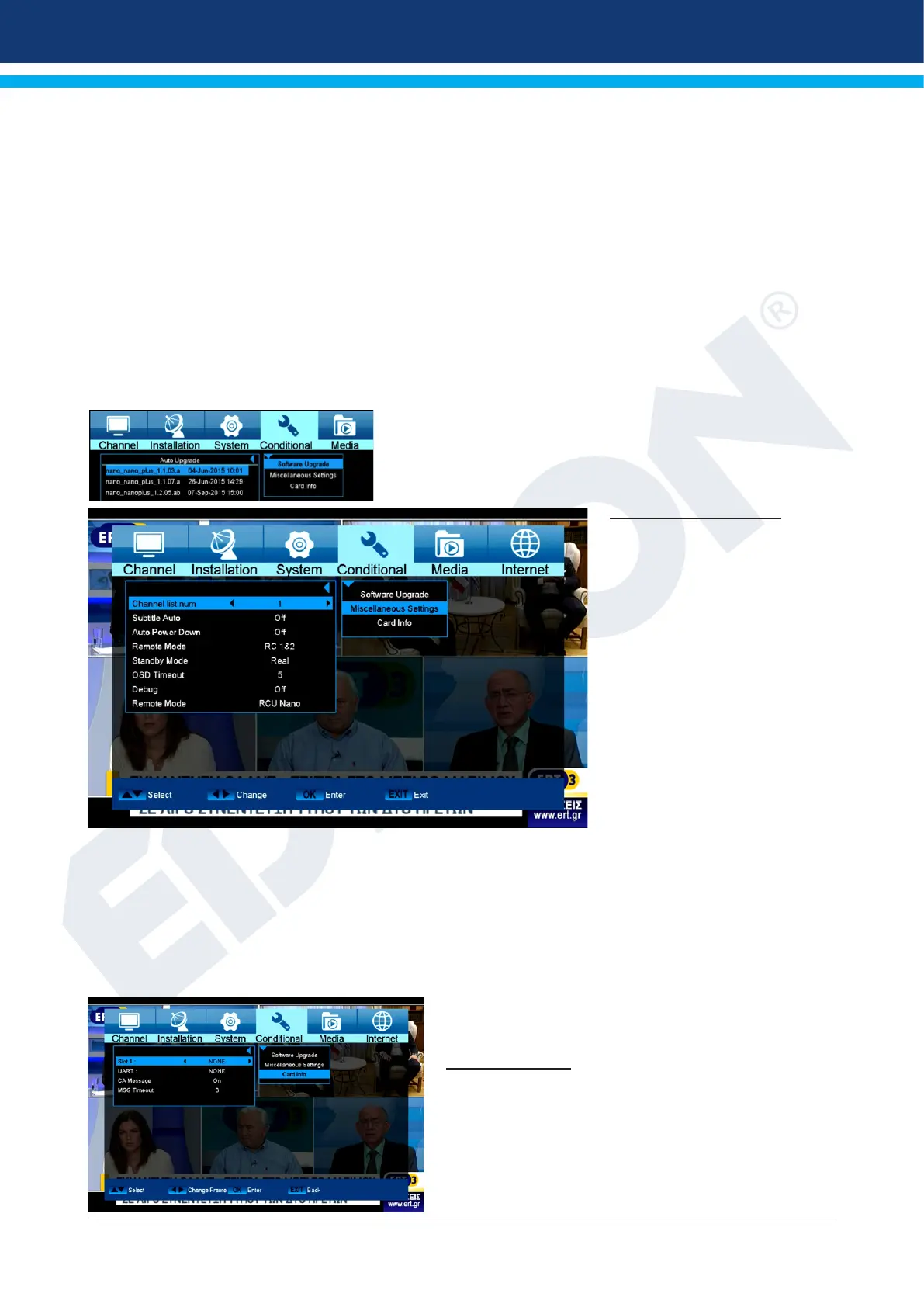
In a few steps to the current version. Please select the option Http Update and then Auto Update. It is
possible on the next page to select the desired option to be transferred to the box. Please pay attention to
the date in the image name.
NEW Version
Use the red button to start the process. Please select how to
transfer the le. Use the OK button to start the ash process.
The ash process starts automatically after the download.
Miscellaneous Settings
When you enter to
“Miscellaneous Settings” menu,
you see a screen with the
following options:
1 Subtitle Auto: You can press
[Left/Right] key to select “On”
or “Off”. If the current channel
has subtitle information, it will
be showed up automatically
while this function is “ON”, if this
function is “OFF”, you need turn
on the subtitle manually by press
[Yellow] key.
2 Auto Power Down: You can
press [Left/Right] key to select
the time or “Off”, if you select
time, duration this time if no any operation on receiver, it will go to standby mode.
3 Standby mode: if set to “Real”, Press power key receiver will be in real standby status, the consumption will
be less than 0.5 Watt. If it’s set to “Fake”, Press power key, receiver will be in fake standby status.
4 OSD Timeout: When you switch channels in full screen, there will show up some information about current
channel on the lower of the screen. And regarding to the duration of these information show up on the
screen, you can press [OK] and [up/ down] key to set the time. The range of the duration is “1 second ~ 10
seconds”.
5 OSD Position: control display position of the info bar
in full screen mode. You can choose “bottom” or “top”.
Card information
Standard information: At your disposal is one reader
Smart Card (reader). If you place the card here suppliers
of various subscription programs, you can watch many
programs that are encoded with this system. In this
menu you will nd information on the Smart Card, which
you placed on the port.


 To Next Page