EasyManua.ls Logo

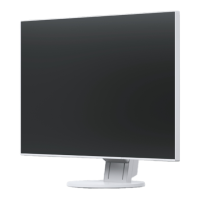
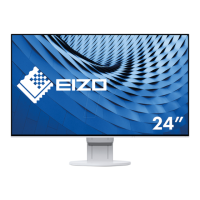
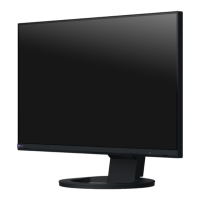
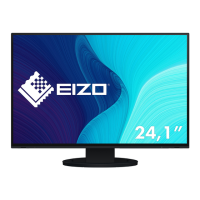
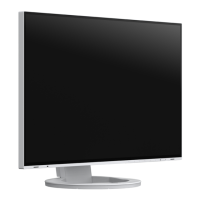
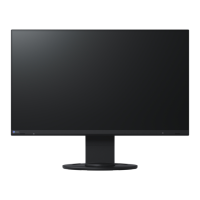
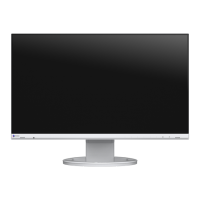
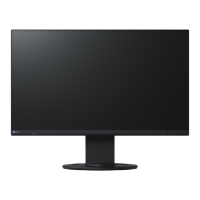
Eizo FlexScan EV2451 - User Manual

Eizo FlexScan EV2451
49 pages
Print Icon
To Next Page IconTo Next Page
Loading...
Important
Please read PRECAUTIONS, this User’s Manual, and the Setup Guide
(separate volume) carefully to familiarize yourself with safe and
effective usage.
Please refer to the Setup Guide for basic information ranging from
connection of the monitor to a PC to using the monitor.
For the latest product information including the User’s Manual, refer
to our web site :
www.eizoglobal.com
Color LCD Monitor
Users Manual

Table of Contents

Questions and Answers

  • W
    William CobbAug 30, 2025
    How to fix incorrect display position on Eizo Monitor?
    • Z
      zlucasAug 30, 2025
      If the display position on your Eizo Monitor is incorrect, use the “Position” setting in the Setting menu to correct it. If the problem persists, use the graphics board’s utility, if available, to change the display position.
  • R
    Richard KentSep 7, 2025
    Why do interference patterns or pressure marks remain on the screen of my Eizo FlexScan EV2451?
    • L
      lucasjulieSep 7, 2025
      If you notice interference patterns or pressure marks on your Eizo monitor screen, leave the monitor displaying a white or black screen. This symptom may disappear over time.
  • L
    lopezloriAug 29, 2025
    What to do if Eizo FlexScan EV2451 Monitor says input signal is out of range?
    • E
      Elizabeth PetersonAug 29, 2025
      If your Eizo Monitor displays the message that the input signal is out of the specified frequency range, check whether the PC is configured to meet the resolution and vertical scan frequency requirements of the monitor. You may also try rebooting the PC or selecting an appropriate setting using the graphics board’s utility.
  • S
    Steven GrantSep 18, 2025
    Why doesn't the Setting menu appear on my Eizo FlexScan EV2451?
    • L
      lynnharveySep 18, 2025
      Check whether the switch operation lock function is active.
  • N
    Norma CowanSep 8, 2025
    What to do if the color shown on the screen is not correct on my Eizo FlexScan EV2451 Monitor?
    • M
      Melanie WoodsSep 8, 2025
      If the color shown on your Eizo monitor is not correct when using DisplayPort or HDMI input, try changing the “Input Color Format” in the Setting menu.
  • C
    Courtney LarsonSep 12, 2025
    Why are USB devices not working when connected to my Eizo Monitor?
    • S
      Sean SullivanSep 12, 2025
      If USB devices aren't working when connected to your Eizo monitor, check the following: Ensure the USB cable is correctly connected. Try using a different USB port on the monitor or on your PC. Reboot your PC. Check whether the PC and OS are USB compliant. Update to the latest USB 3.0 driver provided by each manufacturer, or connect the monitor to the USB 2.0 port. Also, check the PC’s BIOS setting for USB when using Windows.
  • R
    Regina HopkinsSep 16, 2025
    How to remove noise from the screen of my Eizo FlexScan EV2451?
    • A
      Angel RoweSep 16, 2025
      To remove noise from the screen of your Eizo monitor, set Overdrive to Off in the Setting menu.
  • E
    Edward KimSep 23, 2025
    Why is the color on my Eizo FlexScan EV2451 Monitor not correct?
    • A
      Amy MorrisSep 23, 2025
      If the color shown on the screen of your Eizo Monitor is not correct when using DisplayPort or HDMI input, try changing the “Input Color Format” in the Setting menu.
  • D
    David GoodwinAug 26, 2025
    How to adjust brightness on Eizo FlexScan EV2451 Monitor if the screen is too bright or dark?
    • N
      nicolecochranAug 26, 2025
      If your Eizo monitor screen is too bright or too dark, use the Brightness or Contrast settings in the Setting menu to adjust it. Alternatively, if the screen is too bright, try setting the Auto EcoView setting to On.
  • B
    Bianca JonesAug 25, 2025
    How to fix an Eizo Monitor when there is no picture and the power indicator is off?
    • J
      Jessica WadeAug 26, 2025
      If your Eizo monitor isn't displaying a picture and the power indicator isn't lit, try these steps: First, ensure the power cord is properly connected. Next, turn on the main power switch located on the rear of the monitor. If it still doesn't work, turn off the main power switch, wait a few minutes, and then turn it back on.

Eizo FlexScan EV2451 Specifications

General IconGeneral
BrandEizo
ModelFlexScan EV2451
CategoryMonitor
LanguageEnglish

Related product manuals