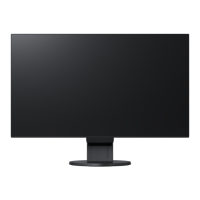
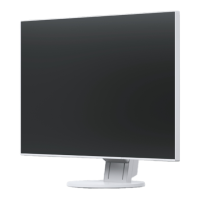
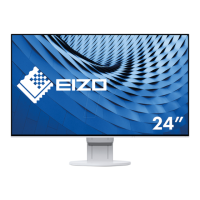
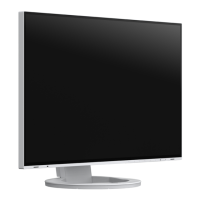
EasyManua.ls Logo

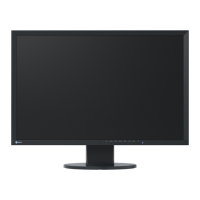
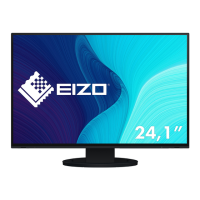
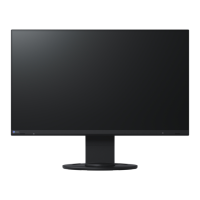
Eizo FlexScan EV2457 - User Manual

Eizo FlexScan EV2457
43 pages
Print Icon
To Next Page IconTo Next Page
Loading...
Important
Please read this “Users Manual, and “PRECAUTIONS” (separate
volume) carefully to familiarize yourself with safe and effective usage.
Refer to the “Setup Guide” for information on the installation /
connection of the monitor.
For the latest product information including the “User’s Manual”,
refer to our web site :
www.eizoglobal.com
Color LCD Monitor
Users Manual

Table of Contents

Questions and Answers

  • S
    Seth WilliamsSep 3, 2025
    Why is there no audio output from my Eizo FlexScan EV2457?
    • C
      Caleb WatsonSep 4, 2025
      If you're experiencing no audio output from your Eizo Monitor, verify that the stereo mini jack cable is correctly connected. Also, check that the volume isn't set to 0. Ensure that your PC and audio playback software are configured correctly. For DisplayPort and HDMI inputs, examine the Sound Source settings.
  • J
    Jesse PerkinsSep 1, 2025
    How to fix no picture on Eizo FlexScan EV2457 Monitor?
    • M
      Matthew BrownSep 1, 2025
      If your Eizo Monitor isn't displaying a picture, here are a few things to try: First, make sure the power cord is properly connected. Next, check that the main power switch on the rear of the monitor is turned on. If it is, try turning it off and then back on after a few minutes. You may also need to adjust the Brightness, Contrast, or Gain settings in the Setting menu. Ensure that the PC is turned on. Try switching the input signal, and if the issue persists, turn the Compatibility Mode setting to On in the Administrator Settings menu. For DisplayPort input, use a recommended signal cable and try turning the monitor off and on again.
  • D
    daniel76Aug 31, 2025
    Why can't I select items in the setting menu of my Eizo FlexScan EV2457?
    • K
      Kara JonesAug 31, 2025
      If you cannot select items in the Setting menu on your Eizo Monitor, it is because items displayed with gray text cannot be changed.
  • D
    danielfloresAug 29, 2025
    Why doesn't the setting menu appear on my Eizo Monitor?
    • J
      juareznancyAug 30, 2025
      If the Setting menu does not appear on your Eizo Monitor, check whether the switch operation lock function is active.
  • B
    Breanna PaceAug 28, 2025
    Why is the Power Save function not working with my Eizo FlexScan EV2457 Monitor?
    • S
      Stephen WeberAug 28, 2025
      If the Power Save function of your PC isn't working correctly with your Eizo Monitor, turn the Compatibility Mode setting to On in the Administrator Settings menu.
  • J
    Jose AndersonAug 26, 2025
    Why can't I change the brightness on my Eizo FlexScan EV2457?
    • K
      Kimberly HarrisAug 27, 2025
      If the brightness on your Eizo Monitor cannot be changed or changes on its own, try turning the Auto EcoView setting to Off.
  • K
    Kayla LewisAug 25, 2025
    Why are USB devices not working on my Eizo Monitor?
    • T
      Teresa BryantAug 25, 2025
      If USB devices aren't working when connected to your Eizo Monitor, first, check that the USB cable is correctly connected between your PC and the monitor, as well as between the peripheral and the monitor. Try using different USB ports on both the monitor and the PC. Rebooting your PC might also resolve the issue. You can also set Compatibility Mode to On. Please note that depending on the USB 3.1 host controller you are using, connected USB devices may not be recognized correctly. Finally, check the PC’s BIOS setting for USB when using Windows.
  • T
    tylerandersonAug 23, 2025
    How to adjust brightness on Eizo Monitor?
    • C
      coopersarahAug 23, 2025
      If your Eizo Monitor screen is too bright or dark, use the Brightness or Contrast settings in the Setting menu to adjust it. Also, consider setting Auto EcoView to On, which automatically adjusts screen brightness based on ambient lighting.

Eizo FlexScan EV2457 Specifications

General IconGeneral
Screen Size24.1 inches
Resolution1920 x 1200
Panel TypeIPS
Aspect Ratio16:10
Brightness350 cd/m²
Contrast Ratio1000:1
Response Time5 ms
Viewing Angle178° (H) / 178° (V)
VESA Mount100 x 100 mm
Color Depth8-bit
ConnectivityDisplayPort, HDMI, DVI-D

Related product manuals