Buzz
5
emax-usa.com
Changing VTX setting via Betaflight OSD
Buzz is equipped with SmartAudio and is already configured with stock settings. The
SmartAudio line is operated on UART 6 TX.
1. Power on Buzz, Goggles, and Controller.
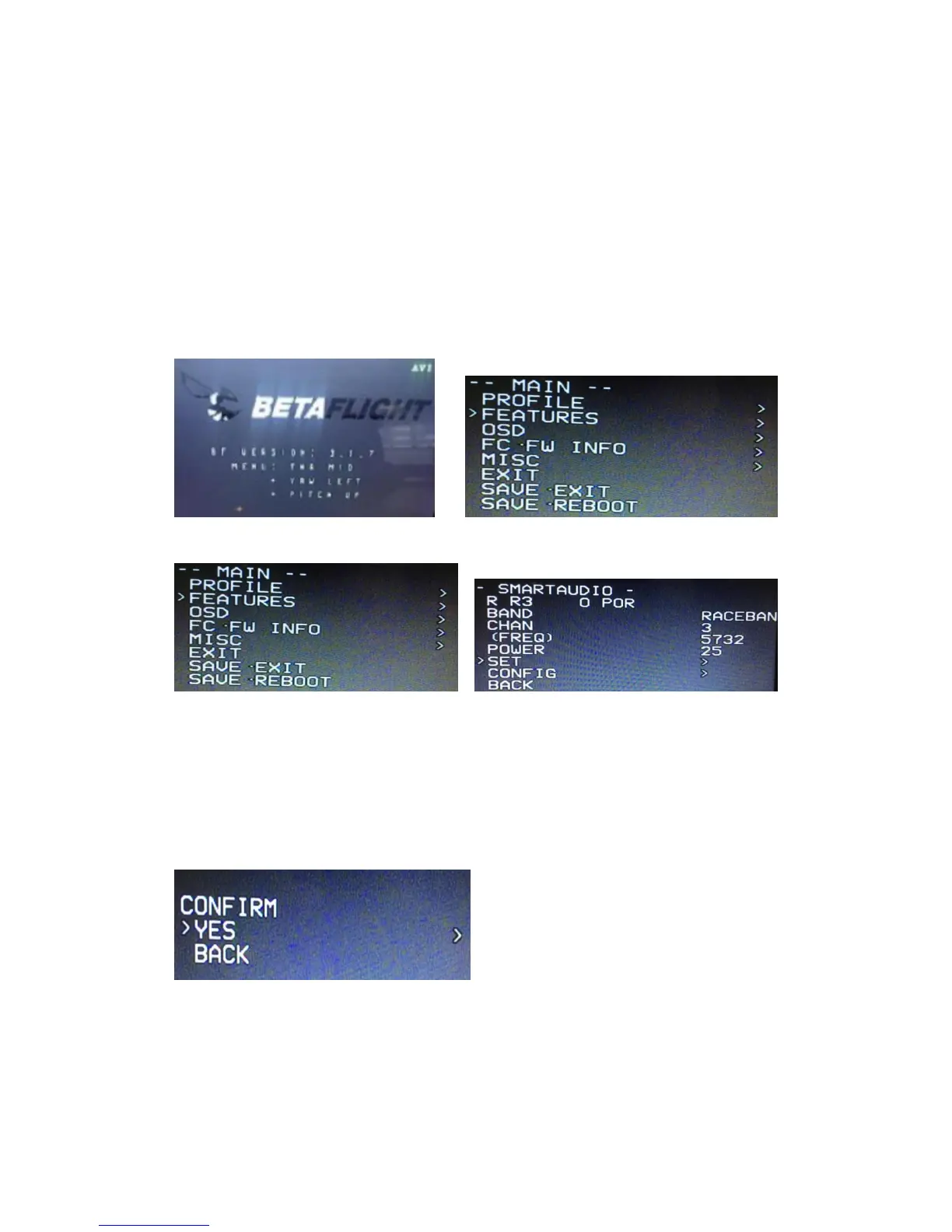
2. Follow the tips on screen to enter the main settings menu: THROTTLE MID+ YAW
LEFT+ PITCH UP to enter OSD parameter adjustment menu. as shown in Figure 2.
3. In the menu interface, switching PITCH up/down to choose menu option. Move the
cursor to “FEATURES” and stir Roll stick right to enter next menu. Using PITCH stick
to move cursor to “VTX SA”, as shown in Figure 3.Then pull ROLL stick right to enter
VTX configuration menu, as shown in Figure 4.
Figure 1 Figure 2
Figure 3 Figure 4
4. In the menu of VTX SA, we can configure the BAND, CHAN and POWER. Pulling
the PITCH stick to move cursor up and down to choose VTX options that need
setting. While pulling ROLL stick left and right to change the corresponding
parameters. Once the parameters is set, moving the cursor to “SET”, then turn ROLL
stick right to enter “SET” and choose “YES” and turn ROLL stick right to save setting
parameters, as shown in Figure 5.
Figure 5




 To Next Page