EasyManua.ls Logo

Emerson 1410 - User Manual

Emerson 1410
20 pages
Print Icon
To Next Page IconTo Next Page
Loading...
Quick Start Guide
00825-0200-4410, Rev CA
October 2014
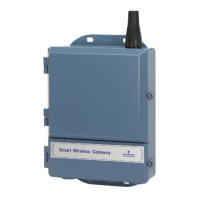
Emerson Smart Wireless Gateway 1410
00825-0200-4410_CA.fm Page 1 Thursday, October 16, 2014 6:44 PM

Other manuals for Emerson 1410

Questions and Answers

  • S
    Sheila RobinsonAug 17, 2025
    How to fix Emerson Gateway web browser page not found?
    • C
      Christy HardyAug 17, 2025
      If your web browser returns a 'page not found' error when trying to access the Emerson Gateway, follow these steps: 1. Ensure the Gateway and your PC/laptop are properly connected. 2. Confirm the Gateway is receiving adequate power (24 VDC nominal, 250 mA). 3. Identify which Ethernet port on the Gateway you are using. 4. Check the Gateway's IP address (default primary port is 192.168.1.10, default secondary port is 192.168.2.10, or for DeltaV™ Ready Gateway’s default primary port is 10.5.255.254, default secondary port is 10.9.255.254). 5. Make sure your PC/laptop's IP address is within the same subnet range as the Gateway (e.g., if the Gateway IP is 155.177.0.xxx, your PC/laptop IP should be 155.177.0.yyy). 6. Disable any proxy settings in your internet browser.
  • A
    Andrew NelsonAug 20, 2025
    What to do if I can't log into my Emerson 1410?
    • S
      Steven PottsAug 20, 2025
      If you're unable to log into the Emerson Gateway, verify that you are using the correct username and password. The default administrator username is 'admin' and the default password is 'default'. If you still cannot connect, consider resetting the Gateway.
  • K
    Kirk JohnsonAug 23, 2025
    How to find Emerson 1410 Gateway after IP address change?
    • K
      Katrina CollinsAug 23, 2025
      If you can't find the Emerson Gateway after changing the IP address, ensure that the IP address of your PC/laptop is in the same subnet range as the Gateway. For example, if the Gateway IP is 155.177.0.xxx, then the PC/laptop IP address should be 155.177.0.yyy. If problems persist, consider resetting the gateway to factory defaults.
  • K
    Kevin SmithAug 26, 2025
    Why doesn't my Emerson Gateway wireless device appear on the network?
    • D
      danielsjohnAug 26, 2025
      If a wireless device is not appearing on the network when using Emerson Gateway, check the following: * Verify the device has power. * Ensure the device is within effective communication range. * Confirm that the correct Network ID has been entered into the device.
  • M
    mthompsonAug 28, 2025
    Why doesn't my Emerson 1410 Gateway appear in AMS Wireless Configurator?
    • J
      Jay AdamsAug 28, 2025
      If the Emerson Gateway does not appear in AMS Wireless Configurator, take these steps: 1. Make sure the Security Setup Utility is installed on the same PC as AMS Wireless Configurator. 2. Set up a wireless network interface using the Network Configuration application. 3. Verify if the wireless network interface is configured for Secure Gateway Communications. 4. Check secure/unsecure AMS Wireless Configurator protocol settings in the Gateway by logging into the Gateway and navigating to SETUP > SECURITY > PROTOCOLS. 5. Restart the AMS Wireless Configurator data server by right-clicking on the AMS Wireless Configurator server icon in the Windows system tray (lower right corner) and selecting stop server.
  • H
    Heather AndersonAug 30, 2025
    How to troubleshoot Modbus RTU communication issues with Emerson 1410?
    • C
      Cheryl DennisAug 31, 2025
      If you are experiencing issues communicating using Modbus RTU with the Emerson Gateway, take the following steps: 1. Verify you are using RS-485. 2. Check the wiring connections. 3. Determine if termination or a pull-up is required. 4. Confirm that the Modbus serial communication settings in the Gateway match the Modbus Host settings by logging into the Gateway and navigating to SETUP > MODBUS > COMMUNICATIONS. 5. Verify the Modbus address for the Gateway. 6. Check the Modbus register mapping in the Gateway by logging into the Gateway and navigating to SETUP > MODBUS > MAPPING.
  • K
    Katrina LopezSep 3, 2025
    What to do if wireless devices don't appear under Emerson 1410 Gateway?
    • A
      Ann FieldsSep 3, 2025
      If wireless devices do not appear under the Emerson Gateway, verify that the wireless devices are connected to the Gateway by logging on to the Gateway and navigating to EXPLORER. Then, right-click on the wireless network and select rebuild hierarchy.
  • E
    Emily MitchellSep 5, 2025
    How to find Emerson Gateway using the Secondary Ethernet Port?
    • T
      Tiffany AndersonSep 5, 2025
      If you are unable to find the Emerson Gateway using the Secondary Ethernet Port, follow these steps: 1. Verify which Ethernet port is being used on the Gateway. 2. Check the IP address for the Gateway (the default secondary port is 192.168.2.10). 3. Ensure that the IP address of the PC/laptop is in the same subnet range as the Gateway (e.g., If the Gateway IP is 155.177.0.xxx, then the PC/laptop IP address should be 155.177.0.yyy). 4. Confirm that this option was ordered with the Gateway.
  • H
    Holly FitzgeraldSep 8, 2025
    Why are device configuration items grayed out on my Emerson 1410?
    • D
      Dana GuzmanSep 8, 2025
      If device configuration items are grayed out, verify whether current or historical information is being displayed. This setting is shown at the bottom of each device configuration screen; configuration requires the Current setting. Also, for security, a configuration timeout is applied to sessions idle for more than 30 minutes. Log back into AMS Wireless Configurator.
  • C
    Christian BryantSep 12, 2025
    Why does my Emerson 1410 Gateway wireless device appear with service denied?
    • X
      xbellSep 12, 2025
      If a wireless device appears with service denied, check the following: 1. Verify the total number of devices on the network (25 max). 2. Go to SETUP > NETWORK > BANDWIDTH and select analyze bandwidth (Note: any changes will require the network to reform). 3. Reduce the update rate for the device.

Summary

Wireless Considerations

Initial Connection and Configuration

Powering the Emerson Gateway

Instructions for wiring a 24 VDC power source to the Gateway terminals.

Establishing PC Connection to Gateway

Steps to connect a PC/Laptop to the Gateway's primary Ethernet port.

Gateway Network and Proxy Settings

Configuring IP address, subnet mask, and disabling proxies for PC connection.

Accessing Gateway Web Interface

Accessing and logging into the Gateway's web interface for initial setup.

Physical Installation

Connect to Host System

Wiring Gateway to Host Network;Serial

Instructions for wiring the Gateway's Ethernet or Serial output to the host system.

Software Installation (Optional)

Verify Operations

Verifying Gateway Operation via Web

How to verify gateway operation by accessing its web interface.

Emerson 1410 Specifications

General IconGeneral
ManufacturerEmerson
Model1410
Power Supply24 VDC
Operating Temperature-40°C to 70°C (-40°F to 158°F)
Communication PortsEthernet, Serial

Related product manuals