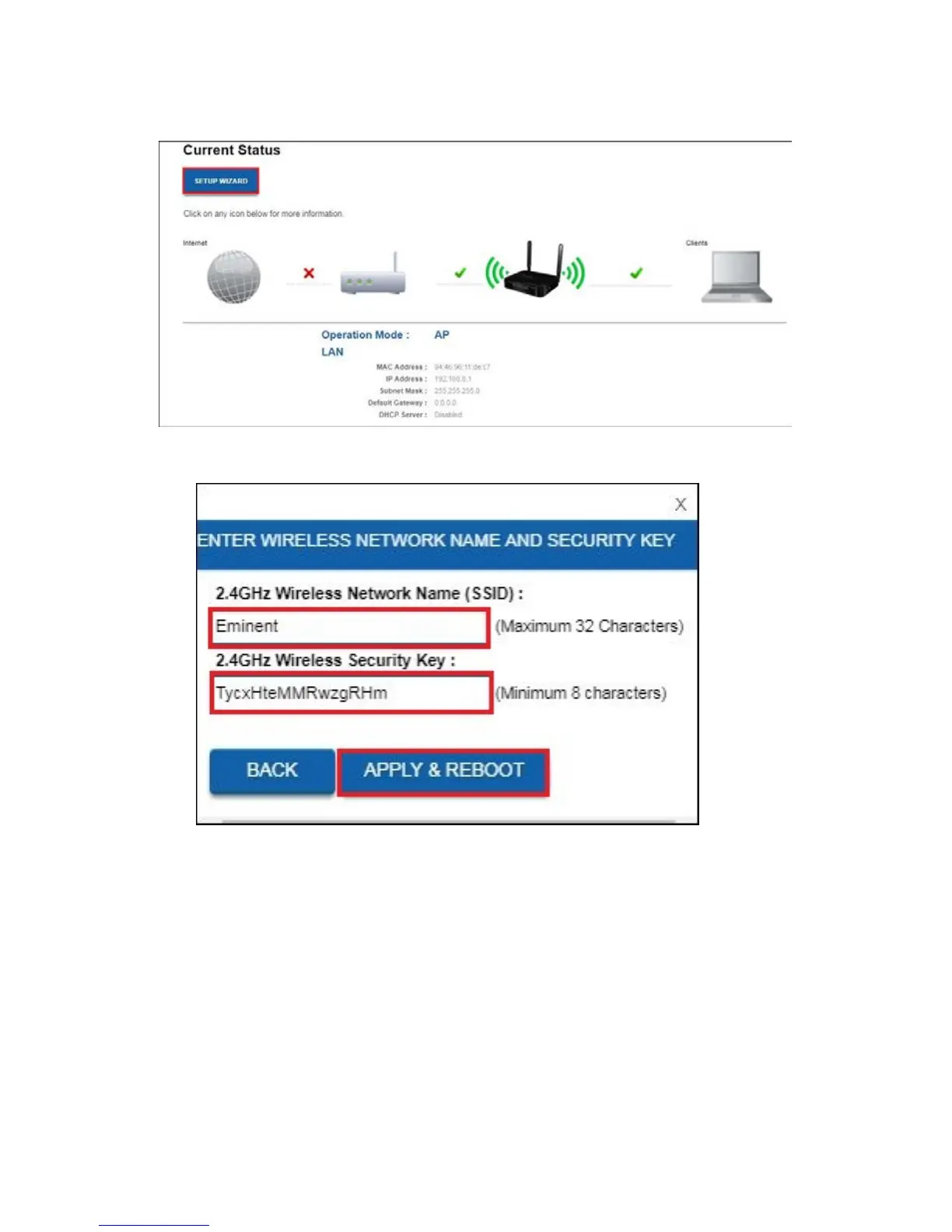
15. Select “Access Point” ( AP ) and click on the “Save” button. Your router will
reboot and apply the settings. You will see the following screen:
16. Click on “Setup Wizard”. You will see the following screen:
17. You can choose to keep the default SSID name and password or you can
change this to any SSID network name you prefer. For example we will use
Eminent_AP. Once you have finished these settings, click on “Apply & Reboot”.
18. You will see the note: Success!, press “OK”.
19. The router will now reboot and save and apply the settings.
20. Power off your EM4700 router. Connect your modem or other router to one of the
four LAN ports of the EM4700. Please make sure you do not connect the WAN
port. Turn on your router again.
21. Change from Static IP address back to Obtain automatically an IP address.
Please follow again steps 2 up to 7. At step 7 you choose for “Obtain
Automatically an IP address”.



 To Next Page