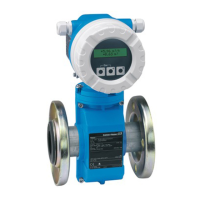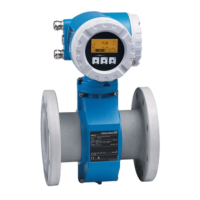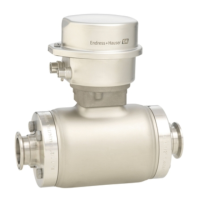
Why I'm not connecting to the web server of Endress+Hauser Measuring Instruments?
S
Scott White DDSSep 6, 2025
If you're unable to connect to the web server of your Endress+Hauser Measuring Instruments, it could be due to several reasons:
* The web server may be disabled. Use "FieldCare" or "DeviceCare" to check if the web server is enabled and enable it if necessary.
* There might be an incorrect setting for the Ethernet interface of the computer. Check the properties of the Internet protocol (TCP/IP) and verify the network settings with your IT manager.
* The IP address may be incorrect. Verify the IP address: 192.168.1.212.
* The WLAN access data may be incorrect. Check the WLAN network status, log on to the device again using the WLAN access data, and verify that WLAN is enabled on both the measuring device and the operating device.
B
Beverly HarrisNov 20, 2025
Why is the local display dark and there are no output signals on my Endress+Hauser Profibus Proline Promag H 500 Measuring Instruments?
J
Jennifer AllenNov 20, 2025
A dark local display with no output signals on your Endress+Hauser Measuring Instruments can occur due to several reasons:
* The supply voltage might not match the value indicated on the nameplate. If that's the case, apply the correct supply voltage.
* The polarity of the supply voltage could be wrong. Correct the polarity.
* There might be no contact between connecting cables and terminals. Check the cable connections and correct if needed.
* Terminals might not be correctly plugged into the I/O or main electronics module. Verify the terminals.
* The I/O or main electronics module could be defective. Consider ordering a spare part.
* The connector between the main electronics module and display module might not be plugged in correctly. Check the connection and correct if ne...
D
David BradleySep 18, 2025
How to configure firewall settings for firmware flashing with FieldCare/DeviceCare and Endress+Hauser Profibus Proline Promag H 500?
E
Emily BennettSep 18, 2025
If you're experiencing issues flashing firmware with FieldCare or DeviceCare via the CDI-RJ45 service interface (using port 8000 or TFTP ports) on your Endress+Hauser Measuring Instruments, the firewall on your computer or network might be blocking communication. You may need to adjust or disable the firewall settings to allow FieldCare/DeviceCare access, depending on your specific firewall configuration.
A
Amanda ReedSep 16, 2025
How to configure firewall settings for FieldCare/DeviceCare access with Endress+Hauser Profibus Proline Promag H 500 Measuring Instruments?
P
Paul HahnSep 16, 2025
If you are having trouble operating with FieldCare or DeviceCare via the CDI-RJ45 service interface (port 8000) with your Endress+Hauser Measuring Instruments, the firewall on your computer or network might be preventing communication. Depending on the firewall's settings, you may need to adapt or disable it to allow FieldCare/DeviceCare access.
P
Paul HicksSep 14, 2025
How to fix no display of contents in the web browser of Endress+Hauser Measuring Instruments?
K
Kathleen SteinSep 14, 2025
If you experience no or incomplete display of contents in the web browser while using Endress+Hauser Measuring Instruments, it could be due to:
* JavaScript not enabled or cannot be enabled. Enable JavaScript. Enter the specified IP address with '/basic.html' suffix as the IP address.
B
Brian BradleySep 12, 2025
What to do if the text on the local display of Endress+Hauser Profibus Proline Promag H 500 is in a foreign language?
S
stevenrobbinsSep 12, 2025
If the text on the local display of your Endress+Hauser Measuring Instruments appears in a foreign language that you cannot understand, it's likely that the incorrect operating language is configured. To change it:
1. Press the specified buttons simultaneously for 2 seconds to reach the "home position".
2. Press the specified button.
3. Set the desired language in the Display language parameter.
N
Norma KellySep 12, 2025
How to resolve content display issues in the web browser of Endress+Hauser Profibus Proline Promag H 500?
D
Dennis TuckerSep 12, 2025
If the content in your web browser is incomplete or difficult to read while accessing your Endress+Hauser Measuring Instruments, consider these solutions:
* You might not be using the optimum version of the web server. Use the correct web browser version and clear the web browser cache, then restart the web browser.
* The view settings might be unsuitable. Change the font size/display ratio of the web browser.
J
Jessica FitzgeraldSep 9, 2025
How to resolve a frozen web browser during operation with Endress+Hauser Profibus Proline Promag H 500 Measuring Instruments?
C
Christine Campbell DVMSep 9, 2025
If your web browser freezes and operation is no longer possible while using Endress+Hauser Measuring Instruments, it could be due to:
* An active data transfer. Wait until the data transfer or current action is finished.
* A lost connection. Check the cable connection and power supply. Refresh the web browser and restart if necessary.
C
Christina KellySep 7, 2025
What causes network connection issues with Endress+Hauser Profibus Proline Promag H 500 Measuring Instruments?
S
Shawn MyersSep 7, 2025
If you're experiencing network connection problems with your Endress+Hauser Measuring Instruments, such as an absent or unstable connection, consider the following:
* A weak WLAN network could be the cause. If the operating device is outside of the reception range, check the network status on the operating device. To improve network performance, consider using an external WLAN antenna.
* Parallel WLAN and Ethernet communication might be interfering. Check the network settings and temporarily enable only the WLAN as an interface.
G
Gina BrownAug 22, 2025
What to do if the Endress+Hauser Measuring Instruments device measures incorrectly?
W
whitesharonAug 22, 2025
If your Endress+Hauser Measuring Instruments device is measuring incorrectly, it could be due to a configuration error or because the device is being operated outside of its intended application. Try the following:
1. Check and correct the parameter configuration.
2. Observe the limit values specified in the "Technical Data".