43
the [Zoom Wheel] to highlight the desired language. Press the [Find/Enter] button to select
that option. A black box next to that option indicates that the option is ON.
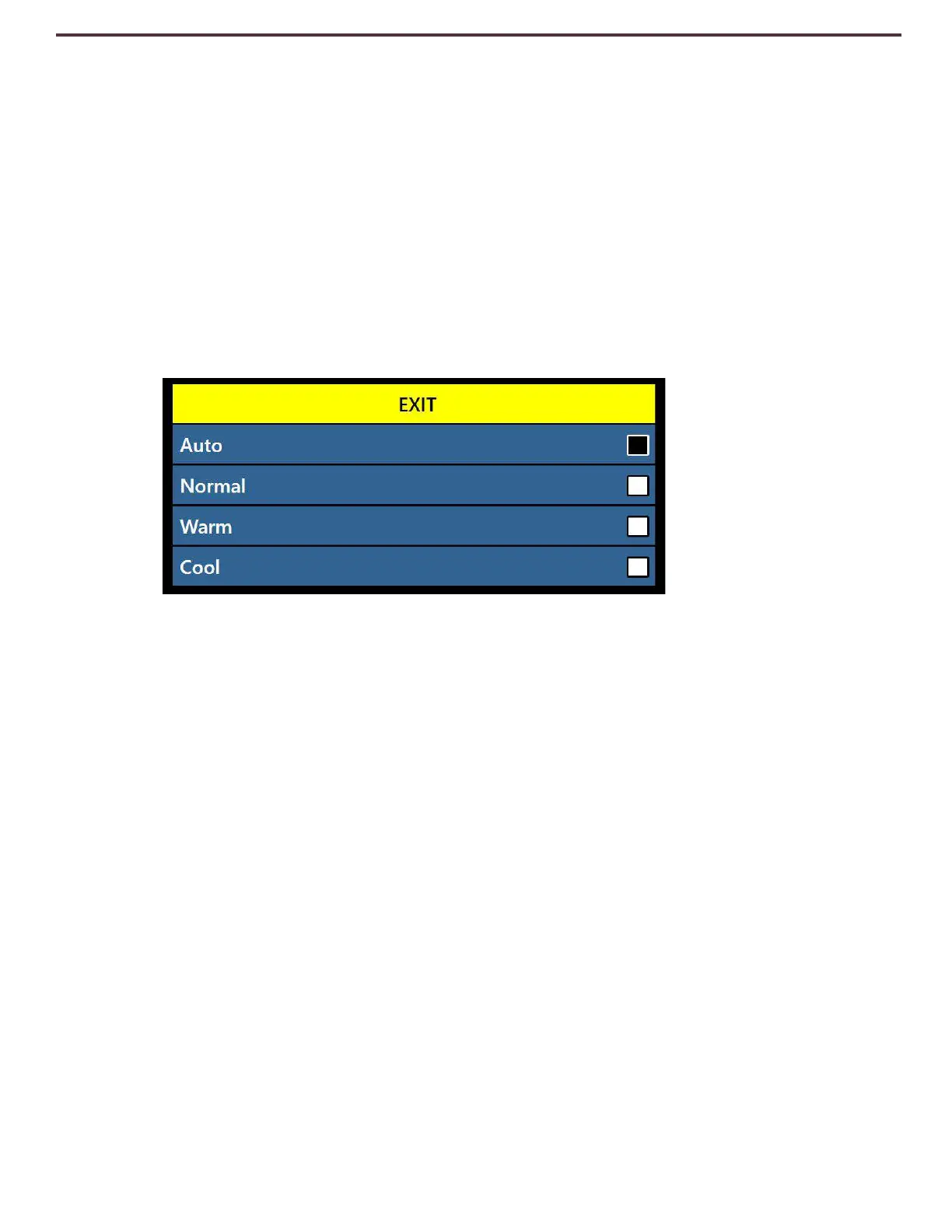
White Balance
This option configures the image temperature and affects the viewing characteristics of the CCTV
Image. There are 4 options:
• Auto – Automatically adjusted image for your environment.
• Normal – Vibrant True Color.
• Warm – Sets the image for Warmer tones, Deeper Red, Yellow, Etc.
• Cool – Sets the image for Cooler tones, Darker Blue, Purple, Etc.
Screen Saver
The screensaver sub-menu has 5 options you can configure. You can adjust the overall
screensaver time or toggle on which type of Screen Saver you would like to view. The screen
saver is activated after a certain time interval where the device is not in use.
• Set Screen Saver Time - This option configures how long the device must remain idle until it
enters into Screensaver Mode. The Options are 5, 10, 20 & 30 minutes.
• Off – This enables or disables image display on the screensaver and displays a blank screen.
• Company Logo – This enables or disables the Enhanced Vision animated Logo as a
screensaver.
• Pictures – This enables or disables the system using your saved pictures and cycling through
them as a screensaver
• Default – This enables or disables the system utilizing a pre-selected gallery of high quality
images as a screensaver.


 To Next Page