Selecting a Viewing Option
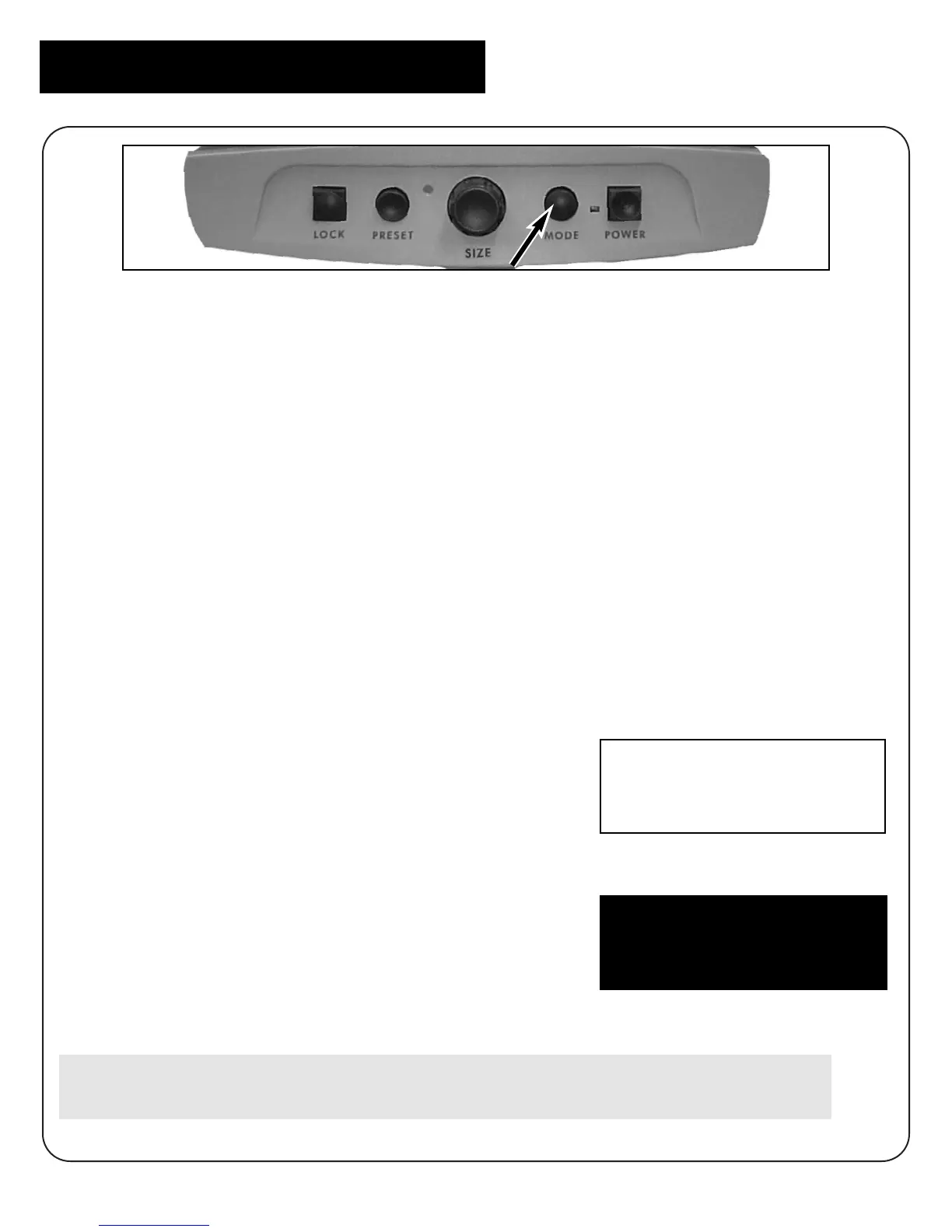
You can choose a viewing option by pressing the Mode button on the control
panel. Each push will change your viewing option. If you keep pressing the
button you will cycle through all four options. These options are:
Full Color Image
This mode is used most often because it gives you a true color representation
of the image that is being magnified. When Merlin is first turned on, it
displays the image in full color.
Black and White Image
Based on your preference, you can choose the black and white mode.
High Contrast Positive Image
This mode provides a white background with
black text. This mode increases the contrast to
offer crisp text images for reading.
High Contrast Negative Image
This mode provides a black background with
white text. This mode increases the contrast to
offer crisp text images for reading.
On the voice recognition model only, Merlin will verbally confirm the
viewing mode you have selected.
Changing Viewing Mode
10
Crisp, Clear
Text Images!
Crisp, Clear
Text Images!



 To Next Page