12
At the factory, your Merlin has been preset at magnification levels 4 and 11.
However, you can program Merlin to your two favorite levels, and change
those levels at any time.
Using the Preset Button
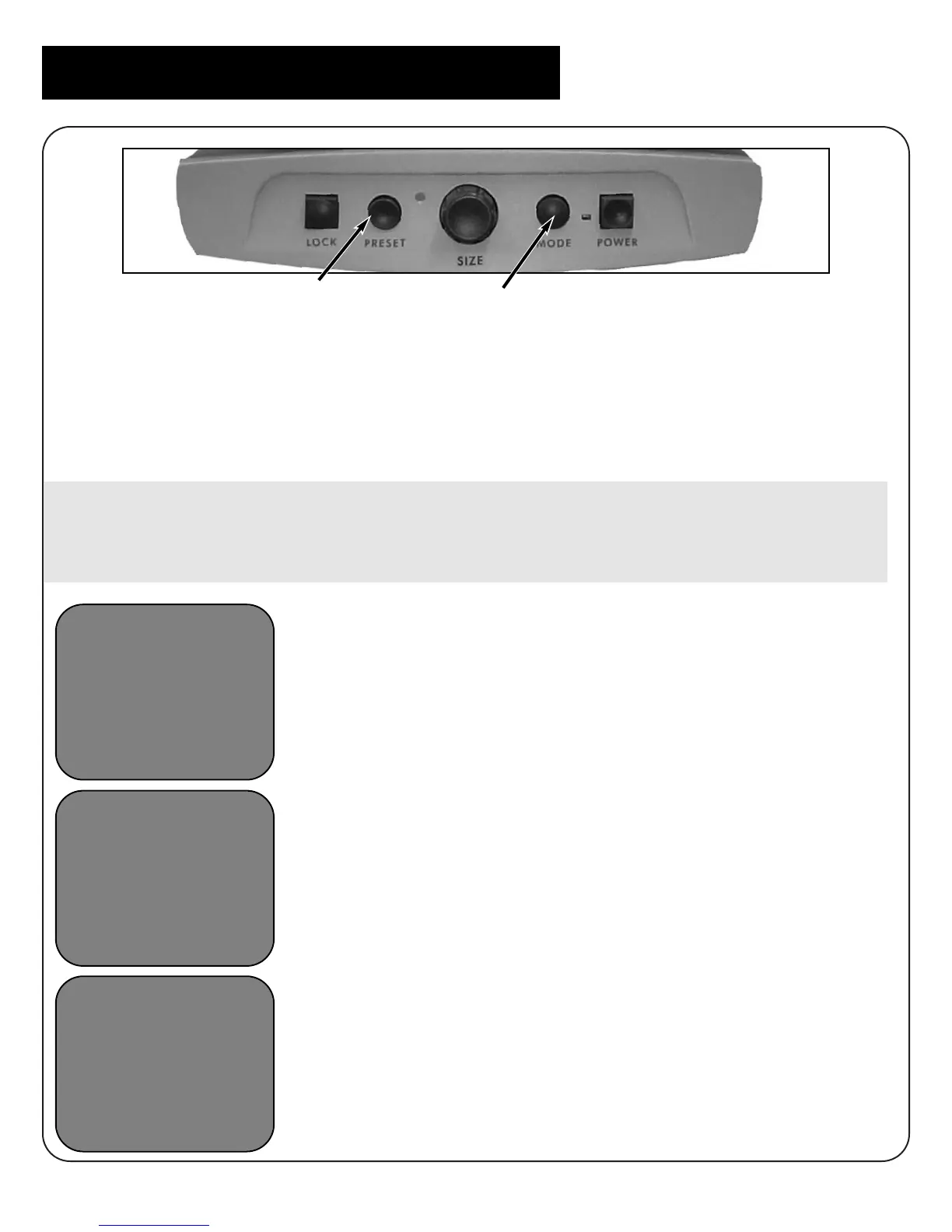
Merlin’s Preset Button is used for three operations: 1) to switch between
two different magnification presets; 2) to run the Object Locator feature;
3) to select an option when programming or training Merlin.
To Program Magnification Presets
1. Press and hold the Preset button (#1 above)
and then at the same time press and hold
the Mode button (#2). The words “PRESET
SETUP” will appear on your monitor.
2. Take your hands off the two buttons and
“SET PRESET 1” will appear on the monitor.
3. Turn the Size dial to any size you desire.
4. Press the Preset button once to make that
selection.
5. The monitor will now display “SET PRESET 2.”
6. Turn the Size dial to the second size you
desire.
7. Press the Preset button once again to make
that selection.
Setting Magnification Presets
PRESET-SETUP
SET-PRESET-1
SET-PRESET-2
#1
#2



 To Next Page