No Power to Merlin
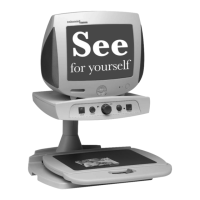
• Push the Power button on Merlin’s control panel. A green light next to the
Power button should turn on, indicating the power is ON.
• Make sure the power supply cord is completely plugged into an outlet.
• Make sure the two parts of the power supply cord are securely connected.
• Make sure the power supply cord is completely plugged into the DC 12V
IN jack on the back of the viewing stand base.
• Check the power strip/surge protector’s on/off switch and circuit breaker if
Merlin is plugged into one.
See Pages 6 - 7
No Power to Monitor
• Press the power button on the lower right corner on the front of the
monitor. A light will illuminate.
• Make sure the power cord is completely plugged into an outlet.
• Check the power strip/surge protector if the monitor is plugged into one.
See Pages 6 - 7
Blurred or Out-of-Focus Image
• Clean the protective glass covering the camera with the non-abrasive lens
cleaning cloth provided with your Merlin.
• Clean the monitor screen with a non-abrasive cloth sprayed with a glass
cleaning solution.
• Check the focus lock/auto focus button and switch to the other setting.
See Page 14
24
Troubleshooting


 To Next Page