EasyManua.ls Logo

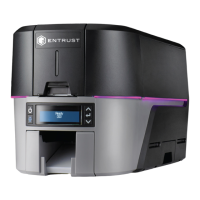
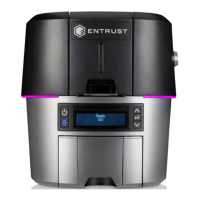
Entrust Sigma DS4 - User Manual

Entrust Sigma DS4
90 pages
Print Icon
To Next Page IconTo Next Page
Loading...
September 2023
528061-001, Rev E
User’s Guide
Sigma DS4 and DS4-ES1 Instant Financial
Issuance System

Table of Contents

Other manuals for Entrust Sigma DS4

Questions and Answers

  • C
    Christopher MccoyAug 21, 2025
    Why is nothing printing on my Entrust Network Hardware card?
    • J
      jasmine21Aug 21, 2025
      If nothing prints on the card, it might be because the print ribbon wasn't loaded correctly. Remove the print ribbon and install it again correctly. Alternatively, the page size might not be set to ISO ID-1. To fix this, use your card production application to access the printer’s print setup and select ISO ID-1 for the page size.
  • N
    Nicole Mendez DDSSep 4, 2025
    Why do the photos look faded when printed with my Entrust Network Hardware?
    • B
      Bryan BarnesSep 4, 2025
      If the photos look faded, you may need to adjust color settings because the image capture system needs adjustment.
  • T
    Tyler RodriguezSep 2, 2025
    How to fix color panel alignment issues on Entrust Network Hardware?
    • K
      Krista LiuSep 2, 2025
      To correct the alignment issue where one color panel is not aligned correctly with other color panels, first, try running a cleaning card. If the issue persists, ensure that the cards you are using meet the size requirement for the printer.
  • L
    Laurie MooreSep 1, 2025
    Why does the print quality change between cards on my Entrust Network Hardware?
    • A
      anna44Sep 1, 2025
      If the print quality changes from the previous card, it is likely because the ribbon type was changed while card jobs were still in the printer queue. To resolve this, allow all queued jobs to complete before changing the type of ribbon in the printer.
  • T
    Todd ThomasAug 30, 2025
    Why are there lines appearing on the cards printed by my Entrust Network Hardware?
    • L
      Lisa PowellAug 30, 2025
      If one or more lines appear on the card, it indicates that the printhead is either dirty or damaged. You should clean the printhead.
  • W
    whitejeffreyAug 29, 2025
    How to fix a loose network cable on Entrust Network Hardware?
    • Z
      zhillAug 29, 2025
      To fix a loose network cable, reconnect the data cable to both the network port and the printer. After reconnecting, restart the printer.
  • T
    Tricia MurrayAug 27, 2025
    How to fix color printing on top of black background issue with Entrust Network Hardware?
    • R
      Robert WrightAug 27, 2025
      To resolve the issue where color printing on top of a black background does not print on the card, change the 100% black background to a color near black. This ensures that it prints using the YMC (color) panels of the print ribbon.
  • C
    Christopher HickmanAug 27, 2025
    Why is part of the printed image discolored on my Entrust Network Hardware card?
    • W
      Whitney WilliamsAug 27, 2025
      If part of the printed image is discolored, it may be because the cards have fingerprints or other dirt on them, so handle cards carefully. It may also be caused by printing photos over signature panel residue, so design the card to avoid this. Another cause may be that the rollers are dirty or the card packaging contains debris, so run a cleaning card.
  • J
    Jessica MeltonAug 25, 2025
    What to do if my Entrust Network Hardware printed card has small unprinted areas?
    • D
      Danielle NguyenAug 25, 2025
      If the printed card has small unprinted areas, it could be due to several factors. Check the cards for scratches, and handle them carefully to avoid further damage. Ensure the cards meet the printer's requirements, as embedded particles, an uneven surface, or burrs on the card edge can cause this issue. Additionally, try running a cleaning card to address dirty rollers or debris from the card packaging.
  • B
    bobbycobbAug 23, 2025
    Why is the printing blurred on my Entrust Network Hardware?
    • C
      Cindy HillAug 23, 2025
      If printing appears blurred, it could be due to several reasons. First, ensure that the cards you are using have a glossy finish, as matte cards can cause blurring. Second, dirty rollers can also lead to blurred printing; try running a cleaning card to resolve this. Finally, a dirty printhead might be the culprit, so clean the printhead.

Summary

Chapter 1: Introduction

About this Manual

Provides user information for the Sigma DS4 and DS4-ES1 systems.

Technical Support Contact

Lists phone numbers for technical support by region.

Chapter 2: About the Printer

Printer Overview and Options

Describes printer functions, standard features, and available options.

Left Side Ports and Connections

Details Wi-Fi USB, Cable Lock, Power, USB-C, Data, Ethernet ports.

Front and Right Side Components

Covers input hopper, exception slot, front panel, output hopper, LED bar.

Inside the Printer Components

Identifies printhead, advance knob, ribbon handle, and ribbon systems.

Chapter 3: Using the Printer

System Overview and Equipment

Describes the card personalization system and its components.

Printer Control Panel

Explains front panel buttons and LCD navigation.

Loading Cards and Supplies

Instructions for loading blank cards into the hopper.

Replacing the Print Ribbon

Step-by-step guide to load a new print ribbon.

Using the Printer Dashboard

Guide to accessing and signing into the Printer Dashboard.

Chapter 4: Print Cards

Preparing for Card Printing

Requirements and considerations before starting card printing.

Printing from Issuance Software

Steps for sending card data to the printer using software.

Chapter 5: System Maintenance

Printer Cleaning Procedures

Explains when and how to clean the printer.

Cleaning Single-Hopper Printer

Steps to clean single-hopper printers.

Printhead Cleaning

Guide to cleaning the printhead edge with a swab.

Emptying Reject Tray

Procedure to remove rejected cards.

Chapter 6: Troubleshooting

Identifying and Resolving Basic Issues

Overview of troubleshooting steps and basic printer function checks.

Card Appearance and Printing Problems

Troubleshooting for issues like no print, color flaws, and light/dark printing.

Magnetic Stripe and Card Jam Troubleshooting

Addressing magnetic stripe errors and clearing card jams.

Printer Messages and Error Recovery

Comprehensive guide to printer messages and error recovery.

Entrust Sigma DS4 Specifications

General IconGeneral
Print Resolution300 dpi
Card Capacity Input Hopper100 cards
Card Thickness0.76 mm
Card SizesCR80 (85.6 mm x 54 mm)
ConnectivityUSB, Ethernet
Operating System SupportWindows
Encoding OptionsMagnetic Stripe, Smart Card
Power Supply100-240V, 50-60 Hz
Supported Card TypesPVC, Composite
Print CapabilitiesSingle and dual-sided printing

Related product manuals