To Next Page
H
Heather WareSep 8, 2025
What to do if the Entrust Network Hardware magnetic stripe is low-coercivity but the setting is high coercivity?
- Oolivia80Sep 8, 2025
Select low-coercivity encoding.



What to do if the Entrust Network Hardware magnetic stripe is low-coercivity but the setting is high coercivity?
Select low-coercivity encoding.
Why is the printing blurred on my Entrust Network Hardware?
If printing appears blurred, it could be due to several reasons. First, ensure that the cards you are using have a glossy finish, as matte cards can cause blurring. Second, dirty rollers can also lead to blurred printing; try running a cleaning card to resolve this. Finally, a dirty printhead might be the culprit, so clean the printhead.
What to do if my Entrust Network Hardware printed card has small unprinted areas?
If the printed card has small unprinted areas, it could be due to several factors. Check the cards for scratches, and handle them carefully to avoid further damage. Ensure the cards meet the printer's requirements, as embedded particles, an uneven surface, or burrs on the card edge can cause this issue. Additionally, try running a cleaning card to address dirty rollers or debris from the card packaging.
Why is part of the printed image discolored on my Entrust Network Hardware card?
If part of the printed image is discolored, it may be because the cards have fingerprints or other dirt on them, so handle cards carefully. It may also be caused by printing photos over signature panel residue, so design the card to avoid this. Another cause may be that the rollers are dirty or the card packaging contains debris, so run a cleaning card.
How to fix color printing on top of black background issue with Entrust Network Hardware?
To resolve the issue where color printing on top of a black background does not print on the card, change the 100% black background to a color near black. This ensures that it prints using the YMC (color) panels of the print ribbon.
What to do if my Entrust Network Hardware 'failed to lock'?
Make sure that all access doors are closed securely.
What to do if my Entrust Network Hardware printer doesn't have a magnetic stripe option?
Remove magnetic stripe data from the card or use a printer that has a magnetic stripe option installed.
What to do if my Entrust Network Hardware printer cannot use the installed ribbon?
Use ribbon designed for this printer.
Why does my Entrust Network Hardware card show wrinkles in darkly colored areas?
If the card shows wrinkles in darkly colored areas, it means the card includes very dark areas. To resolve this, change the design to use smaller areas of dark color.
Why do the photos look faded when printed with my Entrust Network Hardware?
If the photos look faded, you may need to adjust color settings because the image capture system needs adjustment.
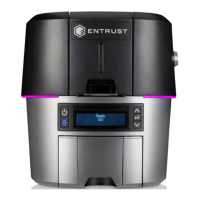
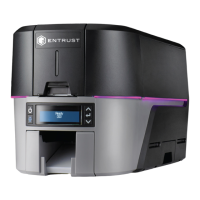
Details the printer's front panel controls: Power, User, and navigation buttons.
Provides steps to display and record the printer's IPv4 and IPv6 network addresses.
Instructions for printing a one-sided test card to verify printer functionality.
Guides on loading cards into single-hopper and multi-hopper printers.
Recommends regular cleaning for optimal printer performance.
Procedures for cleaning the printer using a cleaning card and rollers.
Instructions for cleaning the printhead edge with a swab to maintain print quality.
Steps to isolate issues with power, connectivity, and test card printing.
Addresses issues that may prevent successful printer installation, including network setup.
Troubleshooting common problems with card print quality, such as lines or blurriness.
Diagnosing issues related to magnetic stripe loading, encoding, and reading.
Procedures for safely removing jammed cards from the printer.
Explains common error codes and messages displayed on the LCD and Dashboard.
 General
| Print Technology | Direct-to-card dye-sublimation/resin thermal transfer |
|---|---|
| Print Resolution | 300 dpi |
| Connectivity | USB 2.0, Ethernet |
| Power Supply | 100-240 VAC, 50/60 Hz |
| Operating Temperature | 60°F to 95°F (15°C to 35°C) |
| Print Capabilities | Single-sided |
| Card Capacity | Input hopper: 125 cards; Output hopper: 25 cards |
| Card Thickness | 0.010 inches to 0.040 inches (0.25 mm – 1.016 mm) |
| Card Size | CR-80 (85.6 mm x 54 mm) |
| Operating System Support | Windows 10, Windows Server 2016, Windows Server 2019 |
| Operating Humidity | 20% to 80% (non-condensing) |