Setting Up the Document Camera 19
Before you start, make sure your document camera and computer(s)
are turned off.
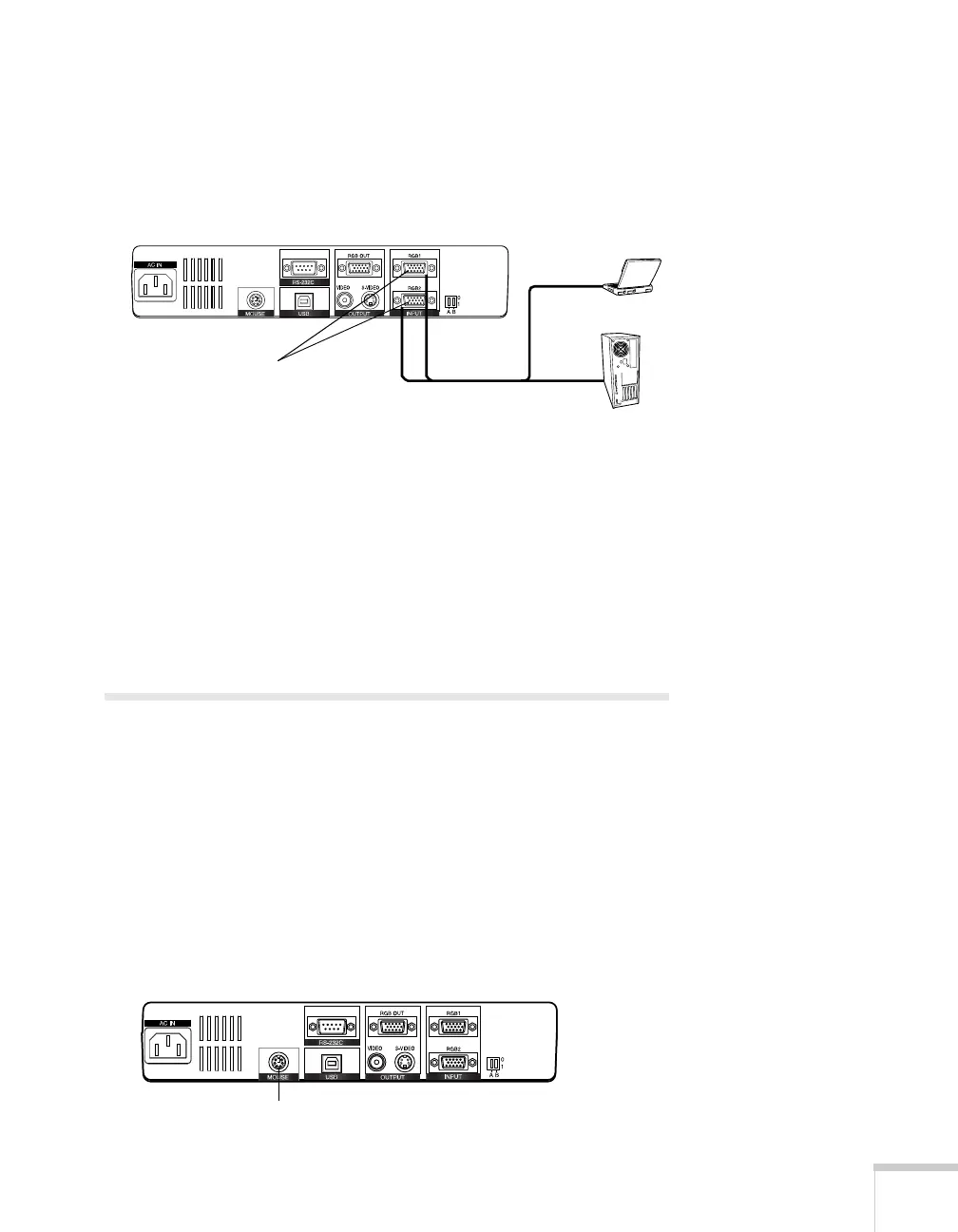
1. Connect one end of the RGB video cable to the
RGB1 INPUT
port on the document camera.
2. Connect the other end of the RGB video cable to your computer’s
RGB video output (monitor) port.
3. Tighten the screws on the connectors.
4. To connect a second computer, repeat the preceding steps, except
connect the RGB video cable to the
RGB2 INPUT port on the
document camera.
Connecting a Mouse
The mouse included with your document camera functions as a
pointing device. It also gives you access to the document camera’s
on-screen display, which controls many of the features that are
selectable from the remote control. (See page 30 for details about
using the on-screen display.)
1. Make sure your document camera is turned off.
2. Connect the mouse cable to the
MOUSE port on the back of the
document camera.
Computer
Laptop
RGB input ports
MOUSE port



 To Next Page