Using the Document Camera 29
Switching between Color and Black and White
Sometimes you may want to switch to a black and white image. For
example, a black and white display allows you to project text without
color interference, resulting in a sharper image.
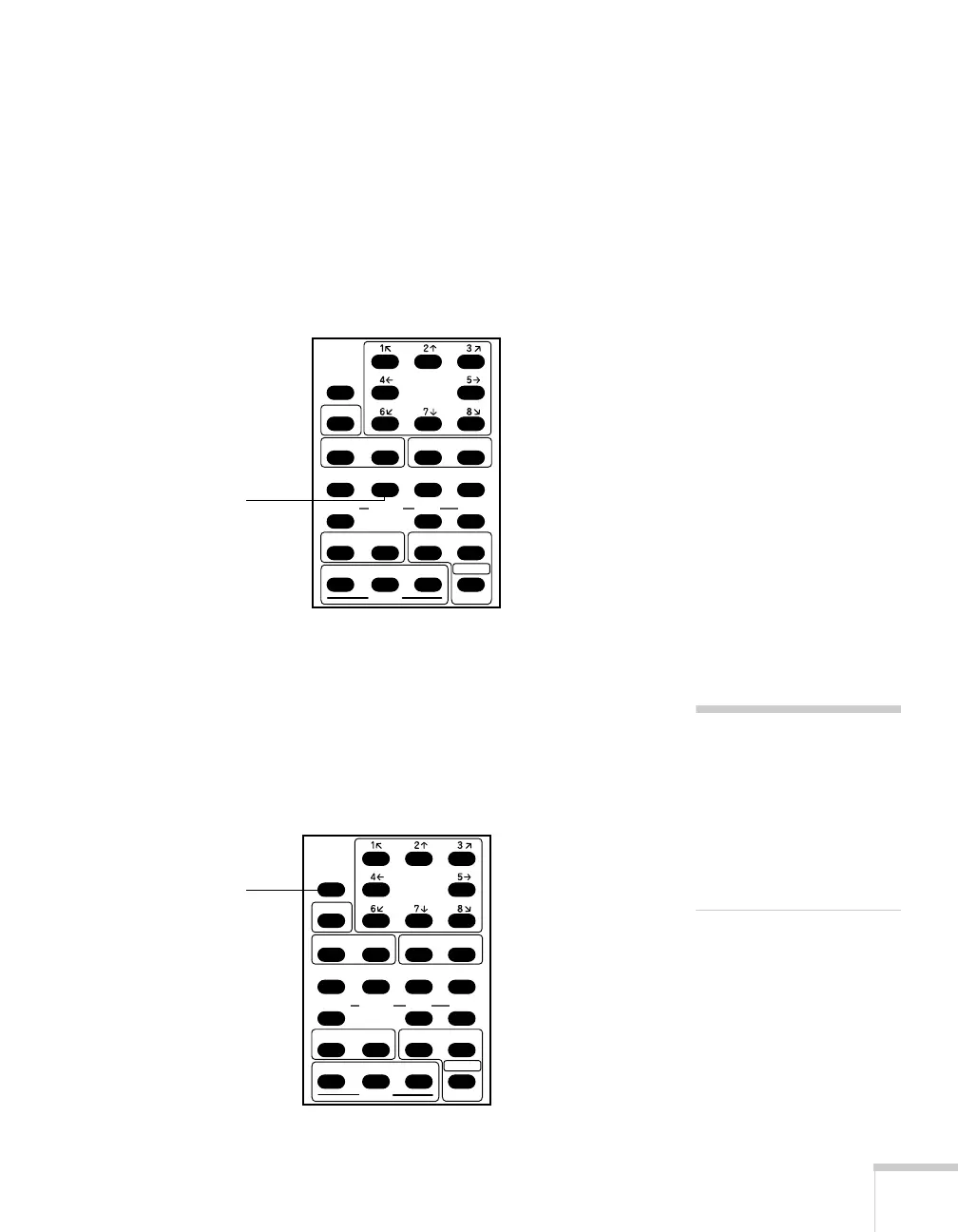
To switch from color to black and white, press the
COLOR/B&W
button on the remote control. Press it again when you want to switch
back to color.
Freezing the Image
During a presentation, it may be necessary to change the material you
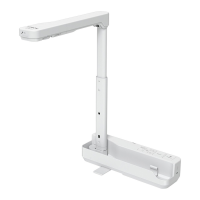
are displaying. Press the
PAUSE button before switching your
material. This freezes the image on screen, allowing you to change
your material. When you are ready to display the next item, press the
Pause button again.
PAUSE
LAMP
POSI/NEGA COLOR/B&W
IRIS
AF
2x
SET
RGB1 RGB2
NORMAL OPEN CLOSE
PRESET
CALL
TELE
ZOOM
MAIN
INPUT
WIDE
NEAR
FOCUS
FAR
UPPER BASE
SET
IMAGE
CALL
Switches between
color and black and
white display
note
The pause feature only works
when the document camera is
in the
MAIN display mode. It
does not work when the
document camera is in the
RGB1 or RGB2 display
modes.
PAUSE
LAMP
POSI/NEGA COLOR/B&W
IRIS
AF
2x
SET
RGB1 RGB2
NORMAL OPEN CLOSE
PRESET
CALL
TELE
ZOOM
MAIN
INPUT
WIDE
NEAR
FOCUS
FAR
UPPER BASE
SET
IMAGE
CALL
Freezes the image



 To Next Page