74
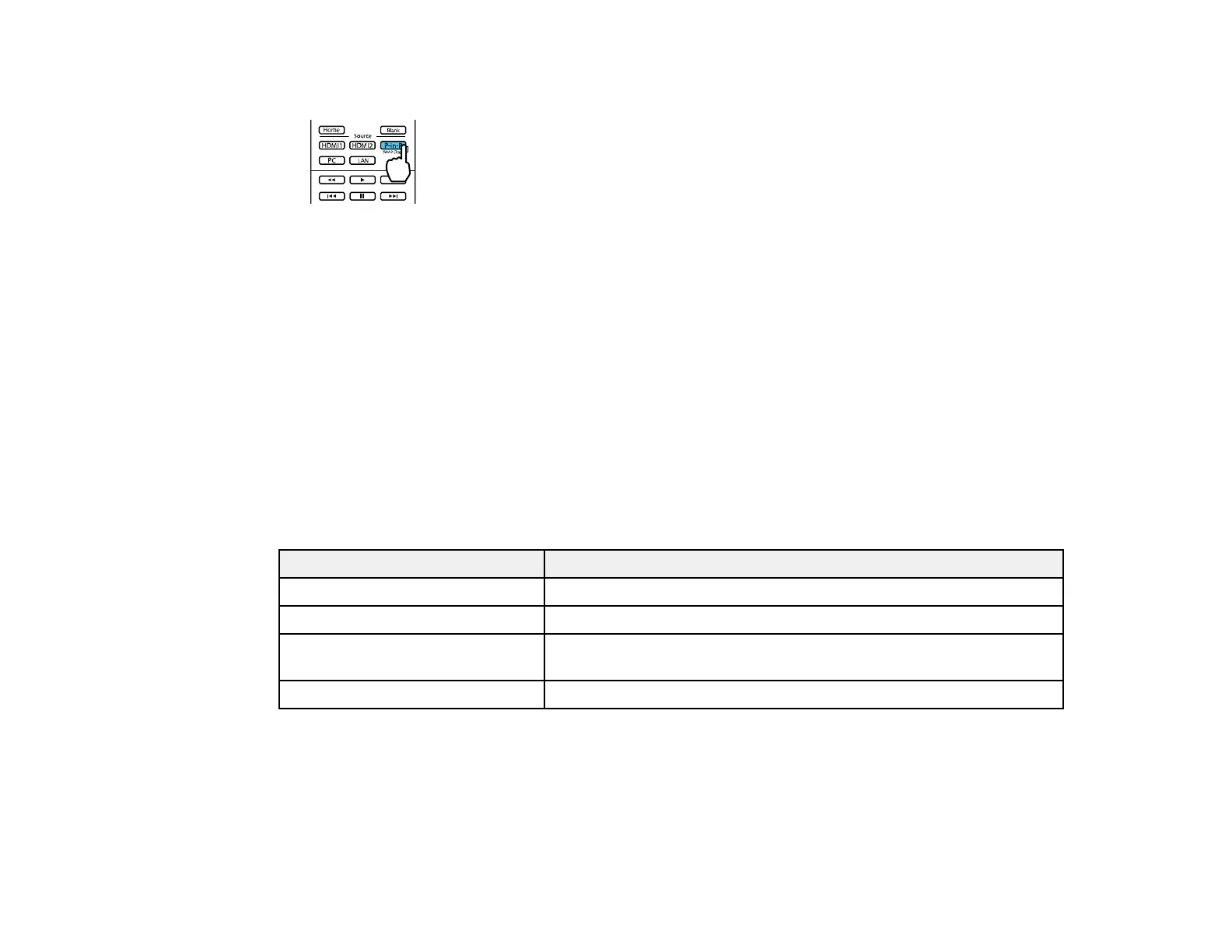
2. Press the P-in-P button on the remote control.
The second HDMI video source appears as a sub-screen in the corner of the image.
Note: Press the Menu button on the remote control to adjust picture-in-picture options.
3. To swap the main screen and sub-screen video sources, press and hold the P-in-P button for at
least three seconds.
4. Press the P-in-P button again to exit.
Available Picture in Picture Options
Parent topic: Adjusting Projector Features
Available Picture in Picture Options
You can adjust the following options by pressing the Menu button on the remote control while using
Picture in Picture:
Setting Description
Subscreen Size Adjusts the size of the sub-screen
Subscreen Position Adjusts the location of the sub-screen
Swap Main/Sub Switches the video source displayed on the main screen with the
source displayed on the sub-screen
Exit Picture in Picture Exits picture-in-picture mode
Parent topic: Using Picture in Picture












 To Next Page