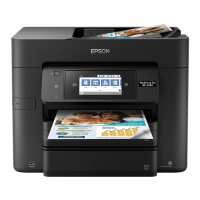
2. Open the front cover.
3. Remove any paper inside, including torn pieces.
Caution: Be careful to not touch any parts inside the product to prevent damage to it.
4. Close the front cover.
Note: If any torn pieces of paper remain in the product, select Setup > Maintenance > Remove
Paper after clearing the paper jam error.
5. Follow the prompts on the LCD screen to clear any error messages. If you still see a paper jam
message, check the other paper jam solutions.
Parent topic: Solving Paper Problems
369


 To Next Page
 Loading...